Wireless Apple CarPlay links your iPhone to a compatible car screen without using a USB cable.
If you have ever climbed into your car with your phone in your pocket and wished navigation, music, and calls would start at once, you will understand the appeal. This guide explains what is wireless Apple CarPlay, how it works, what you need, and how to fix common connection problems.
What Is Wireless Apple CarPlay?
Wireless Apple CarPlay is a system that lets your iPhone connect to a compatible vehicle without a Lightning or USB cable. It brings selected iPhone features to the car’s built-in display, touchscreen, speakers, microphone, and controls.
You can use Apple Maps, Apple Music, phone calls, messages, podcasts, and supported third-party apps. Siri handles many tasks, so you can keep your eyes on the road and your hands near the wheel.
In simple terms, wireless Apple CarPlay turns your car screen into a safer, simpler extension of your iPhone. It is not the same as screen mirroring. The system uses a driving-friendly interface made for quick taps, voice commands, and steering wheel controls.
How Does Wireless Apple CarPlay Work?
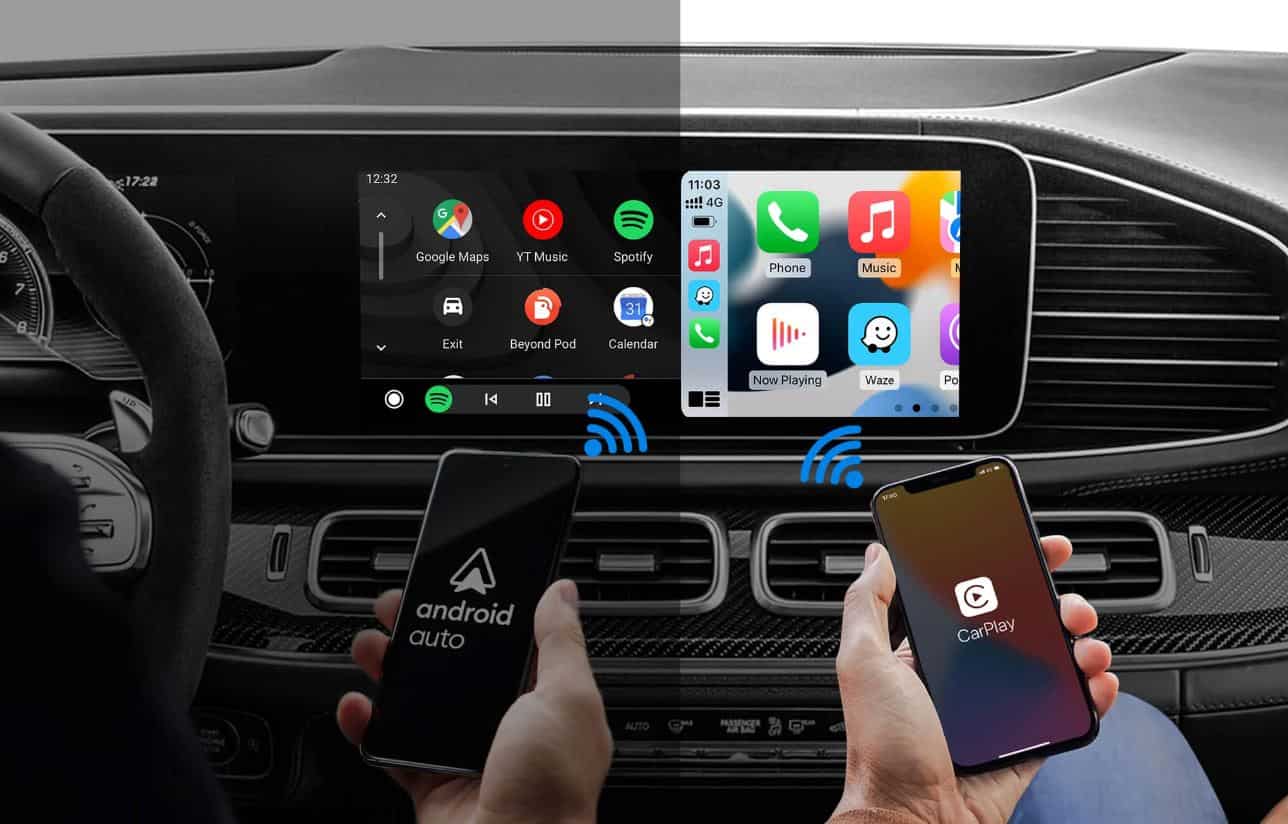
Wireless Apple CarPlay usually uses two wireless links. Bluetooth helps the iPhone and car find and pair with each other. After that, a private Wi-Fi connection carries the larger amount of audio, map, and interface data.
This is why wireless CarPlay can feel fast and smooth after the first setup. Bluetooth alone is not enough for the full CarPlay experience. The Wi-Fi connection gives the system the speed it needs for maps, music, and screen updates.
The car must have a compatible CarPlay receiver. A standard Bluetooth connection for music or calls does not automatically mean the vehicle supports wireless Apple CarPlay.
The system normally works like this:
- Your iPhone detects the vehicle.
- You confirm the pairing request.
- Bluetooth starts the connection.
- Wi-Fi takes over the main data link.
- The CarPlay dashboard appears on the vehicle screen.
- Siri, apps, and car controls work through the display.
Your iPhone still does most of the processing. The vehicle provides the screen, speakers, microphone, and control buttons. Think of the car as a smart window into your phone rather than a second iPhone.

What Do You Need for Wireless Apple CarPlay?
You need three main things: a compatible iPhone, a compatible vehicle or receiver, and the correct settings.
Apple CarPlay works with many iPhone models, including older models that support current or recent iOS versions. However, exact support can depend on the car, receiver, and software version. Check your vehicle manual and Apple’s current compatibility information before buying equipment.
Your car must support wireless CarPlay. Some vehicles support only wired CarPlay, while others support both wired and wireless connections. A car may also offer wireless phone charging without offering wireless CarPlay. These are separate features.
Before setup, check the following:
• Your iPhone has Bluetooth turned on.
• Wi-Fi is turned on.
• Siri is enabled.
• CarPlay is allowed under iPhone settings.
• The vehicle is parked during setup.
• The car’s infotainment system has the latest available software.
• The vehicle is not already connected to another driver’s phone.
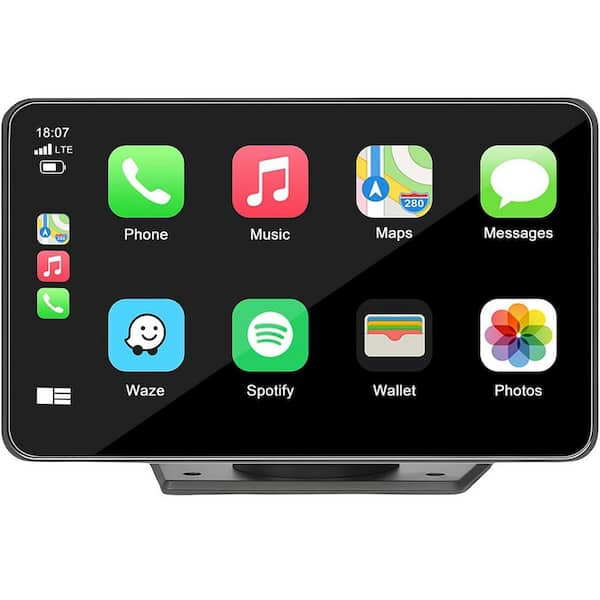
If your car has wired CarPlay but not wireless CarPlay, a certified wireless CarPlay adapter may add the feature. Adapter quality varies, and some create a short delay when starting the car. Read current reviews and confirm that the adapter supports your vehicle before purchasing it.
How to Set Up Wireless Apple CarPlay
Setting up wireless Apple CarPlay is often simple, but the exact menu names can differ by vehicle. Keep the car parked while pairing. This makes the process safer and helps prevent missed prompts.
Follow these general steps:
- Start the car and leave it in park.
- Turn on Bluetooth and Wi-Fi on your iPhone.
- Press and hold the voice command button on the steering wheel, if your car has one.
- Open the car’s phone or connectivity menu.
- Select your iPhone from the list.
- Accept the pairing request on both screens.
- Confirm the CarPlay prompt.
- Choose CarPlay from the vehicle’s menu if it does not open by itself.
Some cars ask you to connect through Bluetooth first. Others show a CarPlay pairing option right away. Read the screen prompts instead of trying to guess the next step.
Once pairing works, the phone should connect each time you start the car. The first connection may take a few seconds. If the vehicle supports multiple phones, set your preferred phone as the main or primary device.
A lesson I often see during setup is that people connect the phone for calls but never select CarPlay on the vehicle screen. Bluetooth pairing and CarPlay pairing can look similar, but they are not always the same action.
What Can You Do With Wireless Apple CarPlay?
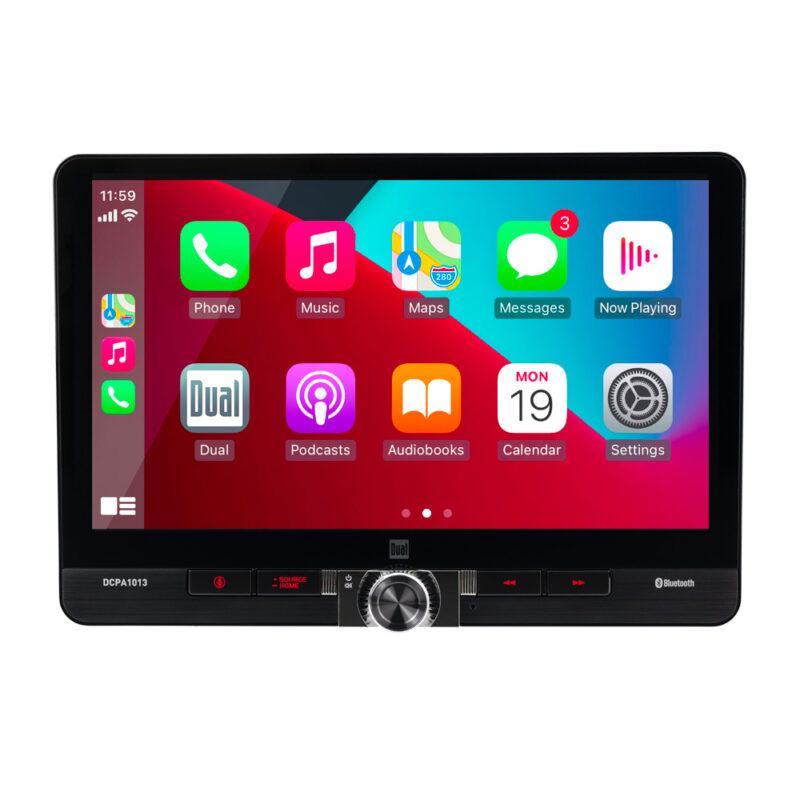
Wireless Apple CarPlay gives you access to useful driving features without holding your phone. The available apps depend on your iPhone, iOS version, vehicle, and app support.
Common features include:
Navigation
You can use Apple Maps and other supported navigation apps for turn by turn directions. The route appears on the car screen, and spoken directions play through the vehicle speakers.
Navigation apps may use mobile data. If you drive through an area with weak service, maps may load slowly unless you have saved map data in advance.
Music and Podcasts
You can play music, podcasts, audiobooks, and other supported audio content. You can change tracks with the touchscreen, steering wheel buttons, or Siri.
Wireless Apple CarPlay does not store your music in the car. Your iPhone usually streams or plays the content, so battery use and mobile data may increase.
Phone Calls
You can make and answer calls through the vehicle’s microphone and speakers. Siri can call a contact, read recent messages, or help you return a missed call.
Messages
Siri can read incoming messages and let you dictate a reply. This is safer than typing while driving, but voice commands can still distract you if you use them too often.
Siri
You can ask Siri for directions, music, weather, calls, and messages. Pressing the steering wheel voice button is often the fastest way to start a request.
Supported Third Party Apps
Many popular music, podcast, navigation, and messaging apps offer CarPlay versions. The car screen shows only apps that Apple and the app developer have designed for use in a vehicle.
Wireless Apple CarPlay vs. Wired Apple CarPlay
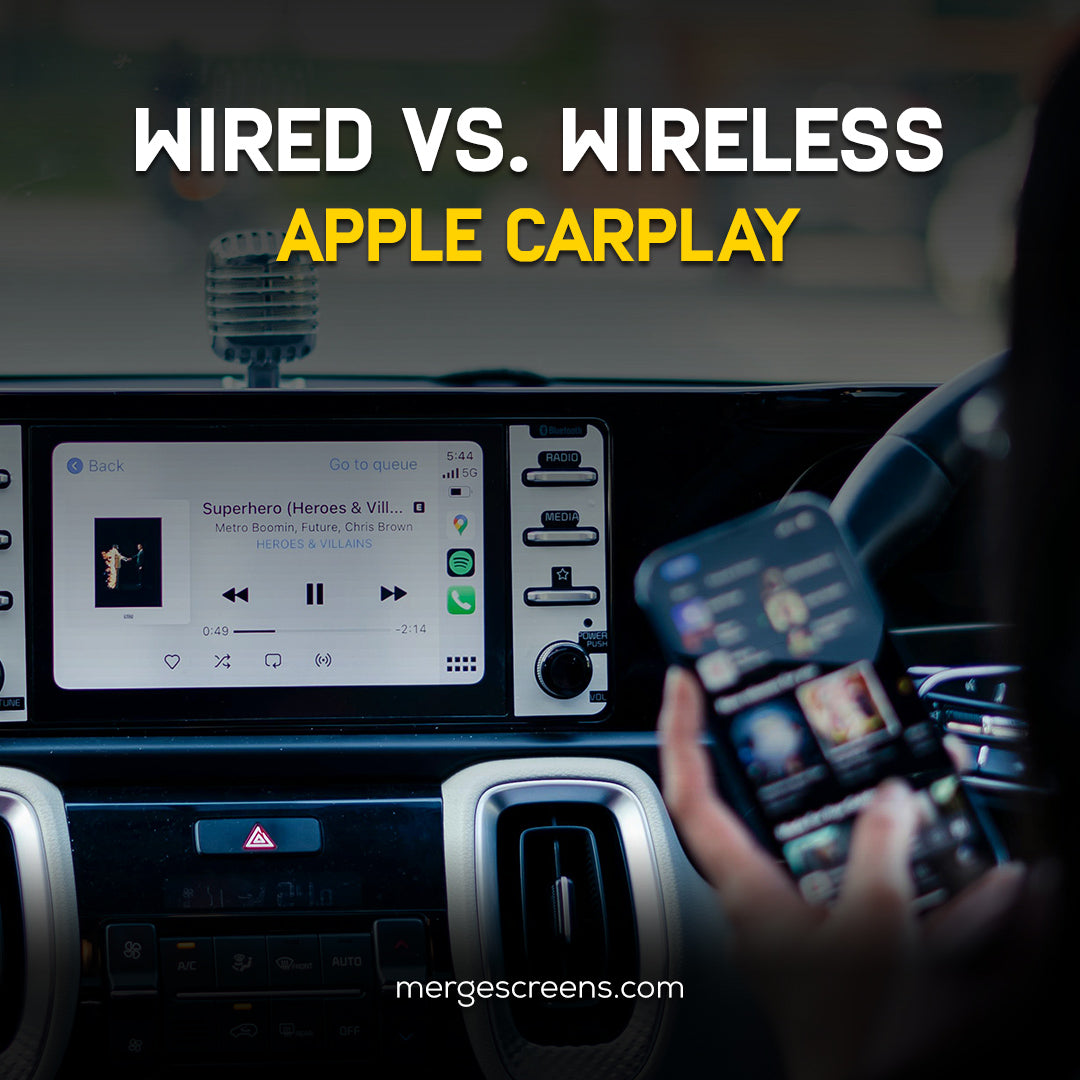
Both systems provide a similar CarPlay interface. The main difference is how the iPhone connects to the car.
Wired CarPlay uses a USB cable. Wireless Apple CarPlay connects through Bluetooth and Wi-Fi. This difference affects convenience, battery life, connection speed, and reliability.
| Feature | Wireless CarPlay | Wired CarPlay |
|---|---|---|
| Cable needed | No | Yes |
| Setup convenience | Very convenient after pairing | Simple when plugged in |
| Phone charging | Usually no charging | Usually charges the phone |
| Connection stability | Depends on wireless conditions | Often very stable |
| Battery use | Can use more battery | Charges during use |
| Best for | Short trips and daily ease | Long drives and steady charging |
Wireless CarPlay feels more natural for short trips. You can start the car and leave your phone in your pocket. Wired CarPlay may be better on a long road trip because the cable charges the phone and can provide a more consistent connection.
In real use, neither option is perfect for every driver. I recommend wireless CarPlay for daily errands and a quality cable in the glove box for long journeys or troubleshooting.

Benefits of Wireless Apple CarPlay
The biggest benefit is convenience. You do not need to search for a cable every time you enter the car. Once paired, the system can connect as soon as you start the engine.
Other benefits include:
• Less dashboard clutter from charging cables.
• Easy access to navigation and audio.
• Hands free calling and message support.
• Steering wheel and voice control.
• A familiar iPhone interface on the car screen.
• Less temptation to hold the phone while driving.
• Simple access for drivers who switch between short trips.
Wireless Apple CarPlay can also make an older vehicle feel more modern when installed through a compatible aftermarket receiver. However, the receiver must fit the vehicle’s dashboard and work with its wiring, speakers, steering controls, and backup camera.
The safety benefit comes from reducing phone handling, not from removing distraction completely. The National Highway Traffic Safety Administration continues to warn that phone use can take visual, manual, and mental attention away from driving. Use voice commands when possible, and set navigation before moving.
Limitations and Common Problems
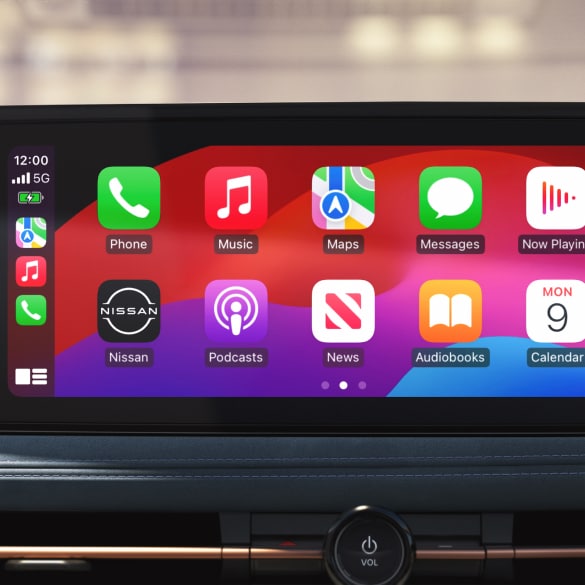
Wireless Apple CarPlay is useful, but it has limits. The most common issue is that it uses more iPhone battery than a wired connection. Wireless communication and screen use can be demanding, especially during navigation.
Other possible problems include:
• Slow connection after starting the car.
• Random disconnections.
• Audio delay.
• Wi-Fi conflicts with a personal hotspot.
• Several paired phones competing for connection.
• Outdated car or iPhone software.
• Poor performance from low quality adapters.
• Weak cellular service affecting maps or streaming.
A wireless connection can also be less predictable in busy radio environments. This is not common for every driver, but interference, software bugs, or a crowded Bluetooth device list can affect performance.
If CarPlay disconnects, try these steps:
- Confirm that Bluetooth and Wi-Fi are enabled.
- Make sure Siri is turned on.
- Restart the iPhone.
- Restart the car’s infotainment system.
- Forget the car in iPhone Bluetooth settings.
- Remove the iPhone from the car’s saved devices.
- Pair the devices again.
- Update the iPhone and vehicle software.
- Test with another compatible iPhone.
Resetting the connection often solves problems faster than changing many settings at once. If the issue continues with several phones, the vehicle receiver may need a software update or professional inspection.

Is Wireless Apple CarPlay Safe to Use?
Wireless Apple CarPlay can support safer driving because it places basic phone functions on the vehicle display and supports voice control. It may reduce the need to pick up your phone, search for a cable, or look down at a small screen.
Still, it is not risk free. Choosing music, reading a long message, or changing complex settings can distract you. Always prepare your route before driving, and pull over when you need to handle the phone.
Use these habits for safer driving:
• Start navigation before leaving.
• Use Siri for calls and messages.
• Keep notifications limited while driving.
• Avoid typing on the screen.
• Mount the phone only where it does not block your view.
• Pull over for complex tasks.
Wireless Apple CarPlay is a tool. It can reduce some risks, but it cannot replace good driving habits.
Is Wireless Apple CarPlay Worth It?
For many drivers, wireless Apple CarPlay is worth it because it removes a small daily annoyance. The automatic connection feels especially useful when you make many short trips.
It may not be worth paying a large upgrade cost if your current wired system works well. A wired connection can offer better charging and may be more reliable. The best choice depends on your driving time, phone battery habits, vehicle support, and budget.
Consider wireless CarPlay if:
• You often forget your charging cable.
• You take many short trips.
• Your car already supports the feature.
• You want less dashboard clutter.
• You use navigation and audio often.
Consider staying with wired CarPlay if:
• You drive for many hours each day.
• Your phone battery drains quickly.
• You want the most stable connection.
• Your car does not officially support wireless CarPlay.
• You do not want to buy an adapter.
If you choose an adapter, buy from a reliable seller and confirm compatibility. A cheap device can create more frustration than convenience.
Frequently Asked Questions About What Is Wireless Apple CarPlay
Does wireless Apple CarPlay use Bluetooth?
Yes. Bluetooth usually starts the pairing process, while Wi-Fi carries most of the CarPlay data. A car that supports Bluetooth calls does not necessarily support wireless Apple CarPlay.
Can I use wireless Apple CarPlay without Wi-Fi?
No, not for the normal wireless experience. The iPhone needs Wi-Fi enabled because wireless CarPlay uses a Wi-Fi connection after the initial Bluetooth pairing.
Does wireless Apple CarPlay charge my iPhone?
No. Wireless Apple CarPlay normally does not charge the phone. You can use a separate wireless charging pad or connect a charging cable while CarPlay runs wirelessly.
Why does wireless Apple CarPlay keep disconnecting?
Disconnections can result from outdated software, wireless interference, a crowded device list, low battery, or a faulty adapter. Restarting both devices, forgetting the connection, and pairing again often helps.
Can I add wireless Apple CarPlay to an older car?
Yes, in some cases. You may be able to install an aftermarket receiver or use a compatible wireless CarPlay adapter if the car already supports wired CarPlay.
Is wireless Apple CarPlay better than Android Auto?
Neither is best for every driver. Wireless Apple CarPlay is designed for iPhone users, while Android Auto is designed for Android phones; your phone and vehicle should guide the choice.
Does wireless Apple CarPlay work without cellular service?
Some basic functions may work without cellular service, but live navigation, streaming, traffic updates, and many online features need an internet connection. Offline map downloads can help in areas with weak service.
Conclusion
Wireless Apple CarPlay connects your iPhone to a compatible car screen without a cable. It uses Bluetooth for pairing and Wi-Fi for the main connection, giving you access to navigation, music, calls, messages, and Siri.
The system is convenient and can reduce phone handling, but it may use more battery and can sometimes need troubleshooting. Check vehicle compatibility, keep software updated, and choose wired CarPlay when you need steady charging for a long drive.
If your car supports it, try wireless Apple CarPlay for your daily trips and keep a reliable cable as a backup. Explore your vehicle’s manual, review its safety settings, and share your own CarPlay experience in the comments.