
Wireless CarPlay connects your iPhone to your car without a cable, using Bluetooth and Wi-Fi.
Learning how to use wireless CarPlay can make every drive feel simpler. You can access maps, calls, music, messages, podcasts, and Siri from your car’s display while your iPhone stays in your pocket. This guide explains setup, daily use, troubleshooting, safety tips, and the limits you should know before you begin.
What Is Wireless CarPlay?
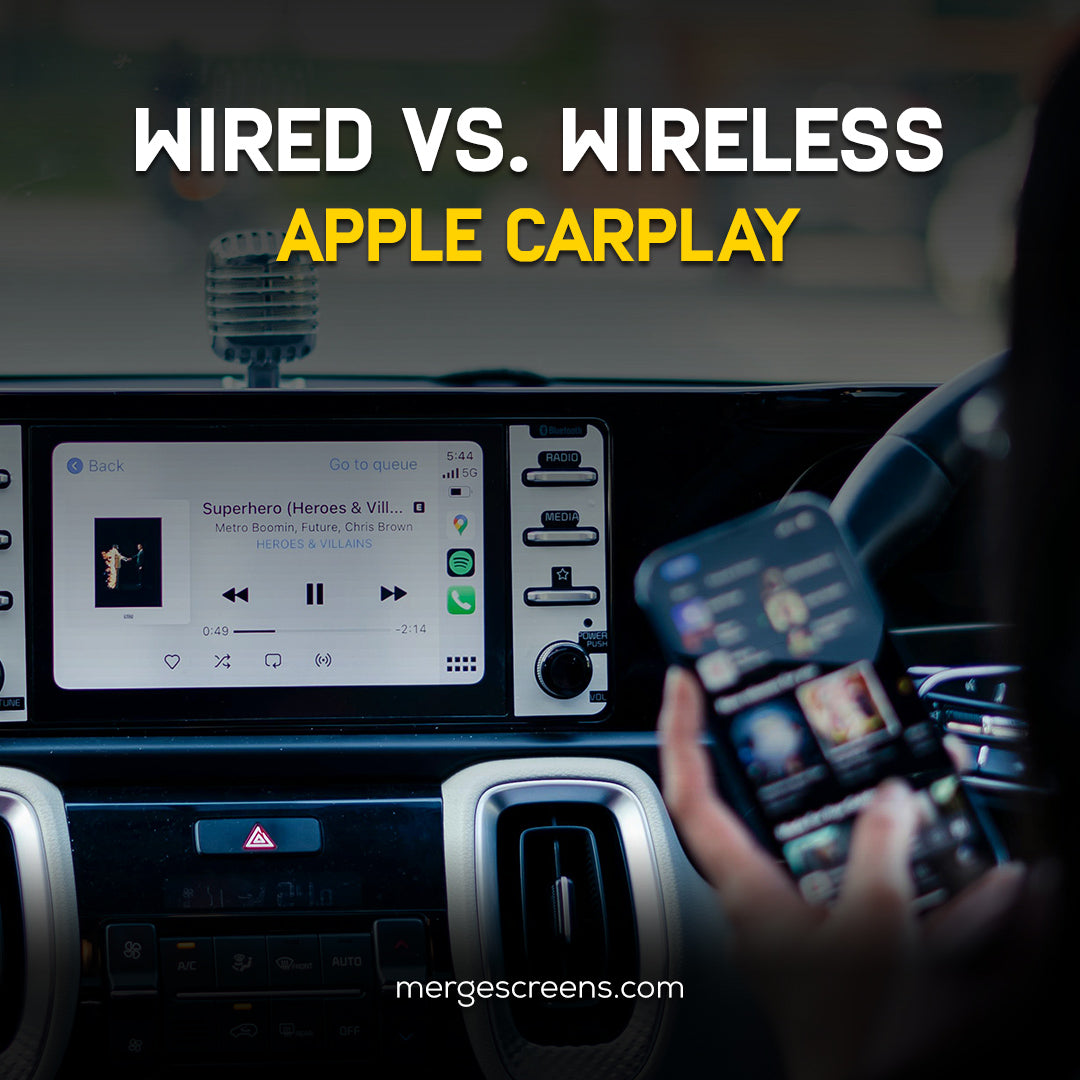
Wireless CarPlay is Apple’s in-car system for using selected iPhone features through a compatible vehicle screen. It creates a connection through Bluetooth for the first handshake and Wi-Fi for the main data link. Unlike wired CarPlay, it does not need a USB cable during normal use.
Wireless CarPlay does not mirror your entire iPhone screen. Instead, it shows driving-friendly apps that support CarPlay. These apps use large buttons, clear menus, and voice controls to reduce distraction.
You can usually use:
• Apple Maps, Google Maps, and Waze
• Phone calls and contacts
• Messages read aloud by Siri
• Apple Music, Spotify, podcasts, and audiobooks
• Calendar and selected compatible apps
• Siri for navigation, calls, music, and messages
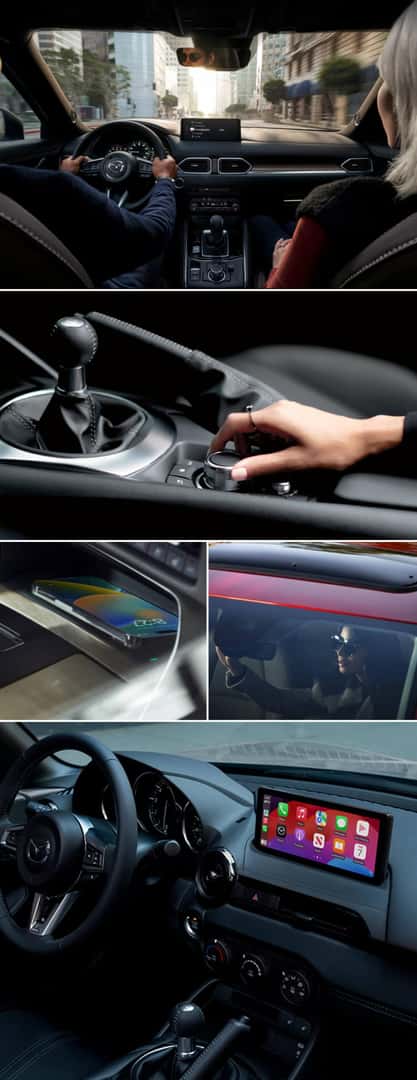
Your vehicle must support wireless CarPlay. Some cars support only wired CarPlay, while others support both wired and wireless connections. A wireless CarPlay adapter can add wireless access to some wired systems, but compatibility varies.
What You Need Before Setting Up Wireless CarPlay
Before learning how to use wireless CarPlay, check that your equipment meets the basic requirements. This quick check can prevent most setup problems.
You need:
• An iPhone 5 or newer model with a supported iOS version
• A vehicle or aftermarket stereo that supports wireless CarPlay
• Bluetooth turned on
• Wi-Fi turned on
• Siri enabled
• Your vehicle parked during setup
To check Siri, open Settings on your iPhone, select Siri or Apple Intelligence & Siri, and make sure the feature is active. The wording can vary by iOS version.
You should also check your car’s manual or the stereo maker’s website. Look for terms such as “wireless Apple CarPlay,” “CarPlay wireless,” or “wireless smartphone integration.” Do not assume that a car with a touch screen supports wireless CarPlay.
Keep your iPhone updated when possible. Software updates often improve connection stability, app support, and security. However, an update cannot add wireless CarPlay to a vehicle that lacks the needed hardware.

How to Set Up Wireless CarPlay for the First Time
The exact menu names may differ between car brands. Still, the general process for how to use wireless CarPlay is similar in most vehicles.
Step 1: Start the car and open the CarPlay menu
Turn on the vehicle and wait for the infotainment system to load. Open the phone, connectivity, or smartphone integration menu.
Some cars show a button labeled “Add Phone.” Others ask you to press a voice command button on the steering wheel. If you are unsure, check the vehicle manual.
Step 2: Put the car into pairing mode
Choose the option to connect a new phone. Your car should appear as a Bluetooth device on your iPhone.
On your iPhone, open:
- Settings
- Bluetooth
- The name of your vehicle or stereo
Tap the vehicle name and confirm the matching code on both screens.
Step 3: Approve CarPlay
After Bluetooth pairing, your iPhone may display a request to use CarPlay. Tap Allow. You may also see an option to allow CarPlay while the phone is locked.
Accepting this option makes daily use easier. You will not need to unlock the iPhone each time you start the car.
Step 4: Choose your vehicle in CarPlay settings
If the CarPlay screen does not appear, open Settings on your iPhone and go to:
Settings > General > CarPlay
Select your vehicle from the list. Follow any remaining instructions on the screen.
Step 5: Wait for the wireless connection
The first connection may take up to a minute. Once setup is complete, the CarPlay dashboard should load on the vehicle display.
The next time you start the car, your iPhone should connect automatically if Bluetooth and Wi-Fi are active.

How to Use Wireless CarPlay While Driving
Once you know how to use wireless CarPlay, the main controls are easy to learn. The system works much like a simple tablet built into your dashboard, but it is designed for safer use on the road.
Use the CarPlay dashboard
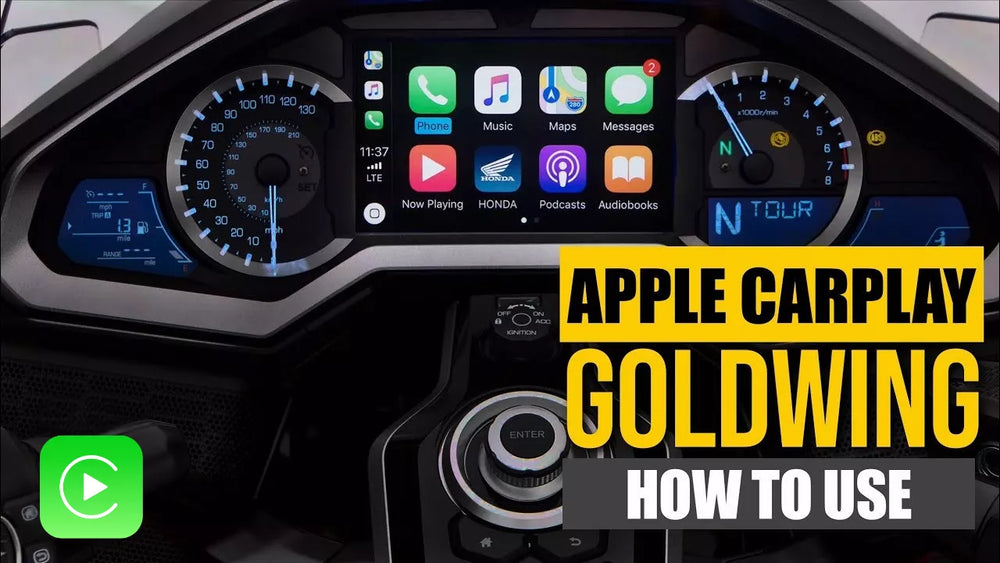
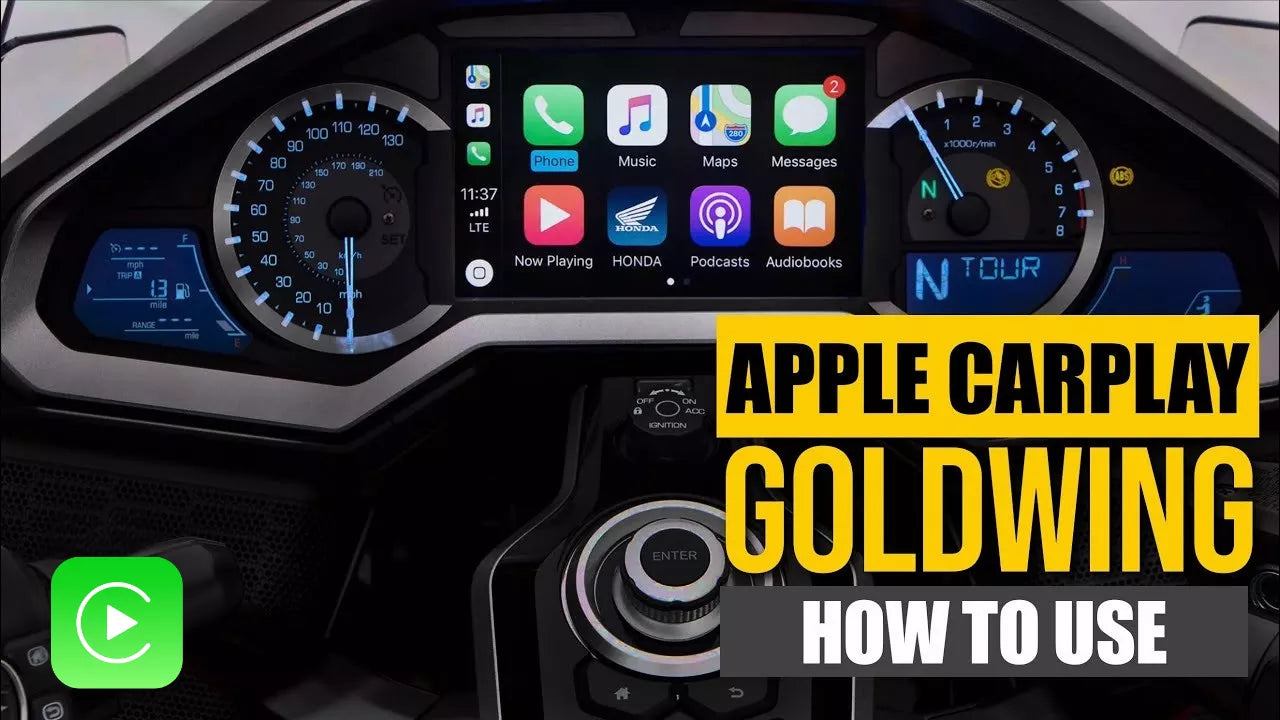
The dashboard can show navigation, music, suggested routes, and other information at the same time. Tap an app icon to open it, or use the vehicle’s control knob if the touch screen is hard to reach.
Many systems include a Home button. Tap it to return to the CarPlay app screen. Some vehicles use a physical button instead.
Use Siri for hands-free control
Siri is one of the best parts of wireless CarPlay. Press and hold the voice command button on the steering wheel, then speak naturally.
Try commands such as:
• “Take me to the nearest gas station.”
• “Call Mom.”
• “Play my driving playlist.”
• “Read my messages.”
• “Send a message to Alex.”
Wait for Siri to finish before speaking again. Clear commands help, but you do not need to use special phrases every time.
Use navigation apps
Apple Maps is built into CarPlay, but you can also use Google Maps or Waze if those apps are installed on your iPhone. Open your preferred app before driving or ask Siri to start a route.
Make sure the destination is correct before moving. A good habit is to set your route while parked, then rely on voice guidance during the trip.
Manage messages and calls
CarPlay can announce incoming messages and let you reply by voice. Siri reads the message, then waits for your response if you choose to reply.
For calls, select a contact or use Siri. Avoid browsing contacts or typing while the vehicle is moving. Even a short glance at a screen can reduce your awareness of traffic.
How to Customize Wireless CarPlay
You can arrange CarPlay apps from your iPhone. This makes the screen less cluttered and places your most useful apps within easy reach.
Open:
Settings > General > CarPlay > Your Car > Customize
From there, you can:
• Add or remove supported apps
• Move apps into a different order
• Restore the default layout
• Choose which apps appear on the CarPlay screen
Put navigation, phone, music, and podcast apps near the front. You may also want to remove apps you never use.
Some vehicles let you change the CarPlay wallpaper or switch between light and dark appearance. CarPlay may also follow your iPhone’s appearance settings or the car’s lighting system.
You cannot customize every part of the interface. Apple controls many design features to keep the system consistent and easier to use across different vehicles.
Benefits of Wireless CarPlay
The biggest benefit of wireless CarPlay is convenience. You can enter the car, start the engine, and begin driving without searching for a cable.
Other benefits include:
• Fewer cables around the center console
• Easy access to navigation and music
• Hands-free calling and messaging
• Voice control through Siri
• A familiar interface for iPhone users
• Automatic connection in many vehicles
• Support for several navigation and audio apps
Wireless CarPlay is especially helpful for short trips. You do not need to connect and disconnect your phone each time you run an errand.
It also keeps your phone available for charging elsewhere. If your vehicle has a wireless charging pad, you can charge the iPhone while CarPlay runs over the wireless connection.
That said, wireless CarPlay can use more battery than a wired connection. On long trips, connect your iPhone to a charger if the battery begins to drop.

Wireless CarPlay Limitations to Know
Wireless CarPlay is useful, but it is not perfect. Knowing its limits helps you set realistic expectations.
First, compatibility depends on the car, stereo, iPhone, software, and network environment. Two vehicles with similar screens may behave very differently.
Common limitations include:
• Wireless connection problems in crowded areas
• Faster iPhone battery drain
• A short delay when the system first connects
• Limited app support
• No full iPhone screen mirroring
• Different controls across car brands
• Possible problems after software or stereo updates
Wireless CarPlay also depends on cellular service for many online features. If you drive through an area with weak service, live traffic, streaming music, and online searches may stop working.
Do not use CarPlay to watch videos while driving. Most video apps are blocked for safety, and attempts to bypass those limits can create serious risks.

How to Fix Common Wireless CarPlay Problems
If wireless CarPlay does not connect, stay calm. Most problems come from pairing settings, weak permissions, or an outdated connection record.
Try these steps in order:
- Make sure Bluetooth and Wi-Fi are turned on.
- Confirm that Siri is enabled.
- Restart the iPhone.
- Restart the vehicle’s infotainment system.
- Check that the car is in wireless pairing mode.
- Move the iPhone closer to the dashboard during setup.
- Remove old phones from the vehicle’s paired device list.
- Update the iPhone and the vehicle stereo if updates are available.
- Forget the vehicle on the iPhone and pair it again.
To remove the connection from your iPhone, open Settings > General > CarPlay. Select your vehicle and tap Forget This Car. Then repeat the pairing process.
If the screen stays blank, try wired CarPlay if your vehicle supports it. A wired connection can help show whether the issue involves wireless pairing or CarPlay itself.
For continuing problems, check the vehicle maker’s support instructions. Some systems require a factory reset or a specific firmware update. A dealer or qualified stereo installer may be needed if the system has a hardware fault.

Tips for a Better Wireless CarPlay Experience
Small habits can make wireless CarPlay faster and more reliable.
• Keep your iPhone in the front of the vehicle, not in a closed bag or trunk.
• Use a strong phone mount so you can see directions without looking down.
• Set destinations and playlists before leaving.
• Keep Siri enabled for hands-free control.
• Remove old phones that no longer use the vehicle.
• Charge your iPhone during long drives.
• Use a trusted USB cable when wired CarPlay is needed.
• Avoid installing unknown wireless adapters without checking compatibility.
One practical lesson is to test the system before a long road trip. Take a short drive around town and try navigation, calls, music, and voice commands. This gives you time to fix problems before you are far from home.
Another useful tip is to learn the physical controls in your car. A steering wheel voice button or rotary knob may be safer and faster than reaching for the touch screen.
Wireless CarPlay Adapters: Do They Work?
A wireless CarPlay adapter can convert some wired CarPlay systems into wireless systems. You plug the adapter into the car’s USB CarPlay port, pair your iPhone with the adapter, and let the adapter handle the wireless connection.
These adapters are not universal. They normally require a vehicle that already supports wired CarPlay. They may not work with a car that supports only standard Bluetooth calling and music.
Before buying one, check:
• Your car’s model year and stereo system
• Whether wired CarPlay works through the USB port
• The adapter’s supported iPhone and iOS versions
• Return and warranty terms
• Reports about connection delays and call quality
A cheap adapter may connect well but fail during phone calls or take a long time to start. Choose a product with clear compatibility details rather than relying only on a general claim that it “works with CarPlay.”
Safety and Privacy Tips
CarPlay is designed to reduce the need to handle your phone, but it cannot remove every distraction. Set up your route, music, and contacts before you move.
Use voice controls whenever possible. If you need to change a complex setting, pull over in a safe place.
For privacy, remember that paired phones may remain in the vehicle’s memory. Remove your phone from the car before selling the vehicle or returning a rental. You should also delete old phones from the car’s device list.
CarPlay may display contact names, recent calls, messages, and navigation suggestions. Keep your iPhone passcode protected, and do not pair it with unfamiliar systems unless you trust the vehicle.
Traffic laws differ by state and location. Follow local hands-free driving laws and your vehicle’s instructions. No phone feature is worth risking a crash.
Frequently Asked Questions About How to Use Wireless CarPlay
How do I turn on wireless CarPlay?
Turn on Bluetooth, Wi-Fi, and Siri on your iPhone. Then pair the iPhone with a compatible vehicle through the car’s Bluetooth or smartphone integration menu and approve CarPlay when prompted.
Why is wireless CarPlay not connecting automatically?
Check that Bluetooth and Wi-Fi are active and that your vehicle is selected under Settings > General > CarPlay. Restart both devices, remove old paired phones, and pair the iPhone again if the problem continues.
Can I use wireless CarPlay with any car?
No. The vehicle or stereo must support wireless CarPlay. Some cars support only wired CarPlay, but a compatible wireless adapter may work if the car already has wired CarPlay.
Does wireless CarPlay use cellular data?
CarPlay itself uses a wireless connection between the iPhone and vehicle, but many features use cellular data. Streaming music, live traffic, online searches, and cloud-based messages may use your mobile data plan.
Can I use Google Maps with wireless CarPlay?
Yes. Google Maps supports CarPlay when it is installed on the iPhone and allowed in CarPlay settings. Waze and other compatible navigation apps can also work.
Does wireless CarPlay drain the iPhone battery?
It can use more battery than a wired connection because the iPhone maintains Bluetooth and Wi-Fi links. For long trips, use a vehicle charging pad or connect a charging cable.
How do I disconnect wireless CarPlay?
You can turn off CarPlay from the vehicle’s screen, disable Bluetooth or Wi-Fi, or select another input source. To remove the pairing completely, choose your vehicle under Settings > General > CarPlay and tap Forget This Car.
Conclusion
Wireless CarPlay makes driving more convenient by bringing navigation, calls, music, messages, and Siri to your vehicle’s display. To use it, confirm compatibility, enable Bluetooth, Wi-Fi, and Siri, pair the iPhone, and approve the CarPlay connection.
The best results come from testing the system before a long trip, keeping your software updated, and using voice controls whenever possible. Set up your own wireless CarPlay connection today, then explore your vehicle manual and iPhone settings to make the experience fit your daily drive.