
To enable wireless CarPlay, pair your iPhone with your car through Bluetooth and Wi-Fi, then approve the CarPlay prompt.
Learning how to enable wireless CarPlay is simple once you know what your vehicle and iPhone need first. This guide explains compatibility, setup steps, fixes for common connection problems, adapter options, and tips for a smoother drive.
What You Need Before Enabling Wireless CarPlay
Wireless Apple CarPlay lets your iPhone connect to your car without a USB cable. It uses Bluetooth to begin the connection and Wi-Fi to carry data, such as maps, music, calls, and Siri commands.
The most important point is that your car must support wireless CarPlay. An iPhone alone cannot add wireless support to a vehicle that only accepts wired CarPlay.
Before you start, check these items:
• An iPhone 5 or newer with a current version of iOS
• A vehicle, stereo, or head unit that supports wireless Apple CarPlay
• Bluetooth turned on
• Wi-Fi turned on
• Siri enabled
• Your iPhone unlocked during the first setup
• Your vehicle parked in a safe place
To check Siri, open Settings on your iPhone, tap Siri or Apple Intelligence & Siri, and confirm that Siri is active. Menu names can vary slightly by iOS version.
You should also check your vehicle manual or the stereo maker’s website. Some cars support both wired and wireless CarPlay, while others support only wired CarPlay. A CarPlay logo on the screen does not always mean wireless CarPlay is available.

How to Enable Wireless CarPlay for the First Time
The first connection usually takes only a few minutes. Keep the car in Park, start the vehicle, and make sure the infotainment system is ready to add a phone.
Follow these steps to learn how to enable wireless CarPlay:
-
Start your car and open the vehicle’s infotainment settings.
-
Select an option such as Add Phone, Pair New Device, Phone Connection, or Bluetooth Setup.
-
On your iPhone, open Settings and tap Bluetooth.
-
Choose your car’s name from the list of nearby devices.
-
Confirm that the pairing code on your iPhone matches the code on the car display.
-
Approve the requests for contacts, notifications, and CarPlay access.
-
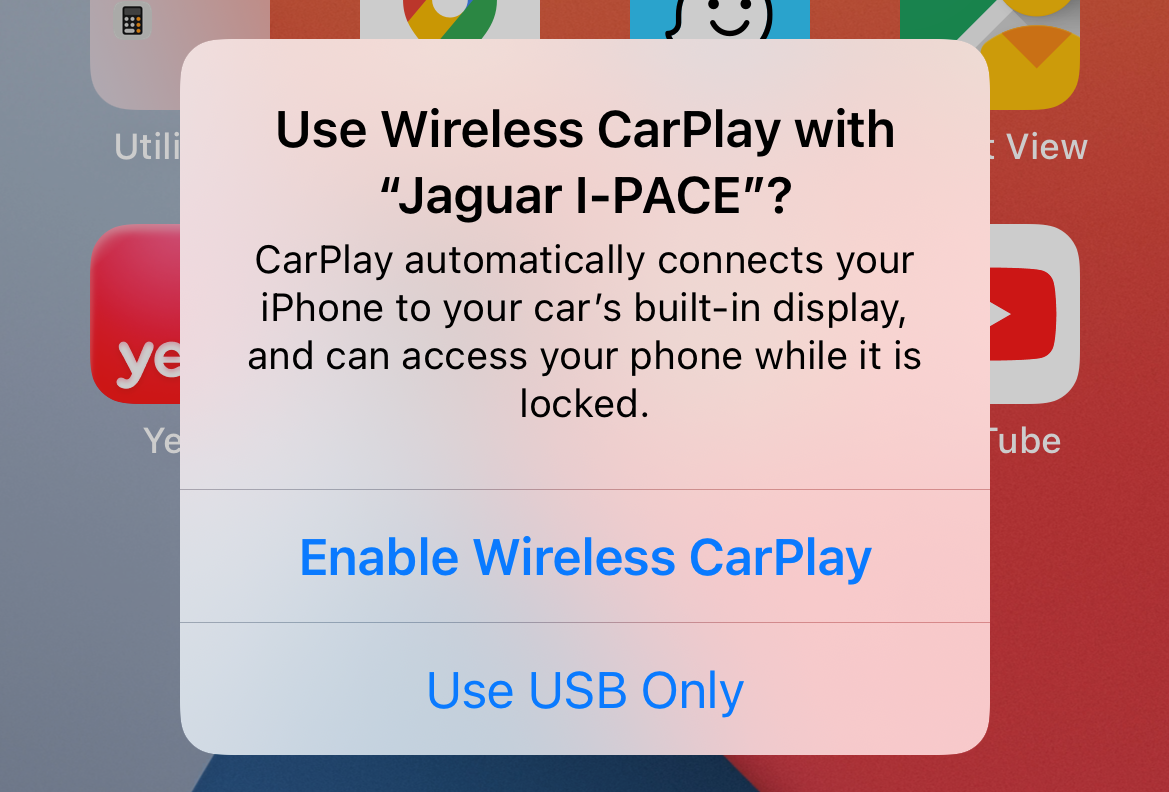
If the CarPlay prompt appears, tap Use CarPlay.
-
If no prompt appears, open Settings on your iPhone, tap General, then CarPlay.
-
Select your vehicle and follow the instructions on the screen.
Some vehicles ask you to press and hold the voice command button on the steering wheel. Others require you to select Apple CarPlay from the phone or connectivity menu.
Once the connection works, the CarPlay dashboard should appear on the display. You can then use Apple Maps, Google Maps, Waze, Apple Music, podcasts, phone calls, messages, and other approved apps.
The first setup is like introducing two people at a party. Bluetooth helps them meet, and the car’s Wi-Fi connection lets them continue the conversation with more speed and detail.

How to Enable Wireless CarPlay After the First Setup
After the first pairing, your iPhone should connect automatically when you start the car. Keep Bluetooth and Wi-Fi active, and do not remove the vehicle from your saved Bluetooth devices.
For future drives:
-
Start the car.
-
Wait for the infotainment system to load.
-
Make sure Bluetooth and Wi-Fi are enabled on your iPhone.
-
Unlock the iPhone if the car does not connect right away.
-
Tap the CarPlay icon if the system does not open it automatically.
You usually do not need to open the CarPlay app on your iPhone. CarPlay runs through the vehicle’s screen after the wireless connection is complete.
If you use more than one vehicle, your iPhone can remember several CarPlay systems. The phone may connect to the car that is already active or closest, but some vehicles may require you to choose the correct device manually.
A useful habit is to leave Wi-Fi and Bluetooth enabled. Turning both off after every drive can make wireless CarPlay seem broken when the real issue is simply that the phone is not available for pairing.

How to Check Whether Your Car Supports Wireless CarPlay
Vehicle support is the first thing to confirm when learning how to enable wireless CarPlay. Many cars made after the introduction of CarPlay support the wired version, but wireless support became common later and varies by trim level.
Check your owner’s manual for terms such as:
• Wireless Apple CarPlay
• Wireless smartphone integration
• Apple CarPlay over Bluetooth and Wi-Fi
• Wireless phone projection
• Smartphone connectivity
You can also look through the infotainment menu. A wireless CarPlay system may show options such as Add Wireless Device, Connect Smartphone, or Phone Projection.
Do not assume that a wireless charging pad means the car supports wireless CarPlay. Wireless charging and wireless phone projection are separate features.
Likewise, a car may offer Bluetooth phone calls and music but still require a USB cable for CarPlay. Bluetooth audio alone does not provide the full CarPlay interface.
If the manual is unclear, contact the automaker, dealer, or stereo manufacturer. Provide the exact model year, trim, and head unit version. Small changes between trims can affect CarPlay support.

How to Enable Wireless CarPlay on a Wired-Only System
If your car supports wired CarPlay but not wireless CarPlay, a wireless CarPlay adapter may help. These small devices plug into the vehicle’s USB CarPlay port and create a wireless bridge between the car and iPhone.
To use one:
-
Confirm that wired CarPlay works with a cable.
-
Buy an adapter designed for wireless Apple CarPlay.
-
Plug the adapter into the USB port that supports CarPlay.
-
Wait for the adapter’s name to appear in Bluetooth settings.
-
Pair your iPhone with the adapter.
-
Approve the CarPlay request.
-
Allow the adapter to connect automatically in the future.
A wireless adapter does not turn every car into a fully wireless system. It depends on the original wired CarPlay connection, so it usually will not work with a vehicle that has no CarPlay support at all.
Adapter quality also varies. Some add a short delay when changing songs or using Siri. Others may disconnect when the phone is far from the dashboard or when several wireless devices compete for the same connection.
In troubleshooting work, one of the most common mistakes is buying an adapter before testing wired CarPlay. Always connect the iPhone with a good cable first. If wired CarPlay does not work, the adapter will probably not solve the underlying issue.

How to Fix Wireless CarPlay When It Will Not Connect
Even after learning how to enable wireless CarPlay, connection problems can happen. Most are caused by pairing records, disabled settings, weak software support, or the wrong USB port when using an adapter.
Try these fixes in order:
• Confirm that Siri is turned on.
• Turn Bluetooth and Wi-Fi off, wait a few seconds, and turn them on again.
• Restart the iPhone.
• Restart the vehicle’s infotainment system.
• Move the iPhone closer to the dashboard during setup.
• Check that Airplane Mode is off.
• Remove thick metal cases or accessories that may affect wireless signals.
• Check for iOS updates.
• Check for vehicle infotainment or head unit updates.
• Test another compatible iPhone if possible.
If the car is listed under Settings > General > CarPlay, tap the vehicle name and choose Forget This Car. Then pair it again from the beginning.
You can also remove the vehicle from the iPhone’s Bluetooth list. After that, restart both devices before creating a new connection. This clears old pairing data that may have become corrupted.
When using a wireless adapter, unplug it for about 30 seconds before reconnecting it. Some adapters also have a reset button or a companion app for firmware updates.
Avoid resetting network settings as a first step. It can help in difficult cases, but it also removes saved Wi-Fi networks and Bluetooth pairings. Use it only after simpler fixes fail.

Wireless CarPlay Keeps Disconnecting
A wireless CarPlay connection can drop for several reasons. The phone may be too far away, the car’s software may need an update, or another device may be trying to control the same wireless connection.
Try the following steps:
-
Keep the iPhone in the front cabin, preferably near the center console.
-
Disconnect other phones from the car.
-
Forget unused Bluetooth devices from the vehicle menu.
-
Remove the car from the iPhone’s CarPlay settings and pair it again.
-
Install available updates for iOS and the vehicle system.
-
Test the connection with a different iPhone.
-
Check whether the problem occurs only in one location or at certain times.
If wireless CarPlay disconnects only when the phone is in a bag or back seat, distance may be the cause. The system works best when the phone has a clear path to the vehicle’s wireless hardware.
A weak connection can also come from a damaged or poorly installed aftermarket head unit. If other wireless functions fail too, ask a qualified installer to inspect the system.
Remember that wireless CarPlay uses more power than basic Bluetooth audio. Long trips may drain an older iPhone battery faster, especially when navigation, streaming, and a bright screen are active. A small charger can help even when CarPlay itself is wireless.

How to Customize Wireless CarPlay
Once you know how to enable wireless CarPlay, you can arrange the dashboard to fit your driving habits. This makes common tasks easier and reduces the need to look through several pages.
On the iPhone, open Settings, tap General, and select CarPlay. Choose your vehicle, then tap Customize.
You can:
• Add compatible apps
• Remove apps from the CarPlay screen
• Change the order of icons
• Restore the default layout
Only apps approved for CarPlay appear in the available list. These often include navigation, audio, messaging, calling, parking, charging, and fuel apps.
Place your most-used navigation and music apps on the first page. Keep the layout simple. A clean screen is safer and easier to read while driving.
You can also use Siri for hands-free control. Try commands such as:
• “Hey Siri, take me home.”
• “Hey Siri, play my driving playlist.”
• “Hey Siri, call Mom.”
• “Hey Siri, read my messages.”
Always follow local driving laws. CarPlay is designed to reduce distraction, not remove the need for attention.
Benefits and Limits of Wireless CarPlay
Wireless CarPlay offers clear convenience. You can enter the vehicle, start the engine, and begin driving without searching for a cable.
Key benefits include:
• Less cable clutter
• Automatic connection after setup
• Access to navigation and music on the car screen
• Steering wheel and voice control support
• Easier short trips and daily commutes
There are also limits. Wireless CarPlay may use more battery than wired CarPlay, and some systems connect more slowly after the car starts.
Wireless performance depends on the vehicle’s hardware, software, and signal design. Two cars with similar model years may behave differently because their infotainment systems come from different suppliers.
A wired connection can still be better for long trips. It normally charges the iPhone while providing a stable data link. Wireless CarPlay is often best for convenience, while wired CarPlay is useful when battery life and maximum stability matter most.
Safety and Privacy Tips for Wireless CarPlay
CarPlay is built to place common iPhone functions on the vehicle screen, but safe use still matters. Set navigation and playlists before moving, or use Siri for changes during the trip.
Keep your phone secure in a holder, console tray, or charging area. Do not hold it while driving, even if the car screen is displaying CarPlay.
For privacy, review which notifications appear on the car display. You can change notification behavior for individual apps on the iPhone.
It is also wise to avoid pairing unfamiliar phones with your vehicle. A saved device may reconnect later if Bluetooth remains active.
When selling the car or returning a rental, remove your iPhone from the vehicle’s paired-device list. On your iPhone, forget the car under Bluetooth and CarPlay settings if you will not use it again.
Common Mistakes to Avoid
Many wireless CarPlay problems come from small setup errors rather than serious hardware faults. Avoid these common mistakes:
• Assuming every CarPlay vehicle supports wireless connections
• Turning on Bluetooth but leaving Wi-Fi disabled
• Pairing through the wrong infotainment menu
• Using a USB port that supports charging but not CarPlay
• Skipping Siri setup
• Pairing several phones at the same time
• Ignoring vehicle software updates
• Buying an adapter without testing wired CarPlay
• Resetting network settings too early
The best approach is to change one setting at a time. This makes it easier to identify the real cause instead of creating several new variables.
If the system still fails, write down the exact symptom. “CarPlay does not work” is less useful than “the phone pairs by Bluetooth, but the CarPlay prompt never appears.” Clear details help a dealer or installer diagnose the issue faster.
Frequently Asked Questions About How to Enable Wireless CarPlay
Can I use wireless CarPlay with any iPhone?
No. Your iPhone must support CarPlay and run a compatible version of iOS. The vehicle or head unit must also support wireless CarPlay, not just wired CarPlay.
Why does my car support CarPlay only with a cable?
The vehicle may have wired CarPlay hardware but no wireless CarPlay feature. A compatible wireless CarPlay adapter can sometimes create a wireless connection through the car’s existing wired CarPlay port.
Does wireless CarPlay work without Bluetooth?
Usually, no. Bluetooth normally starts the pairing process, while Wi-Fi provides the faster wireless connection used by CarPlay.
Why is my wireless CarPlay connection slow?
A slow connection may result from outdated iOS, old vehicle software, signal interference, a weak adapter, or several paired phones competing for the connection. Restarting both systems and pairing them again often helps.
Does wireless CarPlay drain the iPhone battery?
It can use more battery than basic Bluetooth audio because it supports navigation, data, and a full display connection. For long drives, use a wireless charger or connect a charging cable when needed.
Can I use Google Maps with wireless CarPlay?
Yes. Google Maps works with CarPlay when it is installed on the iPhone and allowed in the CarPlay app settings. Waze and other approved navigation apps may also work.
How do I remove a car from wireless CarPlay?
Open Settings on the iPhone, tap General, select CarPlay, choose the vehicle, and tap Forget This Car. You may also need to remove the iPhone from the car’s Bluetooth device list.
Conclusion
Knowing how to enable wireless CarPlay starts with one simple check: confirm that both your iPhone and vehicle support wireless CarPlay. Then turn on Siri, Bluetooth, and Wi-Fi, pair the devices through the car’s infotainment menu, and approve the CarPlay request.
If your vehicle supports only wired CarPlay, a reliable wireless adapter may provide a practical solution. Keep the software updated, remove old pairings when needed, and use a cable when you need faster charging or maximum stability.
Set up your system while parked, customize the CarPlay screen, and test it on a short drive. If you found these steps helpful, explore your vehicle’s connectivity guide or share your setup and troubleshooting experience in the comments.