Connect a wireless CarPlay adapter by plugging it into your car’s USB port, then pairing it with your iPhone.
Learning how to connect wireless CarPlay adapter is simple once you understand the setup. Most adapters turn existing wired Apple CarPlay into a wireless link between your iPhone and your car’s screen. This guide explains compatibility, pairing, troubleshooting, safety tips, and common mistakes so you can enjoy a smooth connection every time you drive.
What Is a Wireless CarPlay Adapter?
A wireless CarPlay adapter is a small device that connects to your car’s wired CarPlay USB port. It then creates a wireless connection with your iPhone through Bluetooth and Wi-Fi.
Think of the adapter as a bridge. Your car still uses its built-in CarPlay system, but the adapter removes the need to plug in your iPhone each time.
Before learning how to connect wireless CarPlay adapter, check these key points:
• Your car must already support wired Apple CarPlay.
• Your iPhone should support Apple CarPlay, usually an iPhone 5 or newer with a recent iOS version.
• The adapter must connect to a USB port that carries data, not just power.
• Some adapters support only Apple CarPlay, while others support Android Auto too.
A wireless adapter usually does not add CarPlay to a car that never had it. It changes the connection type from wired to wireless.

What You Need Before Setup
Good preparation makes how to connect wireless CarPlay adapter much easier. Gather your iPhone, the adapter, and the correct USB cable if one is included.
Use this checklist before you begin:
• Park the car in a safe place.
• Start the vehicle or switch on the car’s accessory power.
• Turn on Bluetooth and Wi-Fi on your iPhone.
• Make sure Siri is enabled.
• Remove old or unwanted CarPlay pairings if your phone has trouble connecting.
• Find the USB port marked for CarPlay, smartphone connection, or data.
You can check Siri by opening Settings, selecting Apple Intelligence & Siri or Siri, and confirming that Siri is active. CarPlay uses Siri for voice control, messages, calls, navigation, and music.
It is also wise to update your iPhone before setup. Apple regularly improves CarPlay stability through iOS updates. The adapter may also need a firmware update through its companion app or web setup page.

How to Connect Wireless CarPlay Adapter Step by Step
The exact menu names may differ by adapter brand, but the basic process is almost the same. Follow these steps in order.
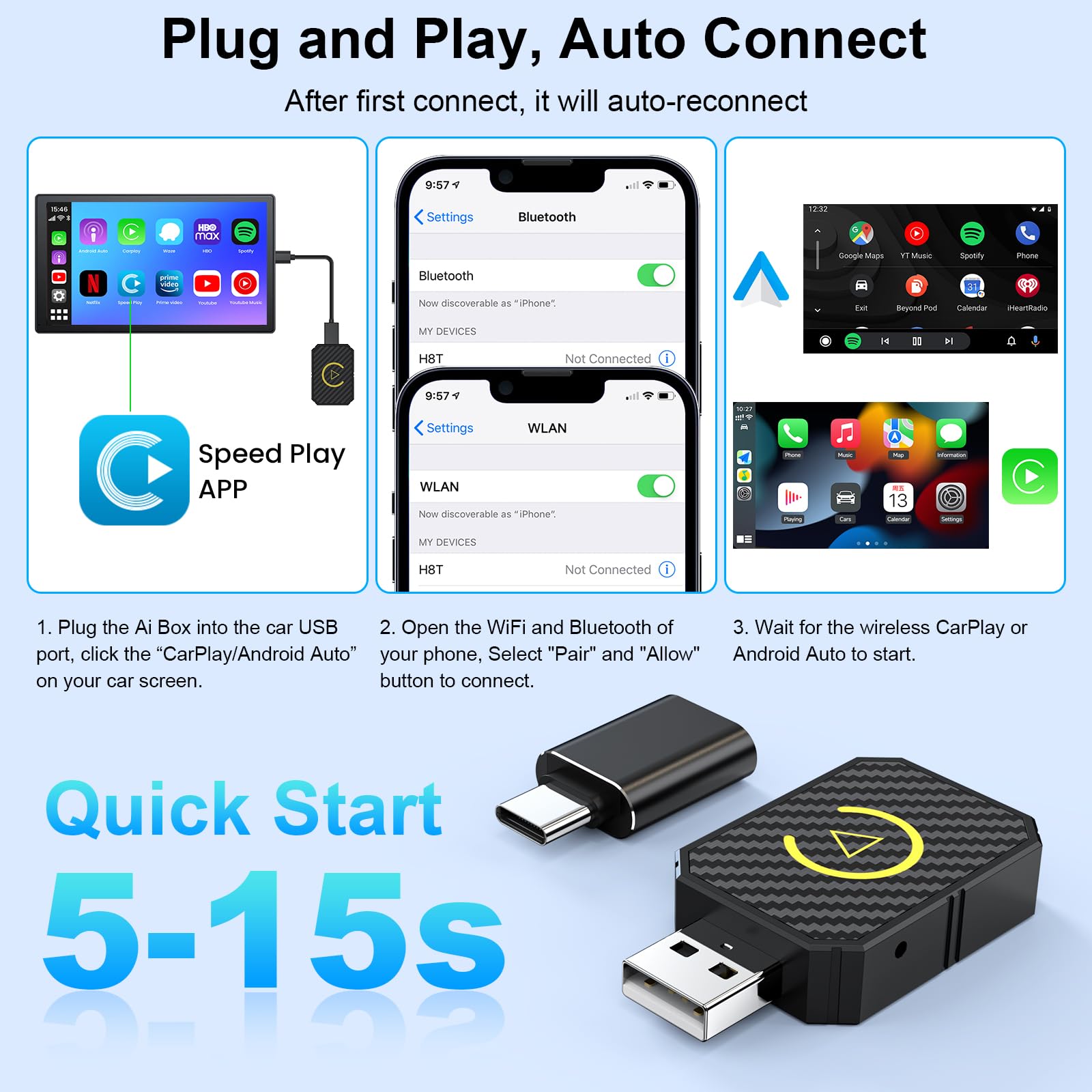
1. Start your car
Turn on the engine or place the ignition in accessory mode. Keep the vehicle parked while you complete the first pairing.
Your car’s infotainment system should start. Wait until the main screen loads fully.
2. Plug in the adapter
Connect the wireless CarPlay adapter to the same USB port that normally runs wired CarPlay.
If your car has several USB ports, test the one you use for wired CarPlay. A charging-only port will usually not work.
Some adapters include USB-C and USB-A cables. Use the cable that fits your car’s port. Avoid loose extension cables because they can cause power drops and random disconnections.
3. Turn on Bluetooth and Wi-Fi
On your iPhone, open Settings and turn on:
• Bluetooth
• Wi-Fi
• Siri
Keep the iPhone near the adapter during the first setup. Bluetooth helps begin the pairing process, while Wi-Fi carries much of the CarPlay data after connection.
4. Pair your iPhone with the adapter
Open Bluetooth settings on your iPhone. Look for the adapter’s name in the list of available devices.
Tap the adapter name and accept the pairing request. The name may look like the product brand, a model number, or a short code.
Some adapters show a QR code or Wi-Fi network on the car display. Follow the instructions shown on the screen.
5. Approve CarPlay
After Bluetooth pairing, your iPhone may display a message asking to use CarPlay while the phone is locked. Select Allow.
Your car screen should then open the CarPlay interface. If it does not appear, look for a CarPlay icon on the infotainment screen and tap it manually.
6. Test the main features
Try a few basic functions:
• Open Apple Maps or another supported navigation app.
• Make a short hands-free call.
• Ask Siri to play music.
• Send a test message using voice control.
• Check that audio comes through the car speakers.
Testing now helps you find problems before you begin driving. This is an important part of learning how to connect wireless CarPlay adapter safely.
7. Test automatic reconnection
Turn the car off, wait for the system to shut down, and start it again. Your iPhone should reconnect within a few seconds or a minute.
If it does not reconnect, unlock the iPhone and open Bluetooth settings. Some first-time setups need one extra manual approval.

How Wireless CarPlay Pairing Works
Wireless CarPlay normally uses two wireless links. Bluetooth helps the iPhone and adapter discover each other. Wi-Fi then provides the faster connection needed for maps, music, calls, and the CarPlay interface.
This is why turning on Bluetooth alone may not be enough. Both Bluetooth and Wi-Fi must be active for reliable wireless CarPlay.
The adapter also remembers your phone. When you return to the car, it searches for the saved iPhone and reconnects. Most adapters can remember more than one device, but only one phone may control CarPlay at a time.
If several family members use the car, the last connected phone may take priority. Turning off Bluetooth on other nearby phones can help the correct phone connect first.
In my own setup tests, the first connection usually takes longer than later connections. A short delay after starting the car is normal. Repeated delays of several minutes usually point to old pairings, weak power, or outdated firmware.

How to Fix Wireless CarPlay Connection Problems
Even when you follow how to connect wireless CarPlay adapter correctly, the first setup may fail. Most problems have a simple cause.
The adapter does not appear
Try these steps:
• Unplug the adapter and connect it again.
• Try the original or supplied USB cable.
• Use the car’s wired CarPlay port.
• Restart the iPhone.
• Turn Bluetooth and Wi-Fi off, wait ten seconds, and turn them on again.
• Check whether the USB port provides data and power.
A common mistake is plugging the adapter into a USB port that only charges a phone. The adapter may light up but still fail to start CarPlay.
CarPlay connects and then disconnects
An unstable connection may result from a weak USB connection, low adapter power, wireless interference, or old software.
Try moving the iPhone away from other Bluetooth devices. Also remove thick metal objects or wireless accessories placed directly beside the adapter.
If the problem continues, update the adapter firmware. Follow the manufacturer’s instructions carefully, since unplugging the adapter during an update can cause problems.
CarPlay opens but there is no sound
First, check the car’s audio source. It should be set to CarPlay, USB, or the appropriate smartphone media input.
Then raise the car volume while music is playing. Some vehicles use separate volume levels for navigation, calls, and media.
Also check that the iPhone is not sending sound to AirPods or another Bluetooth speaker.
The wrong iPhone connects
Open the iPhone’s Bluetooth settings and remove old adapter pairings. Then pair the preferred phone again.
If several drivers use the car, ask other phones to temporarily turn off Bluetooth. This gives the correct iPhone a better chance to connect first.
The display is blank or frozen
Restart the car’s infotainment system if your vehicle allows it. You can also unplug the adapter, wait about 30 seconds, and reconnect it.
Do not reset the adapter immediately unless other steps fail. A factory reset deletes saved phones and requires you to repeat the setup.

How to Reset a Wireless CarPlay Adapter
A reset can help when the adapter remembers the wrong phone or becomes stuck during pairing. The reset method varies by model.
Common methods include:
• Holding a small reset button for several seconds.
• Removing the adapter from the iPhone’s Bluetooth list.
• Deleting the vehicle from the iPhone’s CarPlay settings.
• Unplugging the adapter and reconnecting it after the car fully powers down.
Before resetting, write down the adapter name and review its instructions. Some models use a short press to start pairing and a long press to erase all data.
After the reset, repeat how to connect wireless CarPlay adapter from the beginning. Pair only one phone during the first test.
On your iPhone, you may also need to go to Settings, General, CarPlay, select your vehicle or adapter, and choose Forget This Car. The exact wording can vary between iOS versions.
Compatibility Limits to Know
Wireless CarPlay adapters are useful, but they are not universal. Knowing the limits can prevent a frustrating purchase.
The most important limitation is that your car must support wired CarPlay. A USB port alone does not prove compatibility. Some ports support charging, music playback, or Android devices but do not support Apple CarPlay.
Compatibility can also vary with:
• Factory infotainment systems
• Aftermarket head units
• Split-screen displays
• Vehicles with wireless CarPlay already built in
• Cars that require a special USB cable
• Systems that use unusual startup or security screens
If your car already has wireless CarPlay, an adapter may not be needed. In some cases, adding one can create conflicts or slower startup.
Wireless CarPlay may also use more iPhone battery than wired CarPlay. A long trip can drain the phone, especially when using navigation, mobile data, and bright screen settings together. Keep a charging cable in the car for longer drives.
Benefits and Drawbacks of Wireless CarPlay
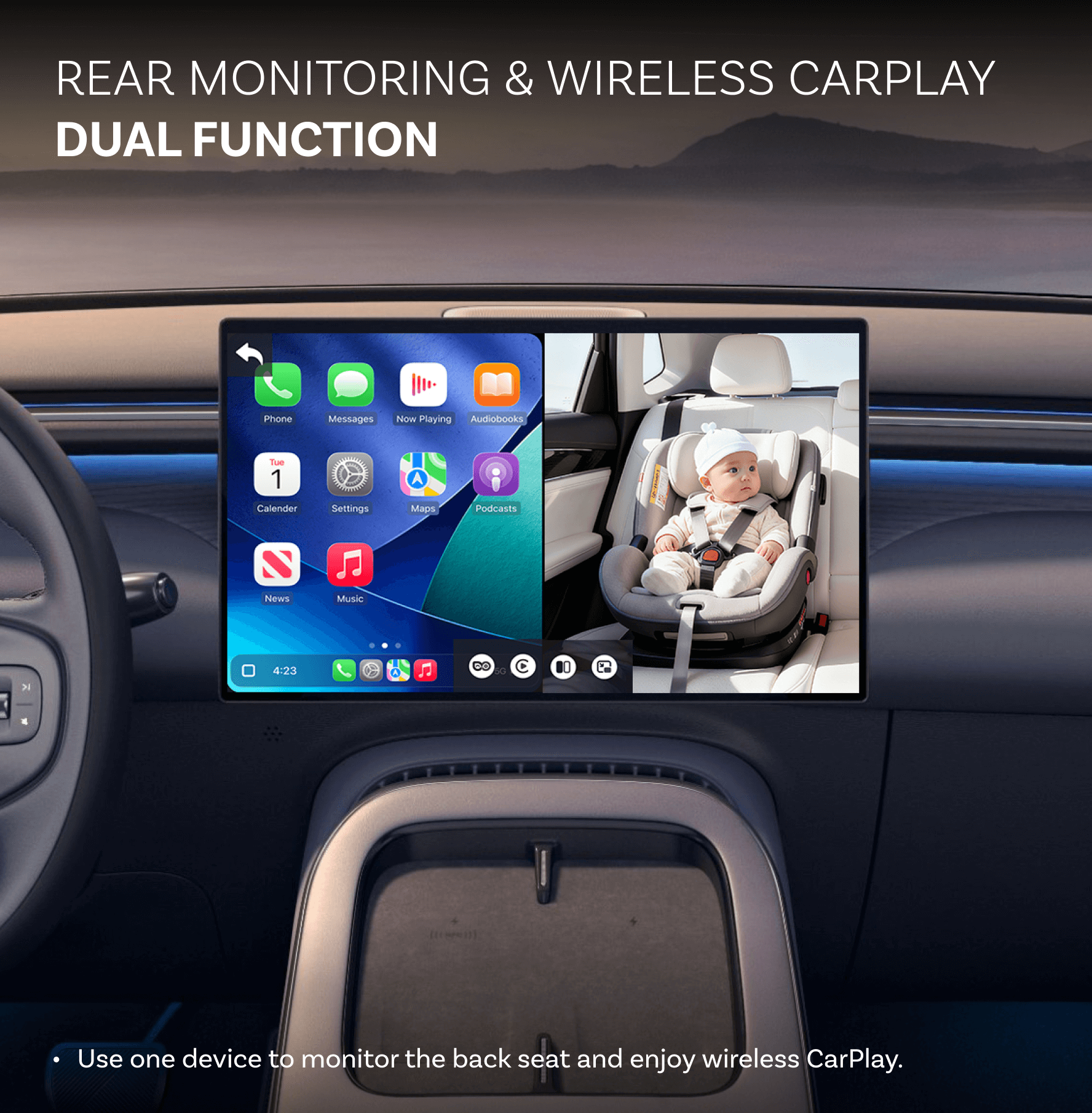
Wireless CarPlay makes daily driving more convenient. You can enter the car, start the engine, and leave your iPhone in your pocket or bag.
Main benefits include:
• Less cable clutter
• Faster daily setup
• Easy access to navigation
• Hands-free calls and messages
• Music and podcasts without plugging in
• A cleaner dashboard
There are also a few drawbacks:
• The adapter uses a USB port.
• Startup may take longer than wired CarPlay.
• Wireless signals can occasionally drop.
• Your iPhone battery may drain faster.
• Not every adapter works well with every vehicle.
• Some cheap models have poor firmware support.
In my testing experience, a stable adapter is more valuable than the cheapest adapter. A low-cost model may work at first but fail after an iOS update. Look for clear compatibility information, firmware support, and a return policy.

Safety and Privacy Tips
CarPlay is designed to reduce phone handling, but setup should always happen while parked. Never type, browse, or troubleshoot while driving.
Use Siri for tasks such as:
• Calling a contact
• Reading messages
• Sending a short reply
• Starting navigation
• Changing music
Review the permissions requested during setup. CarPlay may access contacts, messages, phone calls, music, and navigation features. Use only trusted adapters from reputable sellers.
Avoid unknown apps that request excessive access. A basic adapter should not need your Apple ID password. Never share your Apple account password during installation.
If you sell the car or adapter, remove your iPhone from the vehicle’s CarPlay and Bluetooth lists. This protects your personal data and prevents automatic reconnection.

Tips for a Faster and More Reliable Connection
Once you know how to connect wireless CarPlay adapter, a few small habits can improve daily use.
• Keep iOS updated.
• Keep the adapter firmware updated.
• Use a short, high-quality USB cable.
• Keep the adapter away from metal objects.
• Remove unused Bluetooth pairings.
• Place the phone where it receives a strong cellular signal.
• Restart the iPhone if CarPlay behaves strangely.
• Avoid using several wireless adapters in the same vehicle.
Do not place the adapter where it blocks controls, vents, or safety equipment. A small space near the USB port is usually best.
If automatic connection is slow, wait a few moments after starting the vehicle. Some infotainment systems need time to boot before they can communicate with the adapter.
Frequently Asked Questions About How to Connect Wireless CarPlay Adapter
How do I connect a wireless CarPlay adapter for the first time?
Plug the adapter into the car’s wired CarPlay USB port. Turn on Bluetooth and Wi-Fi on your iPhone, pair with the adapter, and approve the CarPlay request.
Does my car need wired CarPlay for a wireless adapter to work?
Yes, most wireless CarPlay adapters require factory or aftermarket wired CarPlay. They usually cannot add CarPlay to a vehicle that does not support it.
Why is my wireless CarPlay adapter not connecting?
Check the USB port, cable, Bluetooth, Wi-Fi, and Siri settings. Restart both the iPhone and adapter, then remove old pairings and repeat the setup.
Can I use a wireless CarPlay adapter with more than one iPhone?
Many adapters can store several phones, but only one normally connects to CarPlay at a time. The phone with the active Bluetooth connection may connect first.
Does wireless CarPlay work without cellular data?
Basic CarPlay functions can work without cellular data, but online maps, traffic updates, streaming music, and many messages need an internet connection. Your iPhone can use Wi-Fi for the adapter and cellular data for online services.
Can I use Bluetooth headphones while using wireless CarPlay?
You can often use other Bluetooth accessories, but behavior varies by iPhone, vehicle, and adapter. Car audio usually routes through the vehicle while CarPlay is active.
Is wireless CarPlay better than wired CarPlay?
Wireless CarPlay is more convenient because it avoids cables. Wired CarPlay may offer a steadier connection and charge the iPhone at the same time, so the best choice depends on your daily needs.
Conclusion
Learning how to connect wireless CarPlay adapter takes only a few steps: confirm wired CarPlay compatibility, plug the adapter into the correct USB port, pair it through Bluetooth, enable Wi-Fi and Siri, and approve CarPlay on your iPhone.
Most connection problems come from the wrong USB port, an outdated adapter, old pairings, or weak cables. Take a few minutes to test calls, music, maps, and automatic reconnection before driving.
Set up your adapter while parked, keep the software current, and save a backup charging cable for long trips. If this guide helped, explore more vehicle technology tips and share your setup experience in the comments.