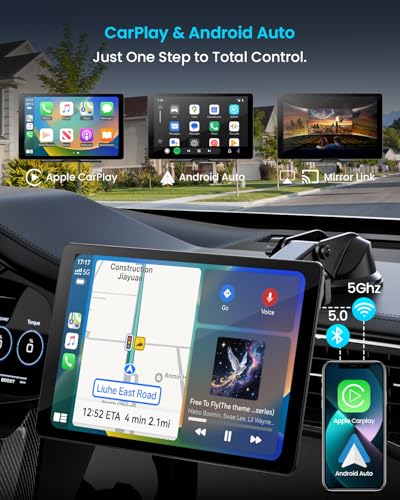
Wireless CarPlay with screen mirroring adds hands-free iPhone access while showing selected phone content on your car display.
Wireless CarPlay with screen mirroring sounds like one feature, but it often describes two related technologies. Wireless Apple CarPlay gives you safer access to navigation, calls, music, messages, and supported apps. Screen mirroring shows more of your iPhone screen, although Apple limits this feature while driving. Understanding that difference helps you choose the right adapter, receiver, and setup without wasting money.
What Is Wireless CarPlay With Screen Mirroring?
Wireless CarPlay connects your iPhone to a compatible car stereo without a USB cable. It uses Bluetooth to start the connection and Wi-Fi to carry the main audio, app, and display data. Once connected, the CarPlay interface appears on the vehicle’s touchscreen.
Wireless CarPlay with screen mirroring adds another layer. It may let you display your phone’s full screen, selected video content, or an Android-based interface on the dashboard screen. The exact function depends on the car stereo, adapter, app, and phone model.
These terms are often used loosely in product listings. A device advertised as wireless CarPlay with screen mirroring may provide one of the following:
• Wireless Apple CarPlay only
• Screen mirroring through a companion app
• AirPlay-style mirroring when the car is parked
• HDMI or USB video input
• An Android operating system with built-in mirroring tools
This matters because standard Apple CarPlay is not the same as full iPhone mirroring. CarPlay uses a safer, simplified interface. It does not normally copy every app from your phone to the vehicle screen.
How Wireless CarPlay Works
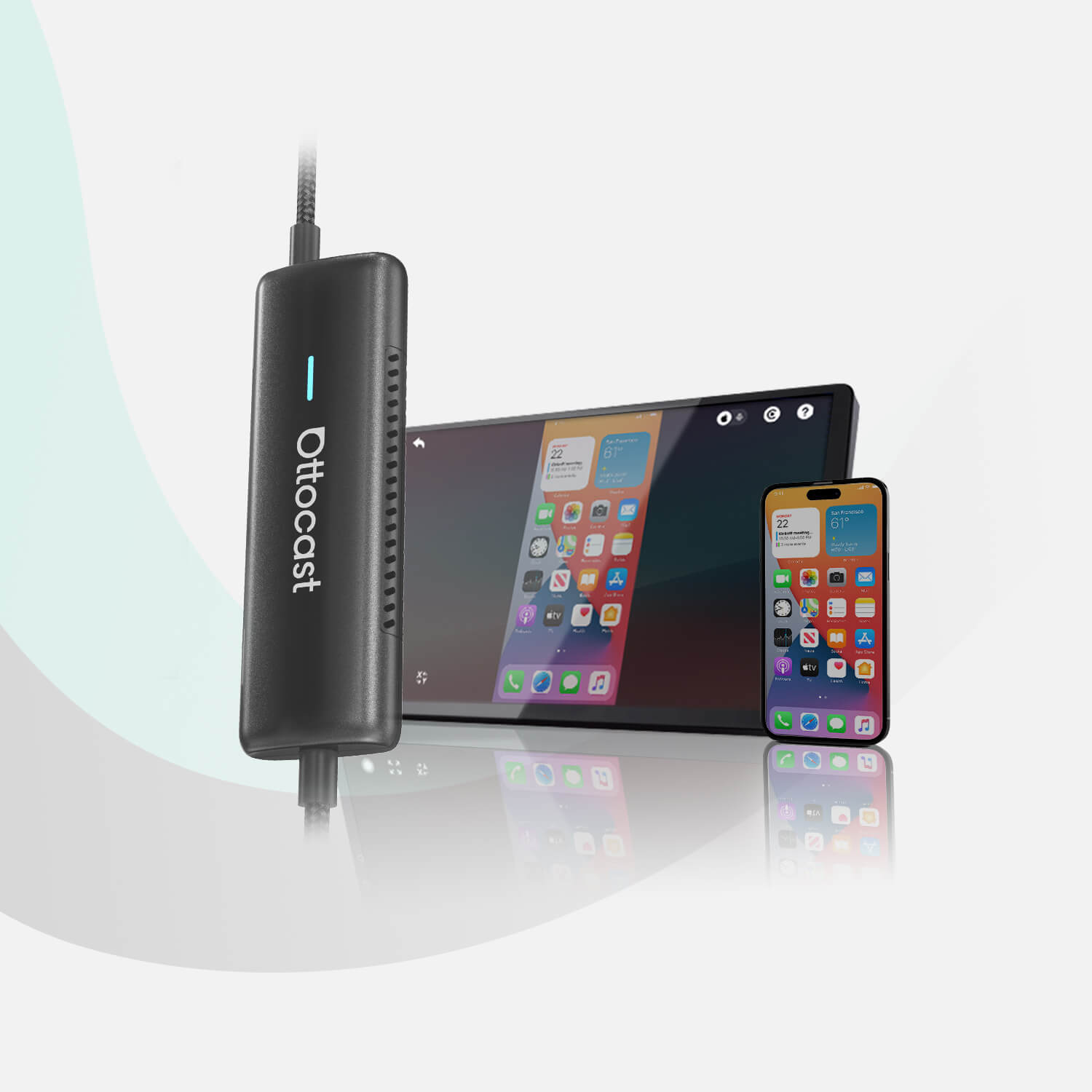
Wireless CarPlay usually begins with a Bluetooth pairing request. After the first handshake, the iPhone and car system move the active connection to a private Wi-Fi link. This Wi-Fi connection provides the speed needed for maps, music, voice commands, and touch controls.
You can think of Bluetooth as the doorbell and Wi-Fi as the delivery truck. Bluetooth introduces the devices, but Wi-Fi carries most of the useful data.
To use wireless CarPlay, your car or aftermarket receiver must support it. Your iPhone also needs a compatible iOS version and an active Siri setup. Apple’s standard setup process normally includes these steps:
- Start the vehicle and keep it parked.
- Turn on Bluetooth, Wi-Fi, and Siri on the iPhone.
- Put the stereo into wireless or Bluetooth pairing mode.
- Select the vehicle name on the iPhone.
- Accept the CarPlay connection request.
- Choose the CarPlay icon on the vehicle display if it does not open automatically.
The first connection can take a minute. Later connections should happen automatically when you enter the car, provided Bluetooth and Wi-Fi remain enabled.
Wireless CarPlay with screen mirroring can use the same wireless connection, but mirroring often needs extra software. Some receivers create a separate hotspot. Others ask you to scan a QR code and install an app. This extra step is one reason compatibility can vary from one product to another.
Wireless CarPlay vs. Full Screen Mirroring
The most important point is simple: wireless CarPlay is not full screen mirroring.
CarPlay presents approved apps in a driving-friendly format. These include navigation, audio, communication, and selected third-party services. The interface uses large controls and limits visual distractions.
Full screen mirroring copies much more of the phone display. Depending on the product, you may see a web browser, photo gallery, video app, or other content. However, many phones and car systems restrict video playback when the vehicle is moving.
Here is a practical comparison:
| Feature | Wireless CarPlay | Full Screen Mirroring |
|---|---|---|
| Main purpose | Driving-friendly phone access | Copying phone content |
| Connection | Bluetooth and Wi-Fi | Wi-Fi, AirPlay, app, HDMI, or USB |
| App access | Supported CarPlay apps | Often wider phone access |
| Safety controls | Strong restrictions | Depends on the device and app |
| Video while moving | Normally restricted | Often restricted or unsafe |
| Siri and voice control | Built in | May be limited |
| Setup | Usually simple | Can require extra apps or adapters |
Wireless CarPlay with screen mirroring is useful when you understand which mode is active. If a product promises “everything from your phone on the car screen,” read the manual closely. The feature may work only while parked, only with certain iPhone versions, or only through a special receiver app.

What You Can Do With Wireless CarPlay
Wireless CarPlay is designed for common driving tasks. It reduces the need to pick up your phone and gives you a familiar interface on the dashboard.
Typical functions include:
• Turn-by-turn directions through Apple Maps, Google Maps, or Waze
• Hands-free phone calls
• Reading and dictating text messages
• Listening to music, podcasts, and audiobooks
• Asking Siri for directions or weather updates
• Viewing calendar information in supported systems
• Using compatible charging and audio controls
The best benefit is convenience. You can start a route before leaving the driveway and keep your phone in your pocket. This can also reduce cable clutter around the center console.
Wireless CarPlay with screen mirroring may add value for passengers. For example, a passenger could view photos or use a supported media feature while the car is parked. Some systems also mirror a phone during a presentation, vehicle demonstration, or camping trip.
Still, not every app supports CarPlay. Apple controls which app categories can appear because a moving vehicle is not the right place for small text, fast video, or complex menus.
Benefits of Wireless CarPlay With Screen Mirroring
A cleaner cabin
Removing the Lightning or USB-C cable makes the dashboard look less crowded. It also reduces the chance of a cable falling between the seats or wearing out at the connector.
Faster daily use
Once paired, wireless CarPlay can connect as soon as you start the vehicle. This is helpful for short trips, school runs, and commutes where connecting a cable feels like extra work.
More display options
Wireless CarPlay with screen mirroring can make a larger dashboard display more useful. A compatible system may let passengers view approved content or help you use a rear camera, parking view, or external video source.
Better access to navigation
A built-in display is usually easier to see than a phone mounted low on the console. Apple, Google, and Waze also update their mapping data more often than many factory navigation systems.
Useful aftermarket upgrades
Older vehicles can gain modern features through an aftermarket touchscreen or wireless CarPlay adapter. This may cost less than replacing the entire vehicle.
In my experience with car technology setups, the biggest improvement is not the novelty of mirroring. It is the smoother start to each drive. When the system connects reliably, people use navigation and hands-free controls more often. When it fails, they quickly return to plugging in the phone.

Limitations and Safety Concerns
Wireless CarPlay with screen mirroring has clear limits. Wireless connections can be less stable than wired ones in areas with heavy radio interference. You may also notice a short delay when tapping the screen or starting audio.
Full screen mirroring can create a safety problem. A video or social media feed may distract the driver, even if the system technically allows it. In the United States, distracted driving laws vary by state, and some states restrict handheld phone use or visual displays.
Use these safety rules:
• Set navigation before moving.
• Use Siri or steering-wheel controls when possible.
• Let a passenger control mirrored content.
• Never watch video while driving.
• Keep the phone mounted or stored safely.
• Follow local laws and the vehicle manufacturer’s instructions.
• Test new features in a parked vehicle first.
Apple’s CarPlay design includes restrictions for a reason. A dashboard screen should act like a helpful co-pilot, not a small television in your line of sight.
There are also privacy concerns. Some low-cost adapters use third-party apps that request broad permissions. Before installing anything, check the developer, privacy policy, reviews, and required access. Avoid unknown apps that request contacts, messages, microphone access, or location data without a clear reason.
Compatibility Checklist
Before buying wireless CarPlay with screen mirroring, check every part of the system. A product can be compatible with an iPhone but still fail with a particular car stereo.
Review these points:
• iPhone model and iOS version
• Vehicle make, model, and year
• Factory stereo compatibility
• Wired CarPlay support
• Wireless CarPlay support
• Screen mirroring method
• Required app or firmware
• USB port type and power output
• Touchscreen support
• Steering-wheel control support
• Backup camera compatibility
• Parking-only video restrictions
A wireless CarPlay adapter usually works best when the vehicle already has wired CarPlay. The adapter converts the wired connection into a wireless one. It does not usually add CarPlay to a stereo that lacks the required hardware.
If your vehicle has no CarPlay at all, you may need an aftermarket head unit. Look for brands with clear firmware support, installation instructions, and a return policy. Cheap units can offer many features, but their microphones, screens, boot times, and software updates may be weak.
Screen mirroring compatibility is more complex. Some systems support Apple AirPlay. Others use a proprietary app. Some work only with Android phones, while others support both Android and iPhone devices.

How to Set Up Wireless CarPlay With Screen Mirroring
Setup differs by product, but the following process works for many systems.
Step 1: Prepare the iPhone
Update iOS if an update is available. Turn on Siri, Bluetooth, and Wi-Fi. Remove old CarPlay profiles if the phone keeps connecting to the wrong vehicle.
To remove an old profile, open the iPhone settings, find the CarPlay section, select the vehicle, and choose the option to forget the car. Menus can change slightly between iOS versions.
Step 2: Connect standard CarPlay
Pair the iPhone with the stereo through Bluetooth. Accept the CarPlay request. If the connection does not start, open the stereo’s source menu and select CarPlay manually.
Step 3: Open the mirroring feature
If the system supports wireless CarPlay with screen mirroring, open the receiver’s mirroring option. You may need to select AirPlay from the iPhone’s Control Center or open a receiver-specific app.
Step 4: Approve the connection
Confirm the name of the car system on the iPhone. Some products ask for a code. Others create a temporary Wi-Fi network that the phone must join.
Step 5: Test while parked
Check touch response, audio output, microphone quality, and connection speed. Try a short route with navigation before depending on the system for a long trip.
Step 6: Secure the setup
Keep the phone charged and place it where it will not slide under the brake or accelerator. Make sure the receiver does not block the backup camera or important vehicle warnings.
One mistake I often see is pairing the phone with the car’s Bluetooth but forgetting to enable the correct Wi-Fi connection. Bluetooth alone may handle calls, but it usually cannot provide the full wireless CarPlay experience.
Troubleshooting Common Problems
Wireless CarPlay will not connect
Restart the iPhone and the car stereo. Confirm that Siri, Bluetooth, and Wi-Fi are active. Then forget the vehicle in CarPlay settings and pair it again.
If another phone is nearby, disable its Bluetooth for a moment. The stereo may be trying to connect to the wrong device.
CarPlay connects but screen mirroring fails
Standard CarPlay and mirroring may use different systems. Check whether the receiver requires a separate app, hotspot, or firmware update.
Also verify that the iPhone and receiver support the same mirroring standard. An AirPlay receiver will not always work with a proprietary Android mirroring app.
The screen freezes
A frozen screen may result from weak Wi-Fi, outdated firmware, or an overloaded receiver. Restart both devices and move other Wi-Fi hotspots away from the car during testing.
If freezing happens often, try a wired connection. This can show whether the problem is wireless interference or a wider stereo issue.
Audio plays from the phone
Open the vehicle’s audio source menu and select CarPlay or the receiver’s media input. Also check the iPhone’s AirPlay output menu and choose the car system.
Some adapters connect for the display but leave audio routed to the phone speaker. This is usually a source-selection issue.
The system disconnects during trips
Check whether the phone is overheating. Heavy navigation, charging, and mirroring can create heat. Remove thick cases during testing and keep the phone away from direct sunlight.
Firmware updates may also improve stability. Only install updates from the manufacturer’s official instructions.

Choosing the Right Adapter or Head Unit
A good wireless CarPlay adapter should solve a specific problem. If your car already has wired CarPlay, choose a small adapter that focuses on stable wireless conversion. If you want screen mirroring, confirm that the product supports iPhone mirroring and not only Android casting.
Consider these buying factors:
Connection stability
Read reviews that mention long drives, automatic reconnection, and call quality. A device that works for five minutes in a driveway may still fail on a one-hour commute.
Startup time
Some adapters connect in 10 to 20 seconds. Others take much longer. A slow boot may become frustrating every morning.
Audio and microphone quality
A clear screen cannot fix poor call quality. Look for reviews that discuss echo, volume, and the external microphone.
Firmware support
Software updates can fix compatibility issues. Choose a manufacturer that provides update instructions and customer support.
Warranty and returns
Compatibility claims are not always perfect. A return window gives you time to test the device in your own car and with your own phone.
Screen quality
For an aftermarket head unit, check brightness, viewing angles, touch accuracy, and resolution. A large screen is not useful if it washes out in sunlight.
Avoid choosing based only on screen size or the phrase “full mirroring.” A reliable 7-inch system is often better than a large, slow display with weak software.
Wireless CarPlay With Screen Mirroring for Different Users
Daily commuters
Commuters usually benefit most from automatic wireless CarPlay, dependable navigation, and clear calls. Full mirroring may not be necessary.
Families
Families may value rear-seat entertainment or passenger control. Make sure the system separates driver controls from passenger media and obeys local safety rules.
Older vehicles
Owners of older cars should first confirm whether the factory stereo supports wired CarPlay. If not, an aftermarket receiver may be the better path.
Road-trip drivers
Road trips place more stress on wireless systems. Test the connection for at least 30 minutes before traveling. Bring a charging cable as a backup.
Rideshare drivers
Rideshare users need stable navigation, hands-free calls, and fast reconnection. A wired option may be more dependable if the phone stays connected for many hours each day.

Privacy, Data, and Software Updates
Wireless CarPlay with screen mirroring can involve several data paths. The iPhone communicates with the vehicle, the receiver may run its own software, and a third-party app may handle the mirrored image.
Use a few simple privacy habits:
• Install apps only from trusted stores.
• Review app permissions before accepting them.
• Avoid entering passwords on an unfamiliar receiver.
• Delete old paired phones from the stereo.
• Install official firmware updates.
• Reset the system before selling the vehicle.
CarPlay itself is designed to reduce the need to handle the phone. However, third-party mirroring tools may not follow the same privacy model. Read the product documentation and avoid systems that make vague promises about recording, tracking, or accessing personal data.
Software support also affects long-term value. New iOS releases can change how wireless connections behave. A product with no update path may work today but become unreliable later.
Frequently Asked Questions About Wireless CarPlay With Screen Mirroring
Does wireless CarPlay support full iPhone screen mirroring?
Standard wireless CarPlay does not normally mirror every iPhone app. It displays supported CarPlay apps, while full mirroring requires compatible hardware, software, and a supported connection method.
Can I watch videos with wireless CarPlay with screen mirroring?
Some systems may display video when the vehicle is parked, but many block it while driving. Never watch video from the driver’s seat, and follow local laws and the receiver’s safety settings.
Do I need an adapter for wireless CarPlay?
You need an adapter if your vehicle supports wired CarPlay but does not support wireless CarPlay. If the factory system has no CarPlay support, you may need an aftermarket head unit instead.
Why does wireless CarPlay disconnect?
Disconnections can come from weak Wi-Fi, outdated firmware, phone overheating, interference, or another paired phone taking priority. Restarting both devices, forgetting the old pairing, and updating the receiver often helps.
Does wireless CarPlay use cellular data?
Wireless CarPlay uses the phone’s cellular connection for online services such as live maps, traffic, streaming, and messages. The wireless link between the phone and car is local, but online apps still need mobile data.
Is wireless CarPlay safer than using a phone?
It can reduce phone handling by placing supported controls on the dashboard and enabling voice commands. It is not risk-free, so drivers should keep interactions short and avoid complex tasks.
Can Android phones use wireless CarPlay?
Android phones do not use Apple CarPlay. They use Android Auto, although some aftermarket receivers support both platforms and may offer separate mirroring features.
Conclusion
Wireless CarPlay with screen mirroring can make an older or basic car feel much more connected. Wireless CarPlay handles safe access to maps, calls, messages, and audio, while screen mirroring may add wider content access when parked. The two features are related, but they are not identical.
Before buying, confirm phone, vehicle, stereo, app, and firmware compatibility. Test the connection while parked, keep a cable as a backup, protect your privacy, and never let mirrored video distract you on the road. Compare trusted adapters and receivers carefully, then choose the system that offers reliable daily use rather than the longest feature list.