Wireless Apple CarPlay on an Android head unit connects your iPhone to the car screen without a USB cable.
Apple CarPlay on Android head unit wireless setups can make an aftermarket stereo feel like a factory system. The process is not always plug-and-play, though. Compatibility depends on the head unit, CarPlay app, Wi-Fi hardware, Bluetooth pairing, and your iPhone model. This guide explains how wireless CarPlay works, how to set it up, what can go wrong, and how to choose a reliable solution.
What Is Apple CarPlay on an Android Head Unit Wireless?
Apple CarPlay is Apple’s in-car interface for iPhone users. It displays approved apps, maps, calls, messages, music, and Siri controls on the vehicle’s screen. You can use the touchscreen, steering wheel buttons, or voice commands while keeping your phone in a safer place.
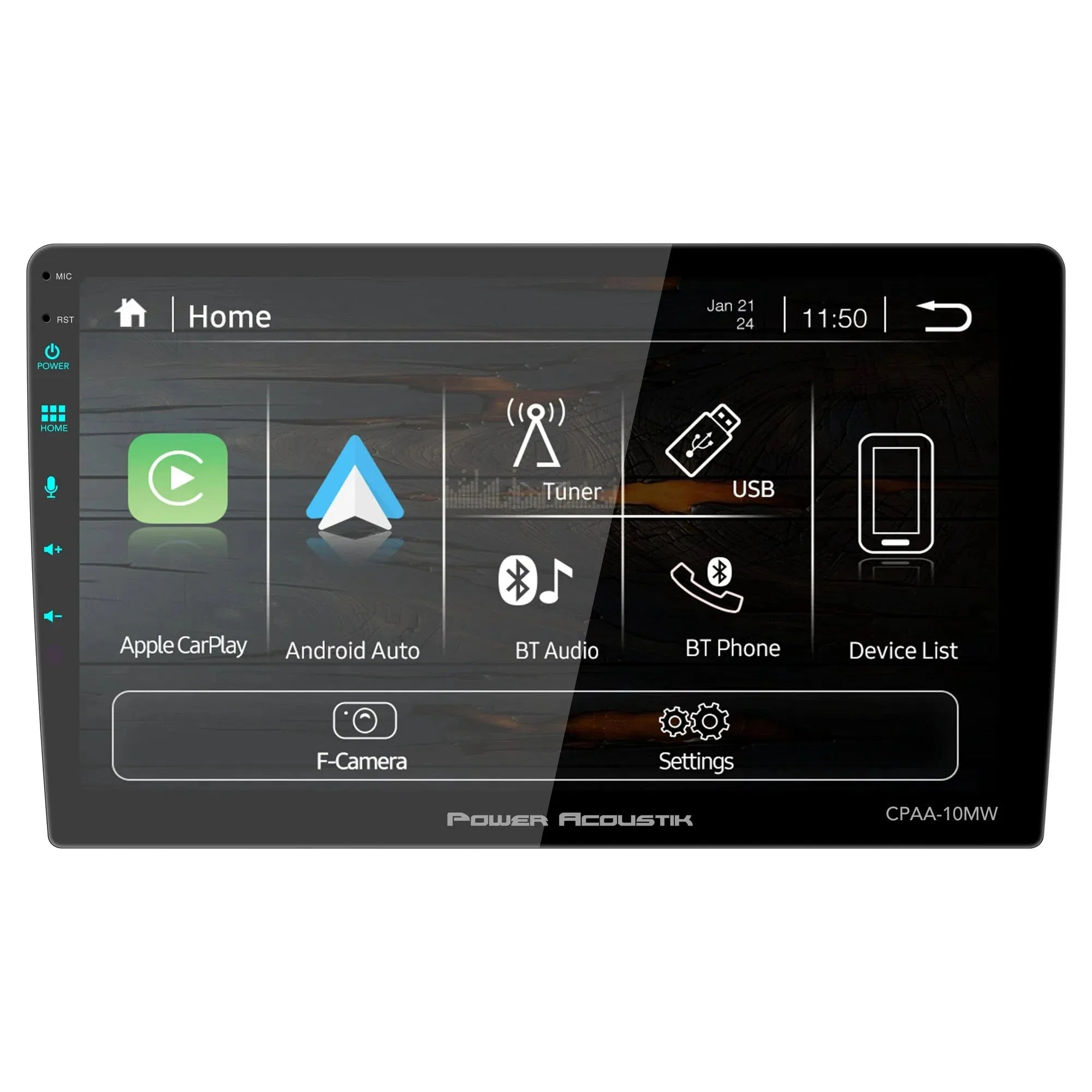
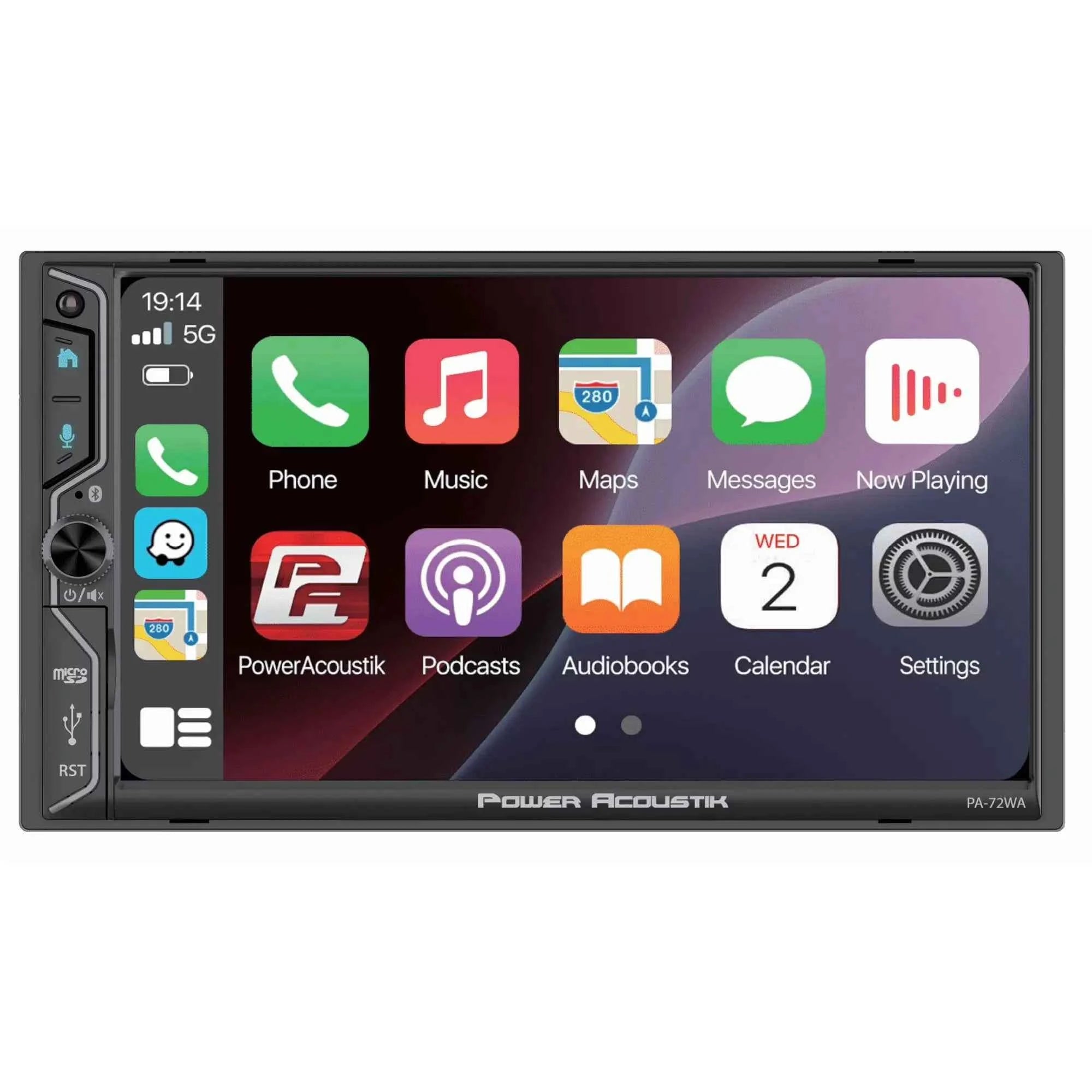
An Android head unit is an aftermarket car stereo that runs a version of Android. It may look like a tablet, but it does not always include native Apple CarPlay support. Many models use a special app, such as ZLink, TLink, AutoKit, or CarLetter, to create the CarPlay connection.
With apple carplay on android head unit wireless, your iPhone usually connects through Bluetooth first. The system then moves the main data connection to a private Wi-Fi link. Bluetooth starts the handshake, while Wi-Fi carries the larger stream of audio, controls, and screen data.
This is similar to ringing a doorbell before opening a wide gate. Bluetooth says, “Hello, I am the iPhone.” Wi-Fi then creates the faster connection needed for CarPlay.
How Wireless CarPlay Works on Android Stereos
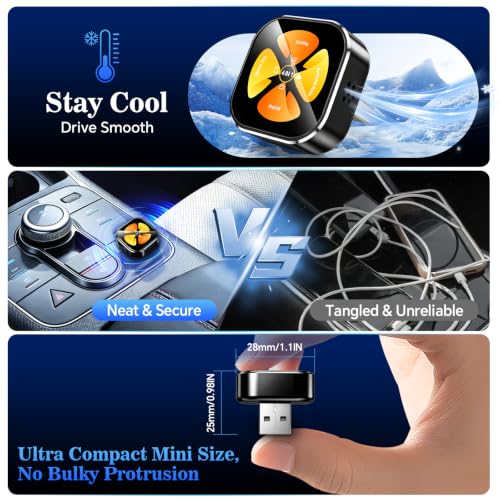
Wireless CarPlay needs more than an Android operating system. The head unit must have compatible CarPlay software and wireless hardware. Some stereos include both from the factory, while others need an external USB adapter.
The Android system itself does not normally turn into an official CarPlay receiver. Instead, a companion app acts as the bridge between your iPhone and the stereo. That app receives the wireless CarPlay signal and displays it on the Android screen.
A typical connection uses these steps:
- Your iPhone discovers the head unit through Bluetooth.
- You confirm the pairing request on both devices.
- The system creates a Wi-Fi connection between the iPhone and stereo.
- The CarPlay app launches on the Android head unit.
- CarPlay appears on the display after a few seconds.
Wireless CarPlay usually requires:
• An iPhone compatible with CarPlay
• Bluetooth and Wi-Fi enabled on the iPhone
• A CarPlay-ready Android head unit or adapter
• A working CarPlay receiver app
• Current firmware and app versions
• A stable 12-volt power supply
The exact process varies by brand. A low-cost Android head unit may advertise “wireless CarPlay,” but the feature may depend on an included USB dongle. Other units may support wired CarPlay only, even though the product listing uses broad language.

How to Set Up Apple CarPlay on Android Head Unit Wireless
Before setup, park the vehicle in a safe place. Do not try to pair devices while driving. Also, make sure the head unit has a stable power source and that the phone has at least moderate battery power.
Step 1: Check the head unit
Open the app drawer on the Android stereo. Look for an app named ZLink, TLink, AutoKit, CarPlay, PhoneLink, or a similar name. If no app is visible, check the stereo’s manual or settings menu.
Look for these terms:
• Wireless CarPlay
• Apple CarPlay
• iPhone link
• CarPlay receiver
• Phone projection
• Wireless phone connection
If the listing says “Android Auto,” do not assume it also supports Apple CarPlay. Android Auto and Apple CarPlay are different systems. Some units support both, but the manufacturer should state this clearly.
Step 2: Prepare the iPhone
On your iPhone, turn on Bluetooth, Wi-Fi, and Siri. Apple requires Siri for many CarPlay functions, including voice commands and message control.
You can check Siri under Settings > Apple Intelligence & Siri or Settings > Siri, depending on your iOS version. Also check Settings > General > CarPlay if the option is available.
Remove old or failed connections if needed:
- Open Settings on the iPhone.
- Tap General.
- Select CarPlay.
- Choose the old vehicle or head unit.
- Tap Forget This Car.
Step 3: Start pairing
Open the CarPlay app on the Android head unit. Some apps show a QR code or a device name. Others ask you to search for the stereo from the iPhone’s Bluetooth menu.
Tap the head unit name on the iPhone. Accept the pairing request. When the iPhone asks whether you want to use CarPlay, select Allow.
After pairing, wait several seconds. The screen may go black briefly, show a loading animation, or return to the Android home screen before CarPlay opens.
Step 4: Test the main controls
Test several functions before driving away:
• Apple Maps or another approved navigation app
• Music playback
• Siri voice commands
• Incoming calls
• Steering wheel controls
• Microphone quality
• Audio volume and source switching
A successful setup should reconnect after you turn the vehicle off and start it again. If you must open the app manually every time, check the head unit’s auto-start settings.
Step 5: Adjust the connection
Some CarPlay apps include settings for startup delay, Bluetooth behavior, screen size, audio routing, and microphone selection. Change one setting at a time. This makes it easier to identify the cause if the connection becomes unstable.
In hands-on installations, the most common mistake is pairing the iPhone with the Android stereo’s general Bluetooth menu but never opening the CarPlay receiver app. Bluetooth audio alone is not the same as wireless CarPlay.

Benefits of Apple CarPlay on Android Head Unit Wireless
The biggest benefit is convenience. You can leave your iPhone in your pocket or charging area instead of plugging it in every time you enter the car.
Wireless CarPlay also keeps the dashboard cleaner. There is no cable stretched across the center console, and passengers can use the phone without interrupting the connection.
Other benefits include:
• Access to Apple Maps, Google Maps, and Waze
• Siri support for calls and messages
• Music and podcast control from the stereo
• Better use of a large aftermarket display
• Steering wheel and voice control integration
• Automatic reconnection in many vehicles
• Less wear on the iPhone charging port
For short trips, wireless CarPlay feels especially smooth. You start the vehicle, wait a few seconds, and the familiar CarPlay screen appears. That small improvement can make daily driving feel much less frustrating.
Wireless CarPlay can also improve safety. The National Highway Traffic Safety Administration recommends reducing distractions while driving. CarPlay does not remove all distractions, but voice commands and a simplified interface can help you avoid handling your phone.

Limitations and Common Problems
Wireless CarPlay is convenient, but it is not perfect. It uses a Wi-Fi connection, so interference, poor firmware, or weak hardware can cause delays and dropouts.
Common issues include:
• CarPlay does not start automatically
• The iPhone pairs but the CarPlay screen stays blank
• Audio cuts out during navigation
• Siri cannot hear you clearly
• The head unit disconnects after a few minutes
• Steering wheel controls work only partly
• The connection is slow after the vehicle starts
• CarPlay opens, but sound remains on the Android system
• The screen resolution looks stretched or cropped
Some issues come from the head unit rather than the iPhone. Many aftermarket stereos use low-cost processors, limited memory, or poorly updated software. A unit may have a bright screen but weak wireless performance.
Another limitation is startup time. Factory systems often have carefully tuned software. An Android head unit may take 20 to 60 seconds to boot and launch CarPlay. If the stereo restarts whenever the engine cranks, the delay can be even longer.
Wireless CarPlay also uses more iPhone battery than a simple Bluetooth connection. The phone is maintaining Bluetooth and Wi-Fi while handling navigation, music, and other tasks. A wireless charging pad can help on long trips.
How to Fix Wireless CarPlay Connection Problems
Start with simple checks before changing advanced settings. Many connection failures come from a disabled feature, an old pairing record, or an app that was closed in the background.
CarPlay will not connect
Try these steps:
- Confirm Bluetooth, Wi-Fi, and Siri are enabled.
- Restart the iPhone and Android head unit.
- Open the CarPlay receiver app manually.
- Forget the head unit under iPhone CarPlay settings.
- Remove the iPhone from the stereo’s Bluetooth list.
- Pair both devices again.
- Check whether another iPhone is connecting first.
Some stereos remember several phones but connect to the wrong one. If two drivers use the vehicle, turn off Bluetooth on the second phone during the first setup.
CarPlay connects but has no sound
First, check the Android head unit’s audio source. The stereo may remain on FM radio, Bluetooth audio, or an Android media app. Select the correct CarPlay audio channel.
Then check:
• iPhone and stereo volume
• Mute settings
• Balance and fade controls
• External amplifier connections
• RCA output settings
• The selected audio source in the CarPlay app
If phone calls work but music does not, the issue may involve audio routing. If nothing works, inspect the head unit’s wiring and amplifier settings.
The connection keeps dropping
Move the iPhone closer to the stereo during testing. Remove other wireless devices from the area, such as unused hotspots or additional phones. Then update the head unit firmware and CarPlay app if updates are available.
Avoid random firmware files from unknown websites. The wrong file can disable the stereo. Use the manufacturer’s exact model number and hardware version before updating.
The microphone sounds poor
Many Android stereos use a small built-in microphone behind the screen. Its quality may be weak, especially if the unit sits far from the driver. If the stereo includes an external microphone, install it near the steering column or upper A-pillar without blocking airbags.
Do not place the microphone behind the dashboard or near a loud vent. Clear placement often improves call quality more than changing an app setting.

Choosing the Best Android Head Unit for Wireless CarPlay
Look beyond screen size. A large display does not guarantee a reliable CarPlay experience. Focus on the wireless hardware, software support, audio design, and after-sales service.
Before buying, check these points:
• The listing clearly says wireless Apple CarPlay
• The product supports your iPhone and iOS version
• The CarPlay app is included and licensed
• Firmware updates are available
• The unit has a strong built-in microphone
• Steering wheel control support is listed
• The stereo matches your vehicle’s wiring
• A return policy is available
• Reviews mention actual CarPlay performance
• The seller provides installation support
Read reviews with care. A review that only praises the screen may not tell you anything about wireless stability. Search for comments about boot time, reconnecting, microphone quality, audio delay, and steering wheel buttons.
For older vehicles, you may also need a wiring harness, antenna adapter, dash kit, CAN bus decoder, or backup camera adapter. These parts can affect installation cost and vehicle features.
A separate wireless CarPlay adapter can be a good choice when your existing stereo already supports wired CarPlay. The adapter converts the wired connection into a wireless one. However, it usually cannot add CarPlay to a stereo that has no CarPlay receiver at all.

Wired Versus Wireless CarPlay
Wired CarPlay connects the iPhone to the head unit through a USB cable. Wireless CarPlay uses Bluetooth for discovery and Wi-Fi for the main connection.
Wireless is easier for daily use, but wired CarPlay has useful advantages:
• More reliable connection
• Faster startup on some systems
• Continuous iPhone charging
• Less wireless interference
• Lower battery use on the phone
• Easier troubleshooting
Wireless CarPlay is best for convenience. Wired CarPlay is often better for long trips, weak wireless environments, or older head units with limited wireless hardware.
Some drivers use both. They rely on wireless CarPlay for short drives and connect a cable when the phone battery is low. This gives you flexibility instead of forcing one method all the time.

Safety, Privacy, and Software Updates
CarPlay is designed to limit the amount of information shown while driving. Still, navigation, calls, and messages can distract you. Set your route before moving and use Siri when possible.
Keep the iPhone and head unit updated. Updates can fix connection problems, improve app compatibility, and patch security issues. On the other hand, a new iOS update may expose flaws in an old CarPlay app. If that happens, check for a matching head unit update.
Be careful with unknown third-party apps. A CarPlay receiver app may request access to Bluetooth, notifications, contacts, or microphone features. Review permissions and install software only from a trusted seller or official app channel.
Privacy also depends on the Android head unit itself. Some inexpensive units may collect diagnostic or usage data. Read the privacy policy when available, and avoid granting permissions that the system does not need.

Practical Tips From Real-World Installs
The best wireless CarPlay setup is usually the one with the fewest unnecessary changes. I have seen people spend hours adjusting advanced settings when the real problem was a loose USB connection, an old pairing record, or a disabled Siri setting.
A few habits make a major difference:
• Pair one phone first before adding other phones.
• Test calls, music, maps, and controls before finishing the trim install.
• Keep the original USB port accessible for backup use.
• Save the head unit model and firmware number.
• Do not update firmware unless the file matches exactly.
• Use a short, high-quality USB cable for adapters.
• Give the stereo time to boot before judging connection speed.
• Keep the iPhone within a reasonable range of the dashboard.
One lesson stands out: product claims are not always detailed enough. “CarPlay ready” may mean wired CarPlay, wireless CarPlay, or compatibility with an optional adapter. Ask the seller which app and hardware provide the feature before purchasing.
If you install the stereo yourself, take photos of the original wiring. Label steering wheel control wires and camera connectors before removing the factory unit. A careful setup saves far more time than rushing through the installation.
Frequently Asked Questions About Apple CarPlay on Android Head Unit Wireless
Can every Android head unit use wireless Apple CarPlay?
No. The stereo needs compatible CarPlay software and wireless hardware. Some models support only Android Auto, while others need a separate USB CarPlay adapter.
Does wireless CarPlay work without Bluetooth?
Usually, no. Bluetooth often starts the pairing process, while Wi-Fi carries the main CarPlay connection. Both features should remain enabled on the iPhone.
Why does my iPhone connect to Bluetooth but not CarPlay?
Bluetooth audio pairing is separate from CarPlay. Open the head unit’s CarPlay receiver app, remove old pairings, confirm Siri is enabled, and pair the phone again.
Is wireless CarPlay better than wired CarPlay?
Wireless CarPlay is more convenient because you do not need a cable. Wired CarPlay is often more stable and charges the iPhone, so the better option depends on your driving habits.
Can a wireless adapter add CarPlay to any Android stereo?
No. Most adapters require the stereo to support wired CarPlay already. An adapter generally cannot add CarPlay to a head unit that has no compatible CarPlay receiver.
Does wireless CarPlay use mobile data?
CarPlay itself uses the local wireless connection between the iPhone and head unit. Navigation, music streaming, messages, and other apps may still use the iPhone’s cellular data.
Why is wireless CarPlay slow after I start the car?
The Android head unit may need time to boot before the CarPlay app can start. Slow startup can also result from weak hardware, outdated software, or the stereo connecting to the wrong phone.
Conclusion
Apple CarPlay on Android head unit wireless can give an older vehicle a modern, connected dashboard. It works best when the stereo has genuine wireless CarPlay support, current software, strong Wi-Fi hardware, and a good microphone.
Before buying, confirm the exact CarPlay method, app, adapter needs, wiring, and update policy. During setup, pair one phone at a time, enable Bluetooth, Wi-Fi, and Siri, and test every key function while parked.
With the right head unit and a careful installation, wireless CarPlay can make daily driving simpler and more enjoyable. Check your stereo’s model details, follow the setup steps above, and share your experience or questions in the comments.