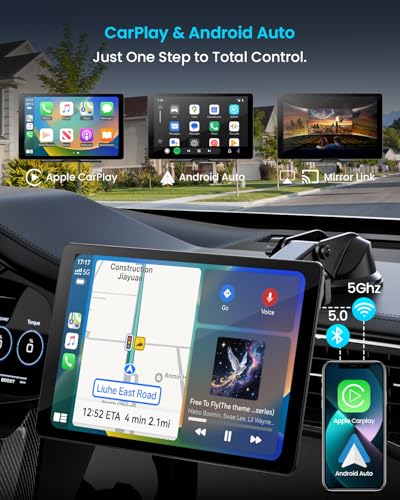
Turn off wireless CarPlay by disabling CarPlay on your iPhone or removing your car from its saved connections.
Wireless CarPlay is handy, but it can connect when you want a quiet drive, use Bluetooth only, or let another person’s phone connect. Learning how to turn off wireless CarPlay gives you better control without deleting your iPhone settings or changing your car’s entire system. The steps are simple, but they vary by whether you want a temporary pause or a complete disconnect.
Why Turn Off Wireless CarPlay?
Wireless CarPlay uses Bluetooth to begin the connection and Wi-Fi to carry data between your iPhone and the car. Because the process happens automatically, your iPhone may reconnect each time you start the vehicle.
Drivers often turn off wireless CarPlay for practical reasons:
• They want to use the car’s built-in navigation system.
• They prefer Bluetooth audio without the CarPlay screen.
• They want to save battery during a long trip.
• Another driver needs to connect their iPhone.
• CarPlay keeps opening when it is not needed.
• The wireless connection causes audio delays or random disconnections.
Turning off wireless CarPlay does not damage your iPhone, vehicle, or infotainment system. It simply stops the automatic link between the two devices.

<figcaption style=”font-size: 14px; color: #555; margin-top: 8px;”>
Source: reddit.com
How to Turn Off Wireless CarPlay on an iPhone
The most reliable way to stop a car from connecting is to remove it from the CarPlay list on your iPhone. This prevents automatic wireless CarPlay connections until you set the vehicle up again.
Follow these steps:
-
Open the Settings app on your iPhone.
-
Tap General.
-
Select CarPlay.
-
Choose your vehicle from the list.
-
Tap Forget This Car.
-
Confirm by tapping Forget This Car again.
After you complete these steps, your iPhone will no longer connect to that vehicle through CarPlay. Bluetooth pairing may remain active, depending on your car and how it stores phone connections.
This method is useful when you want to stop wireless CarPlay for several days or weeks. It is also helpful when you are selling the car, changing phones, or troubleshooting a connection problem.
Keep in mind that forgetting the car removes its CarPlay settings from your iPhone. You will need to pair the vehicle again if you later want to use CarPlay.

How to Temporarily Stop Wireless CarPlay
Sometimes, you do not want to delete the car. You only want to stop wireless CarPlay for one drive. In that case, use a temporary method.
Turn off Bluetooth and Wi-Fi
Open Control Center on your iPhone, then turn off Bluetooth and Wi-Fi. This can interrupt the wireless CarPlay connection.
However, this method may not fully disable the wireless radios. In recent iOS versions, Control Center buttons can disconnect accessories without completely turning off Bluetooth or Wi-Fi. For a more complete shutdown, open Settings and switch off both options there.
This can also affect wireless headphones, Apple Watch features, AirDrop, and other connected devices.
Use Airplane Mode
Airplane Mode can quickly stop wireless connections. Open Control Center and tap the airplane icon.
You may need to turn Bluetooth back on later for calls, music, or other accessories. Airplane Mode is best for a short trip when you want a fast and simple break from wireless CarPlay.
Decline the CarPlay prompt
Some vehicles show a CarPlay prompt when the iPhone is detected. If your screen offers an option such as “Not Now” or “Cancel,” select it.
This may stop the connection for that drive, but it does not always prevent future automatic connections. Use the “Forget This Car” method if you want a lasting change.

How to Disable Wireless CarPlay in Your Car
Some vehicles include a setting that controls smartphone projection or automatic CarPlay startup. The menu name depends on the car brand, model year, and infotainment software.
Look for options such as:
• Apple CarPlay
• Smartphone integration
• Phone projection
• Wireless device connection
• Auto launch
• Connected devices
• Startup app
A common path looks like this:
-
Open the vehicle’s Settings menu.
-
Select Connections, Devices, or Phone.
-
Choose Apple CarPlay or Smartphone Projection.
-
Select your iPhone.
-
Choose Disable, Disconnect, or Remove Device.
Some systems let you disable wireless CarPlay while keeping the phone paired for Bluetooth calls and music. Others treat CarPlay and Bluetooth as one connection, so disabling one may affect both.
If you cannot find the setting, check the vehicle’s digital owner’s manual. Search for terms like “CarPlay,” “phone projection,” or “wireless connection.” Avoid changing safety, driver assistance, or factory reset settings unless you know exactly what they do.

How to Stop Automatic Wireless CarPlay Connections
If wireless CarPlay connects every time you start the car, the iPhone and vehicle probably remember each other as trusted devices. Removing one side of that relationship usually solves the problem.
Try these steps in order:
-
Disconnect the current CarPlay session.
-
On the iPhone, open Settings > General > CarPlay.
-
Tap the vehicle name.
-
Select Forget This Car.
-
On the car’s screen, open the paired phone list.
-
Remove your iPhone from the vehicle.
-
Restart both the iPhone and the infotainment system.
-
Pair the phone again only if you want Bluetooth without CarPlay.
Some cars automatically start CarPlay after a phone is paired. In those vehicles, Bluetooth-only use may not be possible through the standard pairing menu. You may need to disable smartphone projection in the car or use a wired connection instead.
In my experience helping people with connection settings, the most common mistake is deleting the iPhone from the phone list but leaving the vehicle saved under iPhone CarPlay settings. Removing the device from both places gives a cleaner reset.

How to Use Bluetooth Without Wireless CarPlay
Many drivers want hands-free calls and music but do not want the CarPlay interface. Bluetooth may allow this, but the result depends on the vehicle.
First, remove the car from the iPhone’s CarPlay settings. Then pair the iPhone through the vehicle’s Bluetooth menu. During setup, look for a choice related to smartphone projection or CarPlay and leave it disabled.
After pairing, test these features:
• Make a hands-free call.
• Play music from the iPhone.
• Adjust the volume from the car controls.
• Check whether the vehicle still launches CarPlay.
• Confirm that contacts and call history work as expected.
If CarPlay opens again, the vehicle may force it whenever an iPhone is connected. In that case, disable Apple CarPlay or smartphone projection in the car’s settings.
Bluetooth audio usually has fewer screen features than CarPlay. You may lose access to Apple Maps, Messages, Siri controls, and supported CarPlay apps. This trade-off is worthwhile if your main goal is simple music and calling.

How to Turn Off Wireless CarPlay but Keep Wired CarPlay
Wireless and wired CarPlay can behave differently. Some drivers want to prevent automatic wireless connections but still use CarPlay with a USB cable.
Start by forgetting the car on the iPhone. Then connect the iPhone to the vehicle using a USB cable that supports data transfer, not just charging.
Depending on the vehicle, the car may ask whether you want to enable wireless CarPlay. Choose the option that limits CarPlay to USB or decline wireless setup.
Not every vehicle offers separate wireless and wired controls. Some systems activate wireless CarPlay after the first wired setup. If that happens, look for a setting called “Use Wireless CarPlay,” “Enable Wireless Projection,” or “Auto Connect.”
A good USB cable can also prevent confusion. Damaged or charge-only cables may make it seem like wired CarPlay is not working when the real problem is the cable.
What to Do If Wireless CarPlay Keeps Turning On
If wireless CarPlay continues to launch, use a full connection reset. This removes old pairing data and helps the iPhone and vehicle start fresh.
Reset the iPhone connection
On your iPhone, forget the vehicle under Settings > General > CarPlay. Then open Settings > Bluetooth and remove the car if it appears as a saved device.
Remove the iPhone from the car
Use the vehicle’s paired device menu to delete the iPhone. If the car has separate lists for Bluetooth phones and CarPlay devices, remove the iPhone from both lists.
Restart both systems
Turn the iPhone off and back on. Then switch the vehicle off, open and close the driver’s door, and wait a few minutes before restarting it. Some infotainment systems need time to shut down fully.
Check for software updates
An outdated iOS version or vehicle firmware can cause repeated connection behavior. Apple recommends keeping the iPhone updated, while vehicle software updates normally come from the manufacturer or an authorized dealer.
Reset network settings as a last resort
On the iPhone, go to Settings > General > Transfer or Reset iPhone > Reset > Reset Network Settings.
This removes saved Wi-Fi networks, VPN settings, and Bluetooth pairings. It does not delete photos, apps, or personal files, but you will need to reconnect other devices afterward.

Benefits and Limitations of Turning Off Wireless CarPlay
Turning off wireless CarPlay can make your drive feel calmer. Your dashboard will not change screens as soon as you start the engine, and another phone may connect more easily.
Key benefits include:
• Fewer automatic connections.
• Less screen distraction.
• More control over which phone connects.
• A simpler Bluetooth-only setup.
• Fewer wireless audio interruptions.
There are also limitations. Without CarPlay, you may lose convenient access to iPhone navigation, Siri messages, podcasts, music apps, and supported third-party apps.
Wireless CarPlay may also use more battery than basic Bluetooth audio because it maintains a Wi-Fi connection and sends a richer display interface. The exact effect varies by iPhone model, battery health, signal strength, and vehicle system.
For safety, set your phone before driving. Never use the iPhone manually while the vehicle is moving. Hands-free controls and voice commands are safer choices, but drivers should still follow local traffic laws.

A Simple Method to Choose the Right Option
Use the lightest method that fits your goal.
-
Choose “Not Now” when you only want to skip CarPlay for one drive.
-
Turn off Bluetooth and Wi-Fi when you need a short wireless break.
-
Disable CarPlay in the car when you want Bluetooth calls without the CarPlay screen.
-
Forget the car on the iPhone when you want to stop automatic connections.
-
Remove the iPhone from both devices when CarPlay keeps returning.
-
Reset network settings only after simpler steps fail.
This approach avoids unnecessary changes. It is like closing one door instead of shutting down the entire house.
Frequently Asked Questions About How to Turn Off Wireless CarPlay
Can I turn off wireless CarPlay without deleting my iPhone?
Yes. You can decline the CarPlay prompt, disable CarPlay in the vehicle menu, or temporarily turn off wireless connections. The exact option depends on the car’s infotainment system.
Does turning off wireless CarPlay disable Bluetooth?
Not always. Many vehicles let you disable CarPlay while keeping Bluetooth calls and audio active, but some systems link both features together.
How do I stop CarPlay from connecting automatically?
On the iPhone, go to Settings > General > CarPlay, select your vehicle, and tap Forget This Car. For the best result, also remove the iPhone from the car’s paired device list.
Will forgetting my car delete anything from my iPhone?
No. Forgetting a car removes its CarPlay connection and settings, but it does not delete apps, photos, contacts, or messages from your iPhone.
Can I still use wired CarPlay after turning off wireless CarPlay?
Often, yes. You can connect the iPhone with a compatible USB data cable, although some vehicles may automatically offer wireless setup again.
Why does wireless CarPlay keep turning on after I disable it?
The vehicle or iPhone may still have saved pairing information. Remove the car from the iPhone’s CarPlay list and delete the iPhone from the car’s device list.
Does Airplane Mode turn off wireless CarPlay?
Airplane Mode usually interrupts the wireless connection, but Bluetooth can be turned back on manually. For a lasting change, forget the car or disable CarPlay in the vehicle settings.
Conclusion
Turning off wireless CarPlay is usually quick. For a temporary pause, decline the connection or use Airplane Mode. For a lasting fix, forget the vehicle on your iPhone and remove the phone from the car’s saved device list. If you still want calls and music, try a Bluetooth-only setup or disable smartphone projection in the vehicle.
Start with the least disruptive method, then move to a full reset only if needed. Once you control which device connects and when, your dashboard becomes less distracting and more predictable. Explore your car’s connection settings, and share your experience if a particular method works best for your vehicle.