You can check your car’s screen, settings, manual, and iPhone connection to confirm wireless Apple CarPlay support.
Knowing how do I know if my car has wireless CarPlay can save you time, money, and frustration. Many vehicles support CarPlay only through a USB cable, while newer models connect over Bluetooth and Wi-Fi without a cable. The steps below will help you check your car with simple tests, even if you no longer have the owner’s manual.
What wireless Apple CarPlay means
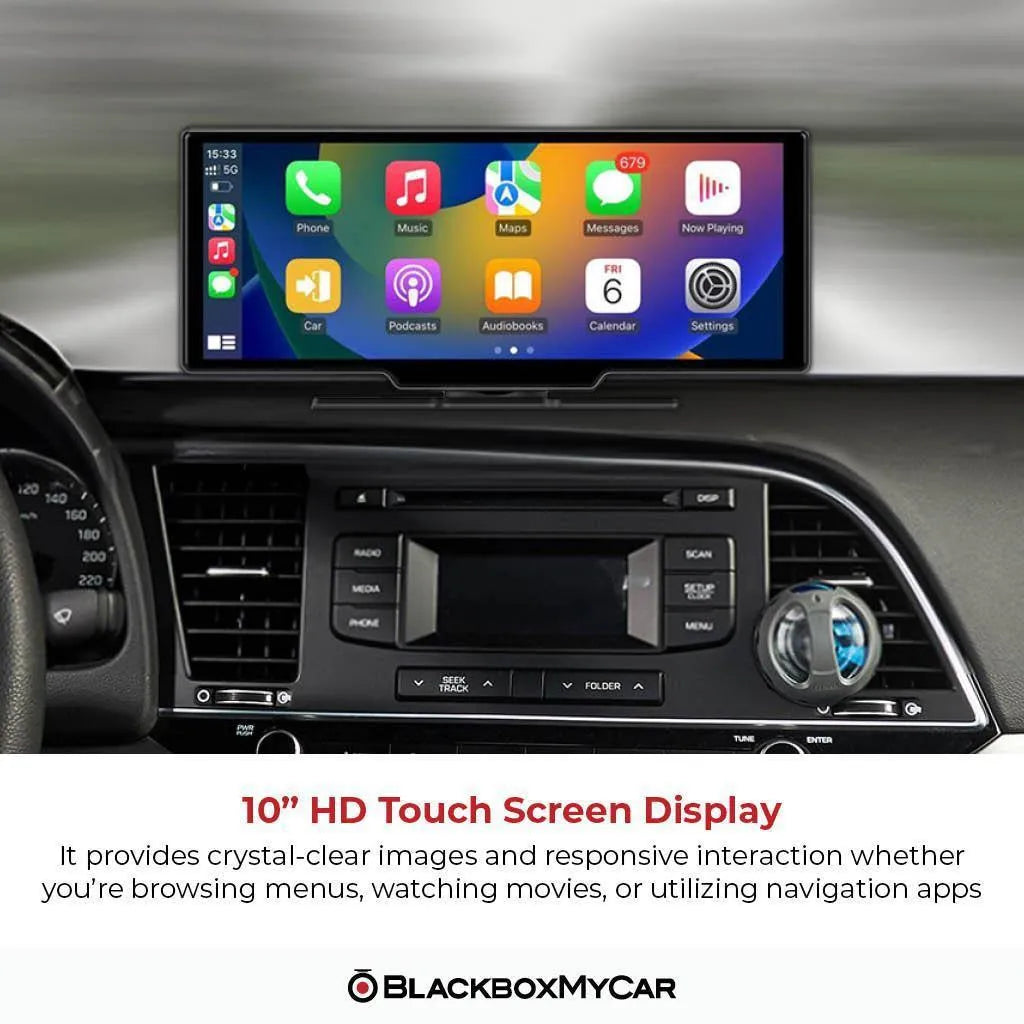
Apple CarPlay lets you use selected iPhone apps on your vehicle’s display. You can access navigation, phone calls, messages, music, podcasts, and Siri through the car’s touchscreen, buttons, or voice controls.
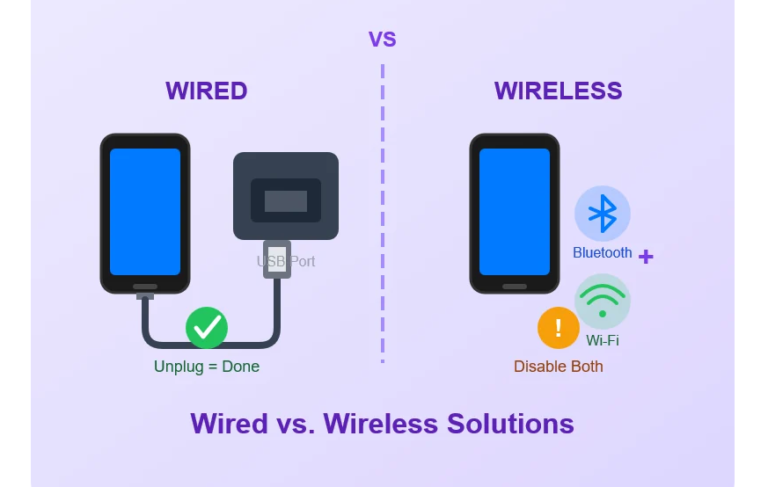
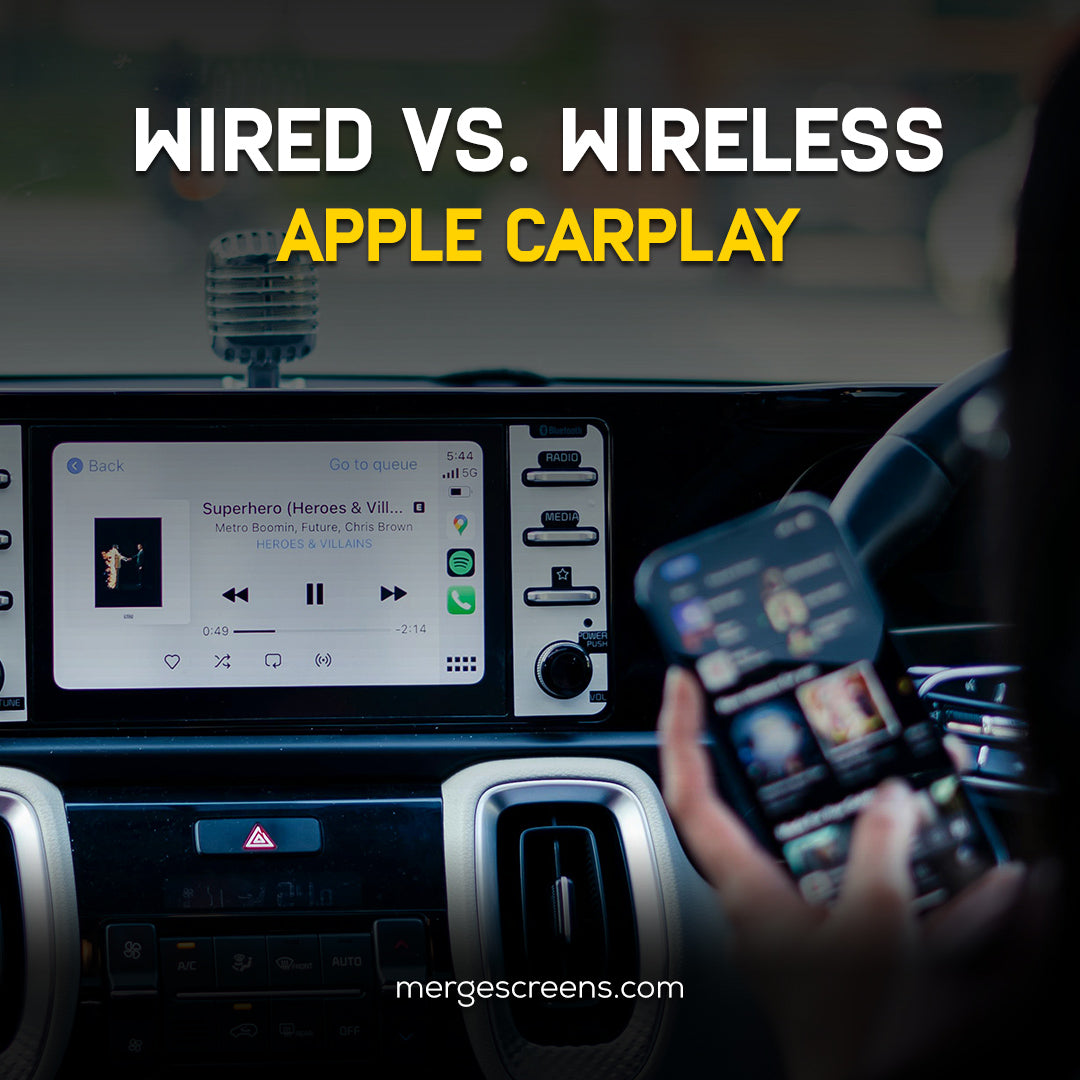
Wireless CarPlay works without a USB cable. It uses Bluetooth to begin the connection and Wi-Fi to carry the larger stream of data between your iPhone and the car. This is different from standard wired CarPlay, which needs a compatible USB port and cable.
A car may offer one of these connection types:
• Wired CarPlay only: Your iPhone must stay connected to a USB port.
• Wireless CarPlay only: Your iPhone connects without a cable.
• Wired and wireless CarPlay: You can choose either connection method.
• No CarPlay: The car may offer Bluetooth audio, Android Auto, or a separate infotainment system instead.
The important point is that Bluetooth alone does not prove your car has wireless CarPlay. Almost every modern vehicle can stream calls and music over Bluetooth, but wireless CarPlay needs both Bluetooth pairing and a compatible Wi-Fi connection.

How do I know if my car has wireless CarPlay?
The fastest way to find out is to park safely, turn on the vehicle, and check whether the infotainment system offers a smartphone connection option. Then use your iPhone to look for the car under Settings > General > CarPlay.
Follow these steps:
-
Start the car and keep it in Park.
-
Turn on Bluetooth and Wi-Fi on your iPhone.
-
Open Settings on your iPhone.
-
Tap General, then CarPlay.
-
Look for your vehicle in the list of available cars.
-
Select the vehicle and follow the pairing instructions.
-
Accept the CarPlay request on the car’s display.
-
Test the connection after turning off the vehicle and starting it again.
If CarPlay starts automatically without a USB cable, your car likely supports wireless Apple CarPlay. If the car appears on your iPhone but only works when plugged in, it may support wired CarPlay only.
Some vehicles require you to press a button such as Phone, Menu, Apps, Projection, or Smartphone Connection before the pairing screen appears. The exact wording depends on the car brand and infotainment system.

Check the car’s infotainment settings
Your vehicle’s menu often gives the clearest answer. Look for settings related to phone projection, smartphone integration, or Apple CarPlay.
Common menu names include:
• Apple CarPlay
• Wireless Apple CarPlay
• Smartphone Connection
• Phone Projection
• Mobile Device Connection
• Wireless Device Setup
• Bluetooth and Wi-Fi Settings
• Connected Devices
If you see a setting called “Use CarPlay When Locked” on the iPhone, that only controls your phone. It does not prove the car supports wireless CarPlay.
You should also look for an option such as “Add New Device” or “Connect Smartphone.” When you select it, the car may ask whether you want to use Bluetooth, Android Auto, or Apple CarPlay. A wireless CarPlay system often shows a pairing code on both the car screen and the iPhone.
Some systems hide wireless CarPlay inside a general smartphone menu. This is common in vehicles that support several phone platforms. Do not assume the lack of a large CarPlay icon means the feature is missing.

Test wireless CarPlay without a USB cable
A real-world connection test is one of the best ways to learn how do I know if my car has wireless CarPlay.
First, remove your iPhone from any USB cable. Next, make sure Siri is enabled under Settings > Apple Intelligence & Siri or Settings > Siri, depending on your iOS version. Wireless CarPlay may not complete setup if Siri is disabled.
Then try the following:
-
Turn on Bluetooth and Wi-Fi.
-
Start the vehicle.
-
Open the car’s phone or smartphone connection menu.
-
Select your iPhone.
-
Confirm the pairing code.
-
Allow CarPlay on your iPhone.
-
Wait for the CarPlay home screen.
-
Turn the car off and restart it later to test automatic reconnection.
If the CarPlay screen appears each time without a cable, the car has wireless CarPlay. If the phone connects only for calls and music, the system may have Bluetooth but not wireless CarPlay.
During testing, keep the iPhone unlocked if the car asks for permission. Also check that the iPhone is not connected to another vehicle nearby. I have seen phones connect to the wrong car in busy parking lots, which can make a working system seem broken.

Check the owner’s manual and vehicle specifications
The owner’s manual is often more accurate than a dealership listing or online advertisement. Search the index for “CarPlay,” “Apple CarPlay,” “phone projection,” or “wireless connection.”
You can also check the manufacturer’s official specifications using the exact:
• Model name
• Model year
• Trim level
• Factory infotainment package
This detail matters because wireless CarPlay may be available on one trim but not another. A 2022 model, for example, may have different features in its base, mid-level, and premium versions.
Be careful with used-car listings. Sellers may write “Apple CarPlay” even when the vehicle supports only wired CarPlay. The words “Apple CarPlay” do not always mean “wireless Apple CarPlay.”
A window sticker, build sheet, or original equipment list can provide more reliable information. If you are buying a used vehicle, test the feature before signing paperwork.

Look for clues in the USB ports
USB ports can offer useful clues, but they do not provide a final answer.
Many cars with wired CarPlay mark the correct USB port with a smartphone icon. Other ports may be for charging only. If CarPlay works through one USB port but not another, use the port designed for data.
A USB port does not automatically mean the car lacks wireless CarPlay. Some vehicles include USB ports for charging, wired backup connections, software updates, or passengers who prefer a cable.
Try connecting your iPhone once with a certified cable. If CarPlay starts, check the car’s settings for a wireless pairing option. Some vehicles require the first connection to be wired before wireless CarPlay becomes available.
This setup method is easy to miss. Drivers sometimes plug in the phone, see CarPlay work, and assume the car has only wired support. Check the wireless settings before making that judgment.
Use the iPhone CarPlay settings
Your iPhone can show cars that have been connected before. Go to:
Settings > General > CarPlay
Tap the vehicle name to view available options. You may see choices related to:
• CarPlay dashboard layout
• Allow CarPlay While Locked
• Forget This Car
• Customize the CarPlay home screen
If your car is listed, that means your iPhone has detected a CarPlay connection at some point. However, the list alone does not always prove that the connection was wireless. The first setup may have used a cable.
To confirm wireless support, forget the car from the CarPlay menu, remove the USB cable, and pair the vehicle again through Bluetooth and Wi-Fi. If the connection succeeds without the cable, you have your answer.
Do not delete the car from your iPhone unless you are ready to pair it again. You may need to repeat the setup process, and some vehicles also require you to remove the phone from the car’s Bluetooth device list.
Wireless CarPlay versus Bluetooth
Bluetooth and wireless CarPlay are not the same feature.
Bluetooth usually handles phone calls, contact access, and music streaming. The car may show the song title and basic playback controls, but it will not provide the full CarPlay interface.
Wireless CarPlay offers a broader system. It can display navigation apps, messages, music apps, Siri controls, and a CarPlay dashboard on the vehicle screen.
Here is a simple comparison:
| Feature | Bluetooth | Wireless CarPlay |
|---|---|---|
| Hands-free calls | Yes | Yes |
| Music streaming | Yes | Yes |
| Apple Maps on the car screen | Usually no | Yes |
| Siri through the car system | Limited | Yes |
| CarPlay app dashboard | No | Yes |
| USB cable required | No | No |
If your phone connects for calls but you cannot see CarPlay apps, the vehicle likely has Bluetooth without wireless CarPlay. This is one of the most common sources of confusion.

Why wireless CarPlay may not connect
Even when a car supports wireless CarPlay, connection problems can make the feature appear unavailable. Several settings must work together.
Check these common causes:
• Siri is turned off.
• Bluetooth is disabled.
• Wi-Fi is disabled.
• CarPlay is blocked under Screen Time restrictions.
• The iPhone has an outdated version of iOS.
• The car’s infotainment software needs an update.
• The phone is already connected to another car.
• The vehicle is outside the supported model year or trim.
• The car has a weak or outdated infotainment system.
To troubleshoot, restart the iPhone and the car. Then turn Bluetooth and Wi-Fi off and on. Remove the vehicle from Settings > General > CarPlay and from the car’s paired-device list, then pair the devices again.
Do not reset the entire infotainment system as your first step. A full reset can erase radio presets, navigation data, and other driver settings. Start with the simple checks first.
Does a wireless CarPlay adapter work?
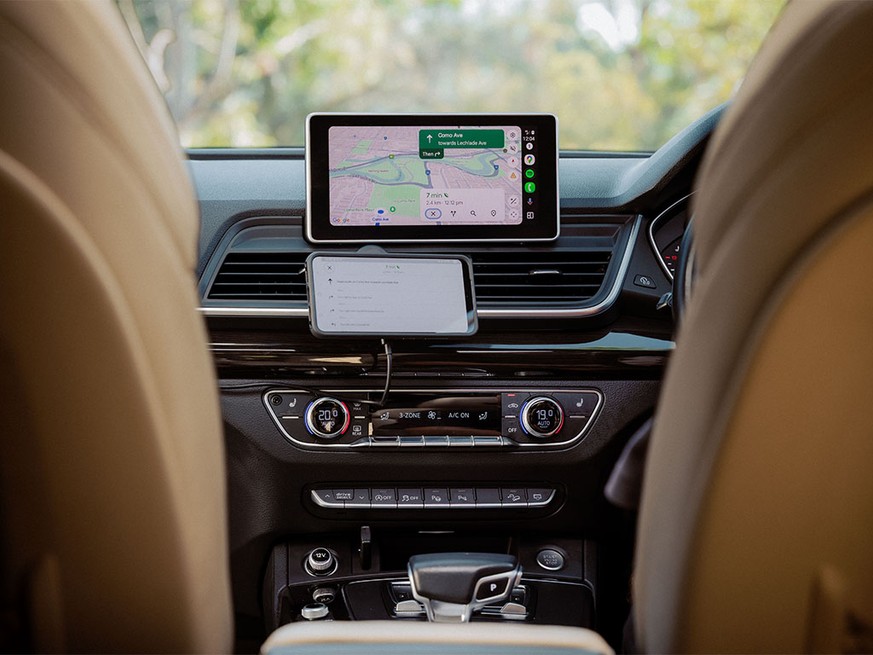
A wireless CarPlay adapter can add wireless functionality to some cars that already support wired CarPlay. The adapter plugs into the vehicle’s CarPlay USB port and creates a wireless connection with the iPhone.
This option does not usually add CarPlay to a car that has no CarPlay support at all. The vehicle must already recognize wired Apple CarPlay for most adapters to work.
Before buying an adapter, check:
• Whether your car supports wired CarPlay
• Whether the adapter supports your iPhone and iOS version
• Whether the USB port carries data
• Whether the adapter supports your vehicle’s infotainment system
• Whether the seller offers returns
Adapters can be helpful, but they may add a short delay when switching tracks, opening navigation, or starting the car. Some may also have compatibility issues after an iOS or vehicle software update.
I recommend testing the factory system first. If wired CarPlay works well, an adapter may be a practical upgrade. If wired CarPlay does not work, an adapter is unlikely to solve the main problem.
Benefits and limits of wireless CarPlay
Wireless CarPlay is convenient because you can leave your phone in your pocket, bag, or charging tray. It starts automatically in many vehicles and keeps the center console free of cables.
The main benefits include:
• Easier short trips
• Automatic connection after setup
• Cleaner dashboard appearance
• Access to navigation and music without plugging in
• Better support for Siri and hands-free controls
Wireless CarPlay also has limits. It can use more battery than a wired connection, especially during navigation. Wireless connections may also take a few extra seconds to start.
For long drives, a wireless charging pad can help. However, wireless charging may create heat, and some older charging pads may not charge an iPhone quickly enough during navigation. A wired connection remains useful when you need the fastest charging and the most stable connection.
Common mistakes to avoid
Many drivers search how do I know if my car has wireless CarPlay after seeing conflicting information online. Most confusion comes from mixing up similar features or checking the wrong trim.
Avoid these mistakes:
• Assuming Bluetooth means wireless CarPlay
• Trusting a used-car listing without testing the feature
• Checking only the USB port
• Forgetting to turn on Siri
• Pairing the phone with the car but not approving CarPlay
• Testing while the vehicle is moving
• Buying an adapter before confirming wired CarPlay
• Using an old or damaged USB cable during the first setup
A safe test takes only a few minutes while the car is parked. If you are purchasing a vehicle, ask the seller to demonstrate wireless CarPlay on the exact car you plan to buy.
Frequently Asked Questions
How do I know if my car has wireless CarPlay without a manual?
Turn on Bluetooth and Wi-Fi on your iPhone, then open Settings > General > CarPlay. If your vehicle pairs and displays the CarPlay interface without a USB cable, it supports wireless CarPlay.
Does Bluetooth mean my car has wireless CarPlay?
No. Bluetooth can provide hands-free calls and music without supporting CarPlay. Wireless CarPlay requires a compatible infotainment system that uses Bluetooth and Wi-Fi together.
Can I use wireless CarPlay if wired CarPlay works?
Often, yes. Some cars support both connection types, while others need a wireless CarPlay adapter to convert a wired connection into a wireless one.
Why does my car connect to Bluetooth but not CarPlay?
Siri, Wi-Fi, CarPlay permissions, vehicle software, or phone compatibility may be causing the issue. Restart both devices, remove the old pairing, and set up the connection again.
Can an older car get wireless CarPlay?
An older car may support wireless CarPlay after an infotainment upgrade, but compatibility depends on the vehicle and replacement system. A wireless adapter usually works only when the original system already supports wired CarPlay.
Does wireless CarPlay work with every iPhone?
Wireless CarPlay requires a compatible iPhone and supported iOS software. Most recent iPhones work with it, but the car’s system must also support wireless CarPlay.
Conclusion
The simplest way to learn how do I know if my car has wireless CarPlay is to pair your iPhone without a USB cable and watch for the CarPlay interface. Check the car’s smartphone settings, confirm Bluetooth and Wi-Fi are on, and review the exact model and trim specifications.
Remember that Bluetooth audio is not the same as wireless CarPlay. If wired CarPlay works but wireless pairing does not, your car may need a setting change, a software update, or a compatible adapter.
Test the feature while parked, use the vehicle’s manual as a final reference, and verify the system before buying any accessory or used car. Share your vehicle’s make, model, and year if you need help checking its compatibility.