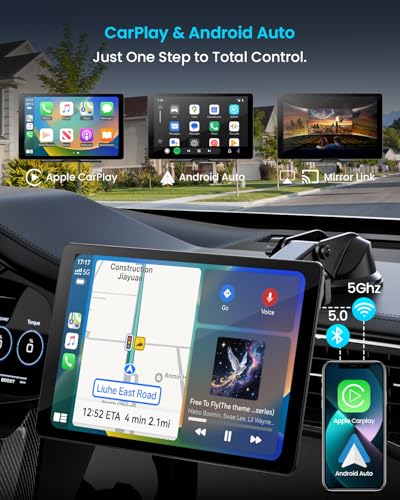
Wireless CarPlay uses Bluetooth to start the connection, then Wi-Fi to send audio, apps, maps, and calls.
If you have ever wondered how does wireless CarPlay work, the answer involves more than simply removing the USB cable. It combines Bluetooth discovery, a private Wi-Fi link, your iPhone’s CarPlay software, and the vehicle’s built-in display. This guide explains the full process, benefits, limits, setup steps, and common fixes in clear terms.
How does wireless CarPlay work?
Wireless CarPlay creates a direct wireless connection between your iPhone and your car’s infotainment system. It does not normally depend on your home Wi-Fi or your phone’s cellular hotspot.
The connection uses two wireless systems:
• Bluetooth helps the iPhone and car find each other and begin pairing.
• Wi-Fi carries most of the large data flow, including maps, music, messages, calls, and screen updates.
• Siri handles many voice tasks, such as sending texts, changing music, and reading directions.
• The car’s touchscreen, buttons, knobs, and steering wheel controls act as remote controls for supported iPhone features.
A useful way to picture it is like a two-lane bridge. Bluetooth opens the bridge, while Wi-Fi carries the traffic. Once connected, the car does not simply mirror every part of your iPhone screen. Instead, CarPlay displays a driving-friendly interface approved by Apple and supported by the vehicle.
Wireless CarPlay usually starts when you enter the vehicle and turn it on. If your iPhone has already been paired, the car recognizes it and reconnects automatically. The exact process can vary by vehicle brand, model year, and infotainment system.

What happens during a wireless CarPlay connection?
The pairing process has several steps, even though it may feel instant.
1. The car searches for a nearby iPhone
When wireless CarPlay is active, the vehicle looks for a compatible iPhone through Bluetooth. Your phone must have Bluetooth and Wi-Fi turned on.
Some cars begin this process through a wireless CarPlay menu. Others show a pairing request on the display after you start the engine.
2. Bluetooth confirms the devices
The iPhone and car exchange basic information through Bluetooth. This confirms that the devices are allowed to connect.
You may need to accept a pairing code or approve a request on your iPhone. In some vehicles, the first setup still requires a USB cable. This initial wired connection lets the car save the phone as an approved CarPlay device.
3. Wi-Fi creates the main link
After Bluetooth starts the connection, the car and iPhone switch most CarPlay traffic to Wi-Fi. This private link has much more capacity than Bluetooth.
That higher speed allows the car to receive:
• Navigation instructions
• Music and podcast audio
• Phone call data
• Siri responses
• Message alerts
• App screen updates
• Information from supported parking, charging, food-ordering, and driving apps
The phone may show that it is connected to the car’s Wi-Fi network. This does not always mean your internet connection has stopped. Your iPhone can often use cellular data for online services while using the car’s Wi-Fi link for CarPlay.
4. CarPlay launches on the dashboard
Once the connection is ready, the vehicle loads the CarPlay interface. The car’s display becomes a control center for selected iPhone apps.
The phone continues to run the apps, while the vehicle displays and controls them. This division helps reduce distraction because CarPlay limits complex actions while you drive.
Does wireless CarPlay use Bluetooth or Wi-Fi?
Wireless CarPlay uses both Bluetooth and Wi-Fi, but each one has a different job.
Bluetooth is mainly used for discovery, authentication, and starting the connection. It is useful because it consumes relatively little power and works well for short-range device discovery.
Wi-Fi handles the main CarPlay connection because it can transfer much more data. Streaming music, updating a map, and showing a responsive dashboard would be difficult through Bluetooth alone.
This explains a common point of confusion. You may see your iPhone listed under the car’s Bluetooth devices, but Bluetooth by itself is not the complete wireless CarPlay connection.
Your vehicle must support the wireless CarPlay profile. A car that offers Bluetooth calls and music may still support only wired CarPlay. Basic Bluetooth audio is not the same as wireless CarPlay.
What do you need for wireless CarPlay?
Wireless CarPlay requires compatible hardware, software, and settings.
You generally need:
• An iPhone that supports CarPlay
• A recent version of iOS
• A vehicle or aftermarket receiver with wireless CarPlay support
• Bluetooth turned on
• Wi-Fi turned on
• Siri enabled
• A working cellular or internet connection for online features
Most modern iPhones support CarPlay, but exact compatibility depends on the iOS version and vehicle system. Older vehicles may support CarPlay only through a USB cable.
You can check compatibility in three places:
-
Look in the vehicle owner’s manual.
-
Search the manufacturer’s specifications for the exact trim and model year.
-
Check the receiver manufacturer’s compatibility list if you installed an aftermarket stereo.
Do not assume that a car with a large touchscreen supports wireless CarPlay. The display size and wireless features are separate choices made by the manufacturer.
How to set up wireless CarPlay
The first setup often takes only a few minutes. Park the car before you begin so you can focus on the screen.
-
Start the vehicle and turn on the infotainment system.
-
Put the car in park.
-
Turn on Bluetooth, Wi-Fi, and Siri on the iPhone.
-
Open the car’s phone or CarPlay settings.
-
Select the option to add a phone or connect to CarPlay.
-
Choose your car from the iPhone’s Bluetooth menu if prompted.
-
Confirm the pairing code shown on both devices.
-
Approve the CarPlay request on the iPhone.
-
Select the option to allow CarPlay while the phone is locked.
-
Wait for the CarPlay dashboard to appear.
Some vehicles require a USB connection for the first setup. If so, connect the iPhone to the correct USB port using a reliable cable. After the car remembers the phone, disconnect the cable and test the wireless connection.
If several phones are paired, the vehicle may connect to the wrong one. Many infotainment systems include a preferred phone setting. Set your main phone as the priority device if the car supports that option.
How does wireless CarPlay compare with wired CarPlay?
Both versions provide access to the same basic CarPlay system, but the connection method creates practical differences.
Wireless CarPlay benefits
• No cable is needed each time you enter the car.
• The dashboard can appear automatically after startup.
• Your phone can remain in a pocket or bag.
• The center console stays less cluttered.
• Short trips feel easier because you do not need to plug in.
Wired CarPlay benefits
• The connection is often more stable in older vehicles.
• The phone charges while CarPlay is active.
• It can use less battery than a wireless connection.
• A cable can solve many pairing and interference problems.
• Some vehicles offer only wired CarPlay.
Wireless CarPlay may use more battery because Wi-Fi remains active and the phone handles data without receiving power from the car. During a long drive, wireless charging or a high-quality charging cable can help.
In my practical testing of phone-to-dashboard connections, the biggest wireless advantage is convenience during short drives. The biggest weakness is that small setup errors can be harder to spot than a loose cable. A cable gives you a simple physical connection, while wireless CarPlay depends on several settings working together.
What can you do with wireless CarPlay?
Wireless CarPlay supports many common driving tasks through the vehicle screen.
Navigation
You can use Apple Maps and other supported navigation apps to view routes, traffic information, turn instructions, and estimated arrival times. Siri can start a route when you speak a destination.
Navigation data usually comes from the iPhone. The car’s GPS hardware may also assist, depending on the vehicle system.
Music and podcasts
Supported audio apps can play music, podcasts, audiobooks, and news. You can browse selected content through the screen or ask Siri to play something.
The quality depends on the car’s speakers, cellular connection, audio settings, and streaming service.
Phone calls
You can place and answer calls through the dashboard. The car’s microphone and speakers handle the conversation, while the iPhone manages the phone service.
Messages
Siri can read incoming messages and let you dictate replies. This is safer than typing while driving, but voice commands can still distract you in complex traffic.
Siri commands
You can use the steering wheel voice button or the CarPlay microphone icon to ask Siri to:
• Call a contact
• Send a message
• Read recent messages
• Start navigation
• Change music
• Check the weather
• Add a reminder
CarPlay does not support every iPhone app. Apple limits access to apps that fit driving needs, such as navigation, communication, audio, parking, charging, and fueling services.
Is wireless CarPlay safe?
Wireless CarPlay can support safer driving because it reduces the need to handle your phone. The dashboard gives you larger controls, and Siri lets you complete many tasks by voice.
However, it does not remove every driving risk. Looking at a dashboard screen for too long can still take your attention from the road. Notifications, complex routes, and difficult voice commands may also distract you.
Use these habits:
• Set your route before moving.
• Use Do Not Disturb or a driving focus mode.
• Keep voice commands short.
• Avoid browsing playlists while driving.
• Pull over before changing detailed settings.
• Use steering wheel controls when available.
CarPlay follows a simple principle: reduce hand use, not awareness. Even a smart interface cannot replace attentive driving.
Common wireless CarPlay problems and fixes
Wireless CarPlay can fail because of outdated software, saved pairing data, weak vehicle firmware, or competing Bluetooth connections.
CarPlay does not appear
Try these steps:
• Confirm that the vehicle supports wireless CarPlay.
• Turn on Bluetooth and Wi-Fi.
• Make sure Siri is enabled.
• Restart the iPhone and the vehicle system.
• Open the car’s CarPlay menu manually.
• Remove the car from the iPhone’s saved Bluetooth devices, then pair again.
The connection keeps dropping
A weak or unstable wireless link may cause interruptions. Move other phones away from the dashboard, update iOS, and install any available infotainment firmware update.
If the problem continues, forget the car in the iPhone’s CarPlay settings and set it up again. This often clears an incomplete pairing record.
Music plays but the screen is frozen
This may be an infotainment software problem rather than an iPhone problem. Restart the car’s display system if the manufacturer provides a safe restart method.
You can also disconnect and reconnect the phone. Do not attempt complicated resets while driving.
The wrong iPhone connects
Remove unused phones from the vehicle’s device list. Then mark the correct phone as the preferred device if that setting is available.
This is common in households where several people use the same car.
The phone battery drains quickly
Wireless CarPlay uses Wi-Fi, Bluetooth, the display, and often navigation at the same time. Use a car charger or a compatible wireless charging pad during long trips.
A charging pad may produce heat, especially in direct sunlight. If the phone becomes hot, remove it from the pad and let it cool.

Is wireless CarPlay private and secure?
Wireless CarPlay uses device pairing and encrypted wireless communication, but no connected technology is completely risk-free. Your phone and car should both use current software.
Use these basic privacy steps:
• Pair phones only when the vehicle is parked.
• Do not approve unknown pairing requests.
• Remove old phones before selling the car.
• Review which notifications appear on the dashboard.
• Use a passcode and current security updates on the iPhone.
Your car may store contact names, call history, device names, or other connection details. Check the owner’s manual for instructions on deleting personal data before returning, selling, or sharing the vehicle.
Wireless CarPlay adapters for wired-only cars
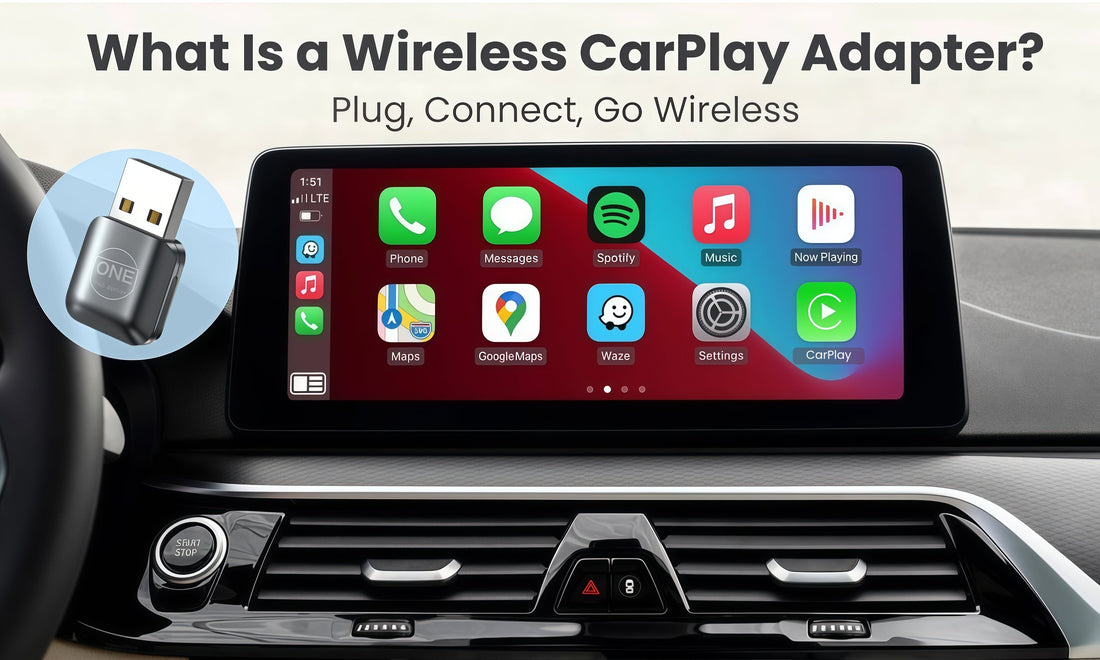
A wireless CarPlay adapter can add wireless functionality to some vehicles that already support wired CarPlay. The adapter plugs into the car’s USB port and creates the wireless connection for your iPhone.
These adapters do not usually add CarPlay to a vehicle that has no CarPlay support at all. Compatibility can also vary between vehicle systems, USB ports, and iPhone models.
Before buying one, check:
• Whether your car has wired CarPlay
• Whether the adapter supports your iOS version
• Whether the USB port supports data, not only charging
• Whether the manufacturer lists your vehicle
• Return and warranty terms
Adapters can improve convenience, but they may add a short startup delay or occasional connection issues. A direct factory wireless system is often more polished, though an adapter can be a practical upgrade for an older car.
How does wireless CarPlay affect mobile data?
Wireless CarPlay does not create free internet access. Online maps, music streaming, traffic updates, messages, and voice services may use your iPhone’s cellular data.
The amount of data depends on what you do. Streaming high-quality music for hours uses more data than making a short call or following a downloaded map.
To reduce mobile data use:
• Download offline maps where supported.
• Save music and podcasts before long trips.
• Review app background data settings.
• Use a suitable cellular plan.
• Avoid assuming the car’s Wi-Fi is connected to the internet.
Some vehicles provide their own internet connection, but that feature is separate from the private Wi-Fi connection used for wireless CarPlay.

How does wireless CarPlay work when cellular service is weak?
Wireless CarPlay itself may still connect when cellular service is poor. The phone-to-car connection uses Bluetooth and Wi-Fi, not a cell tower.
However, online features may not work well without internet access. Live traffic, online music, cloud messages, and web-based Siri answers can pause or fail.
Downloaded music and offline maps may continue to work. This is why preparing for a long rural drive can make the experience more reliable.
Expert tips for a smoother wireless CarPlay experience
A few small habits can prevent most problems.
• Keep iOS updated, but install major updates when you have time to test them before an important trip.
• Update the vehicle’s infotainment firmware through the manufacturer’s approved process.
• Use the correct USB port during first-time setup.
• Keep Bluetooth and Wi-Fi enabled.
• Remove old or duplicate phone pairings.
• Restart both devices before assuming the system is broken.
• Keep the iPhone where it receives a strong signal and stays cool.
• Use a charging solution on long drives.
• Avoid cheap cables during initial setup.
One lesson I have learned from testing connected car systems is to change one setting at a time. If you reset Bluetooth, Wi-Fi, CarPlay, and the vehicle system all at once, you may fix the issue but lose track of what caused it. A slow, simple process usually saves time.

Frequently asked questions about how does wireless CarPlay work
Does wireless CarPlay work without Bluetooth?
No. Bluetooth usually starts the discovery and pairing process, while Wi-Fi carries the main CarPlay data. Both wireless systems normally need to be enabled.
Does wireless CarPlay use my phone’s data?
It can. Online navigation, streaming, cloud messages, and Siri services may use your iPhone’s cellular data unless the car provides a separate internet connection.
Can I use wireless CarPlay with any iPhone?
No. The iPhone must support CarPlay and run compatible software. The vehicle or receiver must also support wireless CarPlay, not only standard Bluetooth or wired CarPlay.
Why does wireless CarPlay disconnect?
Disconnections can result from outdated software, saved pairing errors, weak wireless conditions, competing phones, or vehicle firmware problems. Restarting both devices, removing the old pairing, and setting up the connection again often helps.
Does wireless CarPlay charge my iPhone?
No. Wireless CarPlay sends data but does not charge the phone. Use a car charger or compatible wireless charging pad during longer drives.
Is wireless CarPlay better than wired CarPlay?
Wireless CarPlay is more convenient because you do not need a cable for each trip. Wired CarPlay can be more stable, may use less battery, and charges the iPhone during use.
Can I add wireless CarPlay to an older vehicle?
Sometimes. A compatible adapter can convert wired CarPlay into wireless CarPlay, but it usually cannot add CarPlay to a vehicle that never supported it. Always check the adapter’s vehicle and software compatibility.
Conclusion
Wireless CarPlay works by using Bluetooth to begin pairing and Wi-Fi to deliver the main connection between your iPhone and your car. The system brings navigation, music, calls, messages, and Siri to the dashboard without requiring a cable, but it still depends on compatible hardware, current software, and good device settings.
For the best experience, confirm compatibility, enable Bluetooth and Wi-Fi, keep your phone updated, and use a charger on long drives. If you are buying a car, receiver, or adapter, compare wireless support carefully instead of relying on Bluetooth alone. Explore your vehicle’s CarPlay settings today, and share your setup or troubleshooting experience in the comments.