You can get wireless CarPlay with a built-in system, a wireless adapter, or a compatible aftermarket receiver.
Learning how to get wireless CarPlay is easier when you first check your car, iPhone, and USB connection. This guide explains each safe method, the costs, setup steps, common errors, and practical tips to help you enjoy hands-free navigation, calls, music, and messages without plugging in your phone.

What Wireless CarPlay Does
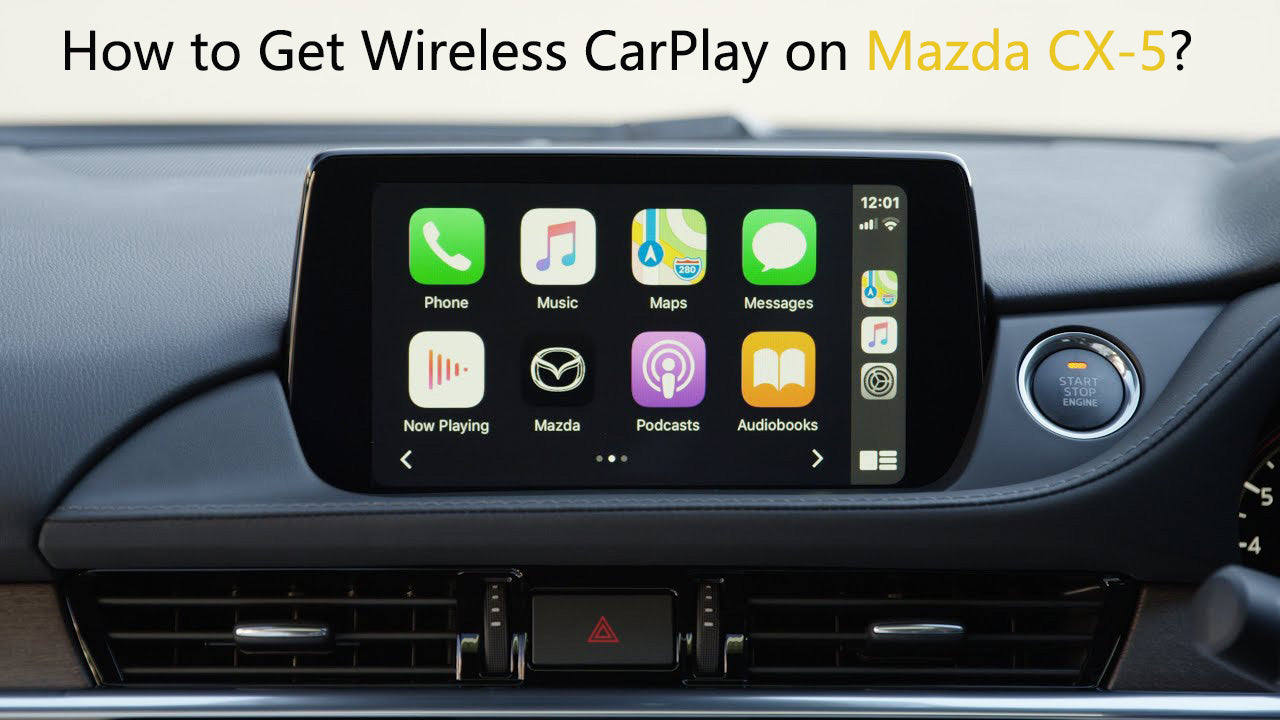
Wireless Apple CarPlay connects your iPhone to your car without a Lightning or USB-C cable. It uses Bluetooth to begin the connection and Wi-Fi to carry the larger stream of audio, maps, messages, and app data.
Once connected, CarPlay shows a simple version of your iPhone on the vehicle’s display. You can use Siri, Apple Maps, Google Maps, Waze, Apple Music, Spotify, podcasts, phone calls, and approved messaging apps.
Wireless CarPlay is not the same as Bluetooth audio. Bluetooth can play music and handle calls, but it usually does not show apps on the car screen. CarPlay gives you a full driving interface with larger controls and voice support.
A wireless connection may also let your iPhone connect each time you start the car. Still, the first setup can take a few minutes, and not every vehicle supports wireless CarPlay from the factory.

Check If Your Car Supports Wireless CarPlay
Before buying anything, check whether your car already supports wireless CarPlay. Many people purchase an adapter when their vehicle already has the feature hidden behind a simple setup step.
Your car may support wireless CarPlay if:
• The vehicle has a color touchscreen with a CarPlay menu.
• The owner’s manual lists wireless Apple CarPlay.
• The car connects to CarPlay without requiring a USB cable.
• The infotainment system includes Bluetooth and Wi-Fi settings.
• The manufacturer lists wireless CarPlay for your exact trim level and model year.
Support can vary between trims. For example, a higher trim may include wireless CarPlay while the base trim only supports wired CarPlay. Two cars from the same year may also use different infotainment systems.
Apple’s compatibility information can confirm whether your iPhone supports CarPlay. Most newer iPhones work with modern CarPlay systems, but your phone should run an up-to-date version of iOS for the best results.
Check these items before setup:
• Your iPhone should have Siri turned on.
• Bluetooth and Wi-Fi should be enabled.
• CarPlay should not be blocked under iPhone restrictions.
• Your vehicle should be parked during setup.
• Your car’s infotainment system should use current firmware.
If your car supports wired CarPlay but not wireless CarPlay, you may still have an easy upgrade path. A wireless CarPlay adapter can often convert the existing wired connection into a wireless one.

How to Get Wireless CarPlay With a Built-In System
If your vehicle has factory wireless CarPlay, you usually do not need extra hardware. The process may differ slightly by brand, but the main steps are similar.
Step 1: Start the car safely
Park the vehicle in a safe place. Turn on the ignition and allow the infotainment system to load fully.
Do not try to pair while driving. Wireless CarPlay setup is simple, but menus can distract you on the road.
Step 2: Turn on the needed iPhone settings
Open your iPhone and check these settings:
- Open Settings.
- Tap Bluetooth and turn it on.
- Open Wi-Fi and turn it on.
- Go to Settings, then Siri or Apple Intelligence & Siri.
- Make sure Siri is enabled.
- Open Settings, then General, then CarPlay.
Your iPhone may ask for permission to use CarPlay while the phone is locked. Approve this option if you want automatic connections.
Step 3: Pair the iPhone with the car
Open the vehicle’s phone or connectivity menu. Select Add Phone, Pair New Device, or a similar option.
Choose your car from the Bluetooth list on the iPhone. Confirm that the code on your phone matches the code on the car display.
The car may then ask whether you want to use wireless CarPlay. Select Allow, Enable, or Use CarPlay.
Step 4: Wait for the Wi-Fi connection
Bluetooth starts the pairing process, but wireless CarPlay normally uses a private Wi-Fi connection for data. Keep Wi-Fi enabled even if your iPhone shows that the car’s network has no internet access.
This is normal. The Wi-Fi link connects your phone to the vehicle, while your cellular service usually provides internet access for maps, music, and other online features.
Step 5: Test the system
Try a few basic functions:
• Ask Siri for directions.
• Play a song or podcast.
• Make a short test call.
• Send a message with Siri.
• Check whether the connection returns after turning the car off and on.
If the system reconnects on its own, you have completed the main steps for how to get wireless CarPlay through the factory system.
How to Get Wireless CarPlay With an Adapter
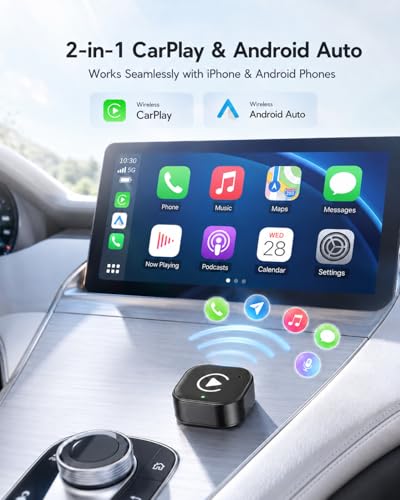
A wireless CarPlay adapter is the most common solution for cars that support wired CarPlay but lack wireless access.
These small devices plug into the car’s USB-A or USB-C CarPlay port. Your iPhone then connects to the adapter without a cable. The adapter acts like a bridge between the phone and the factory infotainment system.
Before buying one, confirm that your car already supports wired CarPlay. Most standard wireless adapters cannot add CarPlay to a vehicle that has no CarPlay support at all.
Adapter setup steps
- Start the car and leave it parked.
- Plug the adapter into the USB port used for wired CarPlay.
- Wait for the adapter’s light or setup screen.
- Open Bluetooth on your iPhone.
- Select the adapter’s name.
- Confirm the pairing code.
- Accept the CarPlay permission request.
- Wait for the wireless connection to begin.
- Test the system after unplugging the iPhone.
Some adapters use a companion app for firmware updates or settings. Install the app only when the manufacturer requires it, and download it from the official App Store listing.
Choose the correct USB port
Many vehicles have several USB ports, but only one may support CarPlay. Look for a port marked with a smartphone, CarPlay logo, or data symbol.
A charging-only port will not work. If the adapter has power but the car does not recognize it, try another port or check the vehicle manual.
What to look for in an adapter
A reliable wireless CarPlay adapter should offer:
• Support for your vehicle’s wired CarPlay system.
• Compatibility with your iPhone and current iOS version.
• Automatic reconnection.
• Firmware updates.
• A stable warranty and clear support information.
• A short startup time.
• A compact design that does not block nearby ports.
Very cheap adapters may work well, but quality can vary. Some have slow startup times, audio delays, random disconnections, or weak customer support. Reading recent reviews for your exact car model can help you avoid a poor match.
How to Get Wireless CarPlay in a Car Without CarPlay
If your vehicle has no wired or wireless CarPlay, a basic adapter may not be enough. You will need an aftermarket receiver or a portable CarPlay display.
Aftermarket receiver
An aftermarket receiver replaces the factory radio or head unit. Many modern receivers support wired and wireless CarPlay, Android Auto, Bluetooth, backup cameras, and improved audio controls.
This option can provide a clean, built-in appearance. However, professional installation may be needed, especially in vehicles with steering wheel controls, factory amplifiers, parking sensors, or an integrated climate display.
Before installation, confirm that the receiver supports:
• Wireless CarPlay.
• Your vehicle’s dashboard size.
• Steering wheel controls.
• The factory backup camera.
• The vehicle’s amplifier and speakers.
• Any required wiring harness or data interface.
Portable CarPlay display
A portable CarPlay screen sits on the dashboard or attaches to the windshield. It connects to your iPhone wirelessly and sends sound through Bluetooth, an auxiliary cable, an FM transmitter, or a built-in speaker.
This can be useful for older cars. It usually costs less than replacing the entire stereo, and it can move between vehicles.
The main drawbacks are extra dashboard clutter, visible cables, possible glare, and less factory integration. Mount the screen where it does not block your view of the road or cover an airbag.
When considering how to get wireless CarPlay for an older car, think about safety and visibility as much as price.

Wireless CarPlay Requirements
Wireless CarPlay needs more than a compatible iPhone. The car and connection method must also support the correct communication steps.
You generally need:
• A compatible iPhone.
• Siri enabled.
• Bluetooth turned on.
• Wi-Fi turned on.
• A compatible factory system, adapter, receiver, or portable screen.
• A working USB data port when using an adapter.
• Current software on the iPhone and infotainment system.
Wireless CarPlay does not require your car to have a built-in Wi-Fi hotspot. It uses a direct wireless link between the iPhone and the CarPlay system.
Your phone still needs mobile data for online navigation, streaming music, traffic updates, and cloud-based services. Offline maps and downloaded music can continue to work when cellular service is weak.
Wireless CarPlay also uses more battery than simple Bluetooth audio. Long trips may drain your iPhone faster, especially when using navigation, music streaming, high screen brightness, and poor cellular coverage at the same time.
A compact wireless charger can help. Place the phone where it stays cool and secure. Avoid leaving it on a hot dashboard in direct sunlight.

Wireless CarPlay Compared With Wired CarPlay
Both connection types provide the main CarPlay features, but they feel different in daily use.
| Feature | Wireless CarPlay | Wired CarPlay |
|---|---|---|
| Cable needed | No | Yes |
| Setup convenience | Very convenient after pairing | Simple and direct |
| Phone charging | Usually no | Yes |
| Connection stability | Depends on system and signal | Usually very stable |
| Battery use | Higher | Lower while charging |
| Startup time | May take a few seconds | Often starts quickly |
| Extra hardware | May be needed | Usually not needed |
Wireless CarPlay is ideal for short trips and daily errands. You can leave the phone in your pocket and still use navigation or music.
Wired CarPlay can be better for long drives. It keeps the iPhone charged and often reduces connection problems. If wireless CarPlay feels unreliable, using a cable is a useful backup rather than a failure.
In my testing of wireless vehicle connections, the best setup is the one that starts quickly and stays stable. A cable-free experience is convenient, but reliability matters more than convenience when you depend on navigation.

Troubleshooting Wireless CarPlay Problems
Wireless CarPlay usually fails because of pairing settings, an incorrect USB port, outdated software, or a weak adapter. Try the following fixes in order.
CarPlay will not connect
Check that Bluetooth, Wi-Fi, and Siri are enabled. Then open Settings, General, CarPlay, select your vehicle, and choose Forget This Car.
Restart the iPhone and the vehicle’s infotainment system. Pair them again from the beginning.
The adapter is not detected
Make sure the adapter is connected to the same USB port that supports wired CarPlay. Test that port with a direct iPhone cable.
If a cable connection also fails, the problem may be the port, cable, or vehicle system rather than the adapter.
CarPlay disconnects often
Keep the iPhone within the front cabin. Remove competing Bluetooth connections for testing, especially old phones that may automatically connect.
Update the iPhone, adapter firmware, and vehicle software when updates are available. Also check whether the adapter has a reset button or reset option.
Music works, but the screen does not
This may mean the phone connected through Bluetooth instead of CarPlay. Open the vehicle’s source menu and select CarPlay manually.
You can also forget the vehicle on the iPhone and delete the phone from the car’s Bluetooth list. Then pair again and accept every CarPlay permission request.
Siri does not respond
Check Siri settings and confirm that the car’s microphone is not muted. Some vehicles have separate voice controls for the factory system and CarPlay.
Try pressing and holding the steering wheel voice button. If that does not work, use the Siri button on the CarPlay screen.
The connection is slow
A slow startup can result from an old adapter, crowded wireless signals, or too many saved devices. Delete unused phones from the car’s device list.
If the problem began after an iOS or firmware update, check for a matching update from the adapter or vehicle maker. Avoid unofficial firmware files.
How Much Does Wireless CarPlay Cost?
The cost depends on the technology already in your car.
• Factory wireless CarPlay: Usually included with the vehicle’s technology package, so there may be no separate cost.
• Wireless CarPlay adapter: Often a low-cost upgrade for cars with wired CarPlay.
• Portable CarPlay display: A mid-range option for older vehicles.
• Aftermarket receiver: A larger investment that may also require installation parts and labor.
Do not choose only by the lowest price. A reliable adapter that reconnects every time may be worth more than a cheaper model that needs frequent resets.
Installation can add to the cost of an aftermarket receiver. Ask the installer whether the quote includes the wiring harness, dash kit, steering wheel interface, camera connection, and labor.
One practical lesson is to confirm compatibility before ordering. The words “wireless CarPlay adapter” do not guarantee support for every car. Check the product’s vehicle list, return policy, and recent user reports.
Safety and Privacy Tips
CarPlay is designed to reduce phone handling, but it cannot remove every driving distraction. Set your route before moving and use Siri for calls, messages, and changes.
Follow these safety habits:
• Mount the phone securely and away from airbags.
• Do not hold or type on the phone while driving.
• Use voice commands when possible.
• Keep the CarPlay screen within your normal line of sight.
• Avoid watching videos or using unsupported apps while driving.
• Stop in a safe place before changing complex settings.
Wireless connections also involve personal data. Use your own phone with trusted adapters and avoid pairing sensitive devices with unfamiliar rental-car systems unless needed.
When selling a car or returning a rental, remove your phone from the vehicle’s saved device list. On your iPhone, open CarPlay settings and forget the car if you no longer use it.
Tips for a Better Wireless CarPlay Experience
A few small changes can make wireless CarPlay feel much smoother.
• Keep iOS updated, but read user reports before major updates if your adapter is older.
• Update the adapter or receiver firmware through its official support channel.
• Remove old phones from the car’s memory.
• Use a short, high-quality cable when connecting an adapter.
• Keep the adapter away from heat and liquids.
• Place your phone where it can receive a strong cellular signal.
• Download offline maps and music before long trips.
• Keep a wired cable in the car as a backup.
• Avoid pairing the same iPhone through several connection methods at once.
• Restart the car’s infotainment system if it behaves unusually.
In everyday use, automatic reconnection is the feature that matters most. A flashy menu cannot make up for an adapter that disconnects every few minutes.
Frequently Asked Questions About How to Get Wireless CarPlay
Can I add wireless CarPlay to any car?
No. A simple wireless adapter normally requires the car to support wired CarPlay first. Cars without CarPlay need an aftermarket receiver or a portable CarPlay display.
Does wireless CarPlay work without Wi-Fi?
Wireless CarPlay needs Wi-Fi enabled on the iPhone for the direct connection to the vehicle. It does not require a home Wi-Fi network, but online apps still need mobile data or another internet source.
Do I need an adapter for wireless CarPlay?
You need an adapter if your car supports wired CarPlay but does not support wireless CarPlay. Cars with factory wireless CarPlay do not need an extra adapter.
Why does wireless CarPlay keep disconnecting?
Common causes include outdated software, a weak adapter, saved Bluetooth conflicts, heat, or an incorrect USB port. Forget the car, restart both devices, update the software, and pair them again.
Can I use wireless CarPlay with an Android phone?
Apple CarPlay is designed for iPhones. Android phones generally use Android Auto instead, so you need a receiver or adapter that specifically supports Android Auto.
Does wireless CarPlay charge my iPhone?
No. Wireless CarPlay sends data but usually does not charge the phone. Use a certified wireless charger or a USB cable if you need to charge during a trip.
Conclusion
The best way to get wireless CarPlay depends on your current car system. Use the factory feature when available, choose a tested wireless adapter for a car with wired CarPlay, or install an aftermarket receiver or portable display in an older vehicle.
Check compatibility before spending money, keep Bluetooth and Wi-Fi enabled, update your software, and retain a wired cable for backup. With the right setup, you can enjoy maps, music, calls, and messages with less cable clutter and fewer distractions.
Compare compatible options for your exact car, set up the connection while parked, and share your experience or questions in the comments.