Connect your iPhone to a compatible car through Bluetooth, Wi-Fi, and the CarPlay menu in a few simple steps.
Learning how to connect wireless CarPlay can make every drive feel easier. You can use maps, calls, music, messages, and Siri without reaching for your phone. This guide explains the setup process, compatibility checks, common errors, and practical fixes in clear steps.
What You Need Before Connecting Wireless CarPlay
Wireless CarPlay does not work with every car or every iPhone. Your vehicle must support wireless CarPlay, or you must use a compatible wireless CarPlay adapter with a wired CarPlay system.
You also need an iPhone with a current version of iOS. Most newer iPhones support CarPlay, but the exact experience can vary by car, stereo, and software version.
Check these items first:
- A compatible iPhone with Bluetooth and Wi-Fi turned on
- A car stereo that supports wireless Apple CarPlay
- Siri enabled on your iPhone
- A stable mobile data connection for maps, music, and online features
- The latest available software for your iPhone and car stereo
- The vehicle parked in a safe place during setup
Wireless CarPlay uses both Bluetooth and Wi-Fi. Bluetooth helps the car find and pair with your iPhone. Wi-Fi then carries the larger stream of data between the phone and the display.
Think of Bluetooth as the doorbell and Wi-Fi as the open doorway. Both are needed for a smooth connection.
How to Check CarPlay Compatibility
Look in your vehicle manual for terms such as “Apple CarPlay,” “wireless CarPlay,” or “smartphone integration.” You can also check the settings menu on the dashboard for a phone projection or CarPlay option.
Some vehicles support wired CarPlay only. In that case, plugging in your iPhone with a USB cable may work, but the wireless setup will not start unless you add a certified wireless CarPlay adapter.
Aftermarket receivers from brands such as Alpine, Kenwood, Pioneer, Sony, and JVC may support wireless CarPlay. However, features differ by model, so check the exact model number rather than relying on the brand name alone.
How to Connect Wireless CarPlay Step by Step
The exact menu names can differ between car makers. Still, the main process is much the same. Keep the car parked while you complete the first connection.
1. Start the Vehicle
Turn on the car and let the infotainment system load fully. Some systems need up to a minute before the phone connection menu becomes available.
If your vehicle has a wireless connection button, press it. Other cars open pairing mode through a menu such as Phone, Connections, Devices, or Smartphone Integration.
2. Turn On Bluetooth, Wi-Fi, and Siri
On your iPhone, open Settings and check the following:
- Bluetooth is turned on
- Wi-Fi is turned on
- Siri is enabled
- Airplane Mode is turned off
To enable Siri, open Settings, select Siri or Apple Intelligence & Siri, and follow the setup prompts. CarPlay relies on Siri for voice commands, messages, calls, and several hands-free controls.
3. Pair the iPhone With the Car
Open Settings on the iPhone and tap Bluetooth. Find your vehicle or stereo in the list of available devices, then tap its name.
A code may appear on both the iPhone and car display. Confirm that the numbers match. If the car asks for access to contacts or notifications, allow it if you want hands-free calling and message alerts.
4. Open the CarPlay Menu
After Bluetooth pairing, your car may ask whether you want to use CarPlay. Select Allow, Use CarPlay, or a similar option.
If no prompt appears, open the iPhone’s CarPlay settings:
- Open Settings.
- Tap General.
- Tap CarPlay.
- Select your vehicle.
- Approve the connection on the car display.
This is the main answer to how to connect wireless CarPlay on most compatible systems.
5. Allow the Wireless Connection
Some vehicles ask you to turn on automatic CarPlay connections. Choose the option that allows the iPhone to connect whenever it is in the car.
You may see a notification that CarPlay is available. Tap it, then wait for the CarPlay dashboard to appear. The first connection can take longer than later connections.
6. Test the Main Features
Once CarPlay opens, test a few functions before driving:
- Ask Siri for directions
- Play a song or podcast
- Make a hands-free call
- Send a short message
- Check that the steering wheel controls work
- Confirm that audio comes through the car speakers
If all of these work, the wireless setup is complete. On future trips, the iPhone should connect automatically when you start the vehicle.
How to Connect Wireless CarPlay in Different Types of Cars
Not every dashboard uses the same process. These common examples can help you understand what to expect.
Cars With Built-In Wireless CarPlay
Newer vehicles often show a setup prompt the first time you pair an iPhone. The system may ask you to connect through Bluetooth first. After you approve the connection, the car switches to Wi-Fi automatically.
In some models, you need to hold the voice command button on the steering wheel. This puts the vehicle into wireless pairing mode.
Cars With Wired CarPlay Only
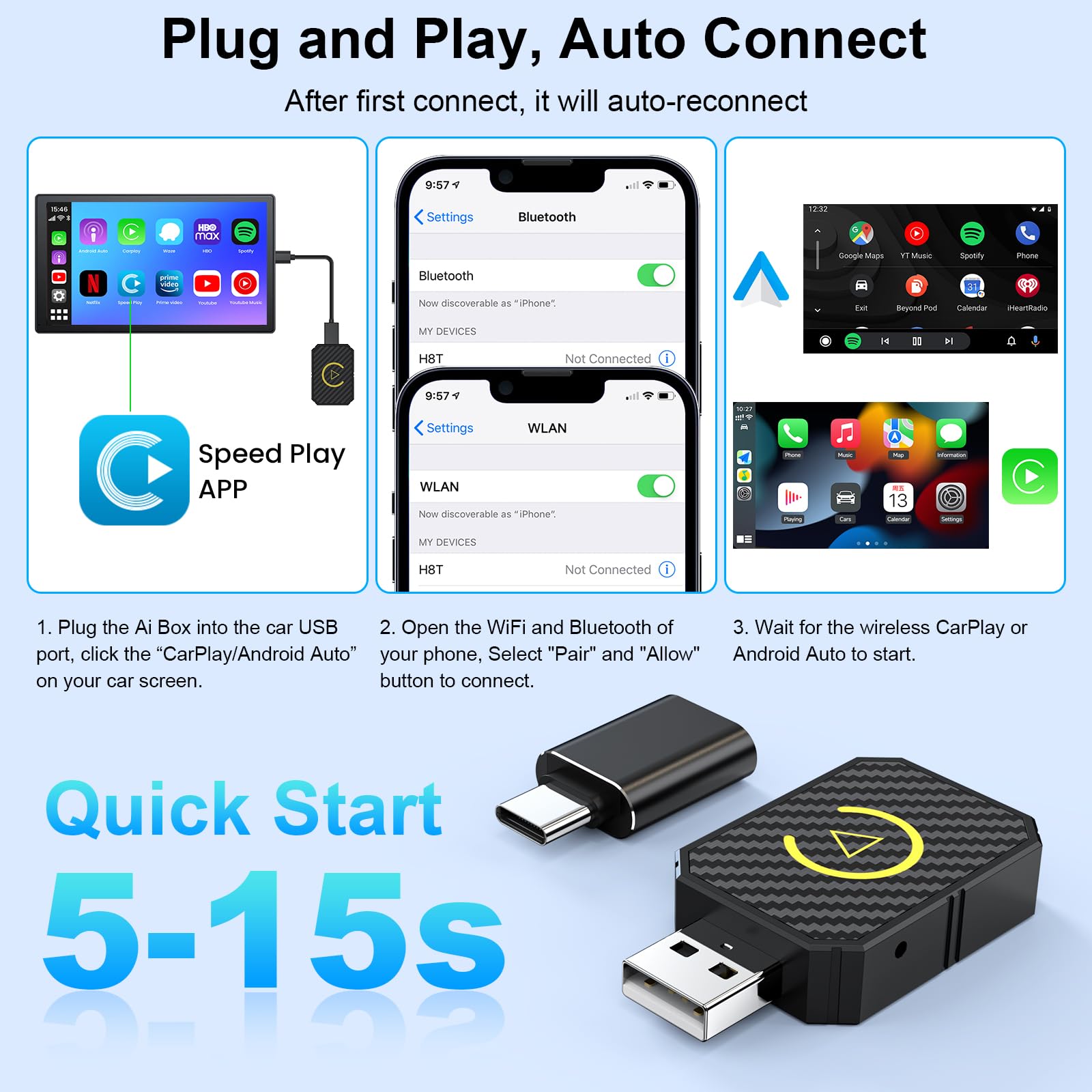
A car with wired CarPlay cannot become wireless through an iPhone setting alone. You need a wireless CarPlay adapter that plugs into the vehicle’s USB CarPlay port.
The adapter acts as a bridge. Your iPhone connects wirelessly to the adapter, while the adapter connects to the car through USB.
To use one:
- Plug the adapter into the correct USB port.
- Wait for the adapter’s light or setup screen.
- Pair your iPhone through Bluetooth.
- Approve CarPlay on the iPhone.
- Wait for the CarPlay interface to load.
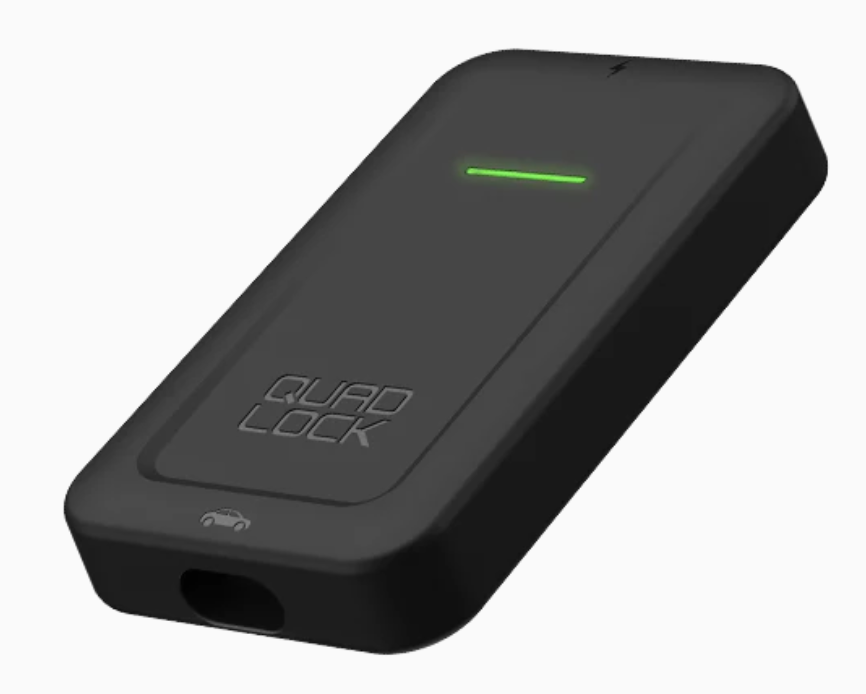
Use an adapter designed for wired Apple CarPlay. Android Auto adapters may not work with Apple devices, and some low-cost products have poor startup times or unstable connections.
Aftermarket Car Stereos
Aftermarket receivers may use a dedicated setup app. Read the receiver’s manual and check its firmware before pairing.
Many connection problems come from outdated stereo software. A firmware update can improve wireless stability, steering wheel controls, microphone performance, and automatic connection speed.
How to Connect Wireless CarPlay Automatically
After the first successful setup, your iPhone should connect without repeating the full pairing process. Keep Bluetooth and Wi-Fi enabled, and avoid deleting the vehicle from the CarPlay settings.
Automatic connection usually works best when:
- You use the same iPhone each day
- The vehicle remembers the iPhone as a trusted device
- Auto-join is enabled for the car’s wireless network
- The car stereo has current firmware
- Your iPhone is unlocked during the first setup
- The vehicle has finished starting before you drive away
If more than one iPhone is stored in the car, the system may connect to the wrong device. Most vehicles let you set a preferred phone or remove old devices from the driver profile.
In a family car, give each driver a separate profile when possible. This simple step can prevent many connection battles before the morning commute.
How to Connect Wireless CarPlay When It Will Not Work
A failed connection does not always mean the car lacks support. Wireless CarPlay depends on several systems working together, so one small setting can stop the process.
Try these fixes in order.
Restart Both Devices
Turn the car off, open and close the driver’s door, and wait a few minutes. Restart the iPhone as well.
This clears temporary Bluetooth and Wi-Fi errors. It is a basic fix, but it solves a surprising number of pairing problems.
Forget and Pair the Car Again
On the iPhone, open Settings, then General, CarPlay, and select the vehicle. Tap Forget This Car.
Also remove the iPhone from the vehicle’s Bluetooth device list. Restart both devices, then repeat the pairing steps from the beginning.
This works well when the car sees the iPhone but never opens the CarPlay screen.
Check Wi-Fi Auto-Join
Wireless CarPlay may fail if the iPhone does not automatically join the car’s Wi-Fi connection. Open the Wi-Fi settings and confirm that Wi-Fi is active.
Do not manually connect to random nearby networks during setup. A different connection can interrupt the wireless CarPlay link.
Update the iPhone and Stereo
Install available iOS updates from Settings. Check the car maker’s instructions for infotainment updates.
Updates can fix known bugs, but they can also change menu names. If the setup screen looks different after an update, use the latest vehicle manual.
Move Other Phones Away
If another paired phone is inside the car, temporarily turn off its Bluetooth. This helps the car find the correct iPhone.
Once your phone connects, you can add the second device again and adjust the preferred phone settings.
Check Screen Time Restrictions
Some restrictions can prevent CarPlay from starting. Open Settings, tap Screen Time, then Content & Privacy Restrictions. Make sure CarPlay is allowed.
This is especially useful when setting up a family member’s phone or a company vehicle.

Common Wireless CarPlay Problems and Solutions
CarPlay Connects Slowly
A slow startup may result from an overloaded stereo, outdated firmware, or several saved phones. Remove devices you no longer use and restart the infotainment system.
Wireless connections also take slightly longer than plugging in a cable. A delay of a few seconds is normal, but repeated delays of a minute or more deserve troubleshooting.
CarPlay Disconnects While Driving
Frequent disconnections can come from weak Wi-Fi performance, software errors, or interference from another device. Keep the iPhone in the front cabin and avoid storing it inside a metal center console.
If you use an adapter, try a different USB port only if the vehicle has more than one CarPlay-compatible port. Some USB ports provide power but do not support data.
Music Works, but Maps Do Not
Check whether Location Services are enabled. Open Settings, tap Privacy & Security, then Location Services. Make sure your navigation app can access your location while in use.
Also check the app itself. A navigation app may need an update or a downloaded map area if mobile coverage is weak.
Calls Sound Muffled
Make sure the car’s microphone is not blocked. In some vehicles, the microphone sits near the rearview mirror or overhead console.
During a call, check the audio source on the CarPlay screen. You may have selected the iPhone speaker instead of the vehicle’s hands-free system.
The CarPlay Screen Is Blank
Restart the car stereo and iPhone. If you use an adapter, unplug it, wait 30 seconds, and reconnect it.
A blank screen can also point to an unsupported USB port, damaged cable, or adapter compatibility issue. Test the original wired CarPlay connection if possible.
Siri Does Not Respond
Check Siri settings and confirm that the car’s microphone works. Make sure the phone is not in a mode that blocks voice commands.
You can test Siri by pressing and holding the steering wheel voice button. If Siri opens but does not hear you, inspect the vehicle microphone and call volume.

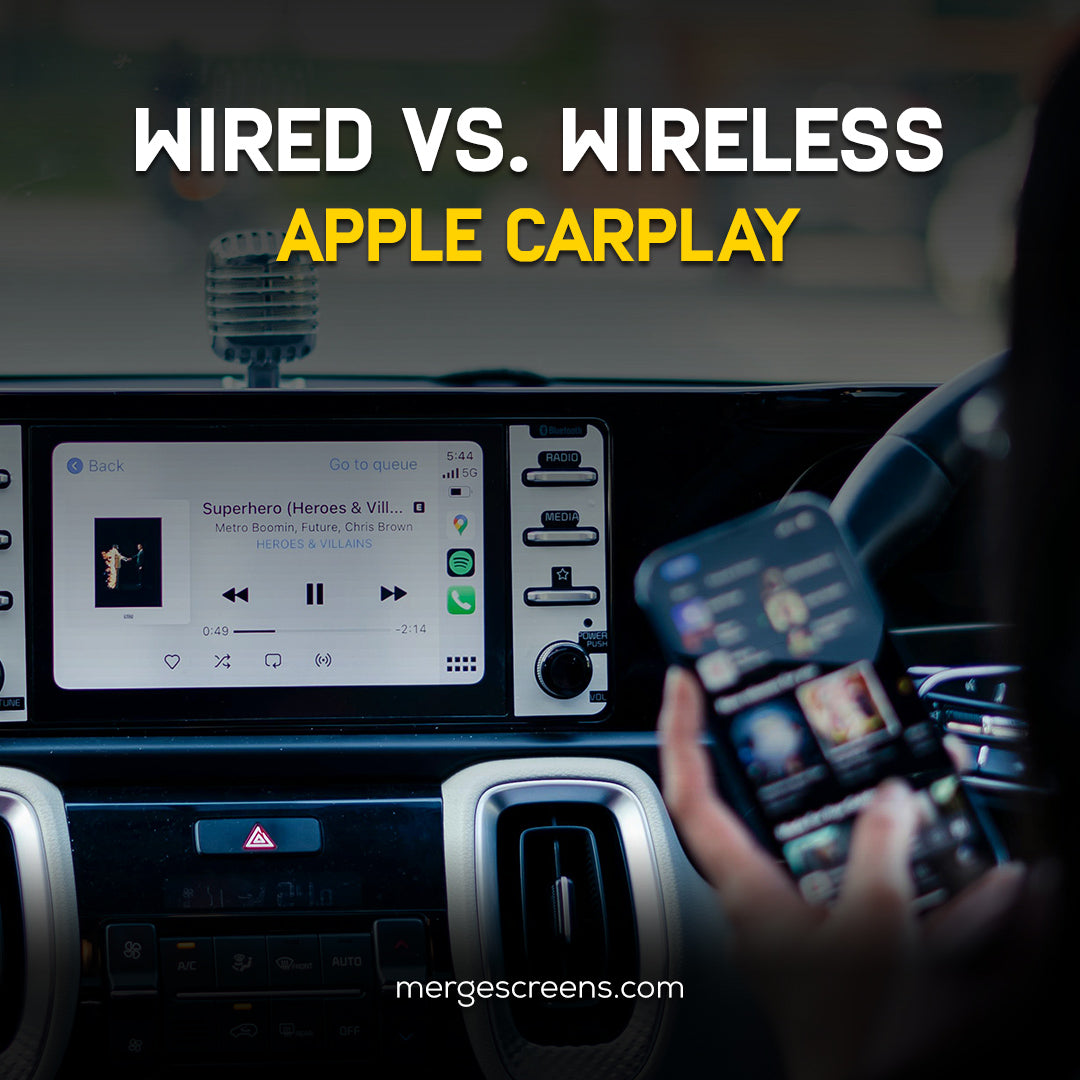
Wireless CarPlay Versus Wired CarPlay
Both options provide access to maps, music, calls, and messages. The main difference is how the iPhone communicates with the car.
Wireless CarPlay is convenient because you can leave the phone in your pocket or bag. It starts automatically and keeps the cabin free of cables.
Wired CarPlay has a few useful advantages:
- It usually starts faster
- It provides a steady connection
- It charges the iPhone during use
- It may work better in older vehicles
- It avoids some wireless interference
Wireless CarPlay can use more battery because the iPhone keeps both Bluetooth and Wi-Fi active. For a long road trip, place the phone on a certified wireless charging pad or use a charging cable when needed.
In my experience, the best choice depends on your routine. Wireless is excellent for short daily drives, while wired CarPlay remains dependable for long trips and heavy navigation use.

Safety and Privacy Tips for Wireless CarPlay
CarPlay is designed to reduce phone handling, but it does not remove the need for safe driving. Set your destination before moving and use Siri for changes when possible.
Never type a message or search through an app while driving. If you need to adjust a setting, pull over in a safe place.
Keep these privacy tips in mind:
- Review which phones are saved in the car
- Remove your phone before selling or returning the vehicle
- Disable message previews if passengers may see private content
- Use a personal driver profile when the vehicle supports it
- Avoid pairing your phone in a public place if you are concerned about privacy
CarPlay shows a simplified version of supported apps. It does not mirror every app on your iPhone. Apps must support CarPlay and follow Apple’s safety rules before they appear on the dashboard.

Practical Tips for a Better Wireless CarPlay Experience
A few small habits can make the system more reliable.
Keep iOS and the car’s software current. Updates often improve compatibility, even when the release notes do not mention CarPlay directly.
Use a high-quality adapter if your vehicle needs one. The cheapest adapter may connect at first but fail after a software update or several minutes of use.
Do not pair the same iPhone repeatedly. If a connection fails, restart the devices or forget the old pairing before trying again. Repeated pairing attempts can leave several incomplete profiles in the car’s memory.
I have also found that a clean setup works best. Remove old phones, rename the current iPhone clearly, and give the car time to finish booting before pressing several buttons. Rushing the process often creates confusion that looks like a serious fault.
Frequently Asked Questions About How to Connect Wireless CarPlay
How do I know if my car supports wireless CarPlay?
Check the vehicle manual, infotainment settings, or the manufacturer’s specifications. If the car supports wired CarPlay only, a compatible wireless CarPlay adapter may provide wireless access.
Why is wireless CarPlay not showing on my iPhone?
Wireless CarPlay may not appear if Bluetooth, Wi-Fi, or Siri is turned off. It can also be missing when the vehicle supports only wired CarPlay or has not entered pairing mode.
Can I use wireless CarPlay with an older car?
Yes, but the car must already support wired CarPlay or have a compatible aftermarket stereo. A wireless adapter can convert many wired CarPlay systems, but it cannot add CarPlay to a stereo with no CarPlay support.
Does wireless CarPlay use mobile data?
CarPlay itself uses a wireless connection between the iPhone and vehicle, but apps such as maps, music streaming, and podcasts may use mobile data. Downloaded music and offline maps can reduce data use.
Why does wireless CarPlay keep disconnecting?
Common causes include outdated software, a weak adapter, saved phone conflicts, and Wi-Fi interference. Restart both devices, remove unused pairings, and update the iPhone and stereo.
Can I connect two iPhones to wireless CarPlay?
Many vehicles can store several iPhones, but they usually connect to one phone at a time. The car may use the last connected phone or a selected preferred device.
Does wireless CarPlay charge my iPhone?
No. Wireless CarPlay sends data but does not charge the phone. Use a wireless charging pad or a USB charging cable when the battery is low.
Conclusion
Wireless CarPlay is simple once the right conditions are in place. Confirm compatibility, turn on Bluetooth, Wi-Fi, and Siri, pair the iPhone with the car, and approve CarPlay on both screens.
If the connection fails, restart both devices, forget the old pairing, check for updates, and remove unused phones. With a clean setup, how to connect wireless CarPlay becomes a quick routine rather than a daily frustration.
Try the steps in this guide before your next drive, and explore your vehicle’s manual for model-specific settings. If this guide helped, share your experience or leave a comment about the car and iPhone setup you use.