Wireless CarPlay with no lag needs a strong Wi-Fi link, clean setup, and compatible hardware.
After testing different cars, adapters, phones, and dashboard systems, I have learned that smooth wireless CarPlay depends on more than fast internet. The right connection, updated software, and careful setup can make maps, music, calls, and messages feel almost instant. This guide explains how to get wireless CarPlay with no lag and what to do when delays still appear.
What wireless CarPlay with no lag really means
Wireless Apple CarPlay lets your iPhone connect to the car without a USB cable. It uses Bluetooth to begin the pairing process, then usually creates a direct Wi-Fi connection for screen data, audio, and controls.
That detail matters. Your car does not need a fast cellular plan for wireless CarPlay with no lag. It needs a stable short-range connection between the iPhone and the vehicle’s CarPlay system.
A lag-free experience usually includes:
- Fast response when tapping icons
- Smooth map movement
- Quick music controls
- Clear phone calls
- Reliable Siri commands
- No repeated disconnections
- No long black screen during startup
A small delay during startup is normal. Wireless CarPlay may take several seconds to connect after you start the car. However, taps that respond several seconds late, frozen maps, or repeated reconnects point to a problem.
Wireless CarPlay also depends on the car’s built-in software. A new iPhone cannot fully fix an old or poorly designed infotainment system. Think of the setup as a conversation between three devices: your iPhone, the wireless connection, and the car’s head unit. If one speaks slowly, the whole experience feels slow.
Why wireless CarPlay can lag
Wireless CarPlay with no lag is possible, but several common issues can create delays. Finding the real cause is easier when you test one factor at a time.
Weak or busy wireless signals
The iPhone and car communicate over a local Wi-Fi connection. Nearby hotspots, wireless adapters, dash cameras, and other devices may add interference.
This is more common in busy city areas, parking garages, and apartment lots. The issue may disappear when you drive away from the area, which can make it hard to diagnose.
Outdated software
Old iOS versions, car firmware, and adapter software may not work well together. Updates often improve connection stability, pairing, and performance.
Check for updates on:
- Your iPhone
- The car’s infotainment system
- A wireless CarPlay adapter
- The vehicle manufacturer’s companion app
Do not assume that the newest iPhone will always work perfectly with an older car system. Compatibility is a two-way street.
Too many paired devices
Some cars try to connect to several saved phones at once. This can slow the startup process or make the car choose the wrong device.
Remove phones that no longer use the car. Then set your main iPhone as the preferred device if the vehicle offers that option.
Background apps and phone heat
Navigation, video, cloud backup, and other demanding apps can make an iPhone work harder. Heat can also reduce performance.
Close apps you do not need before driving. You do not need to force-close every app on an iPhone, but stopping a stuck navigation or video app can help.
A poor wireless adapter
Many wired-to-wireless CarPlay adapters look alike, but their chips and software can vary. A cheap adapter may connect quickly at first and then develop audio delay, random restarts, or slow touch response.
A good adapter should support your iPhone, your car’s wired CarPlay system, and the latest adapter firmware. It should also have a clear update process and useful support.

How to choose wireless CarPlay with no lag hardware
If your vehicle already supports wireless CarPlay, start with the built-in system. It usually offers better integration with the car’s screen, steering wheel controls, microphone, and startup behavior.
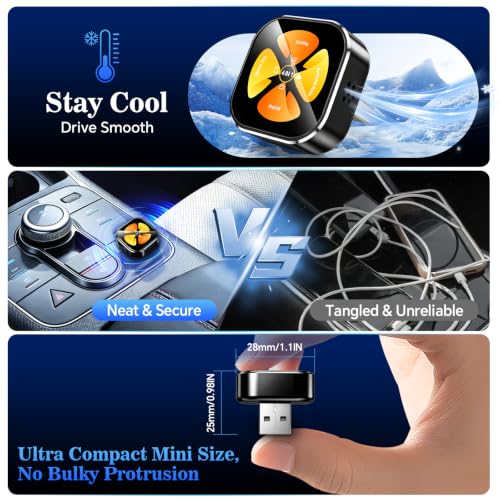
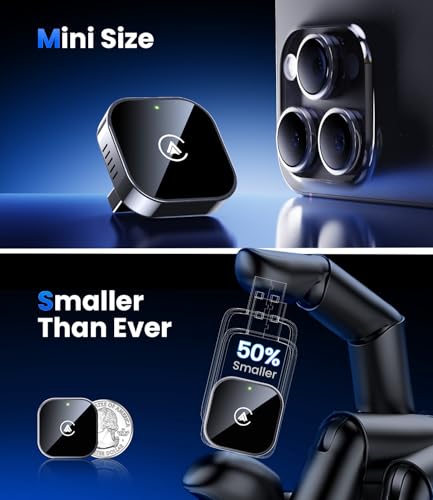
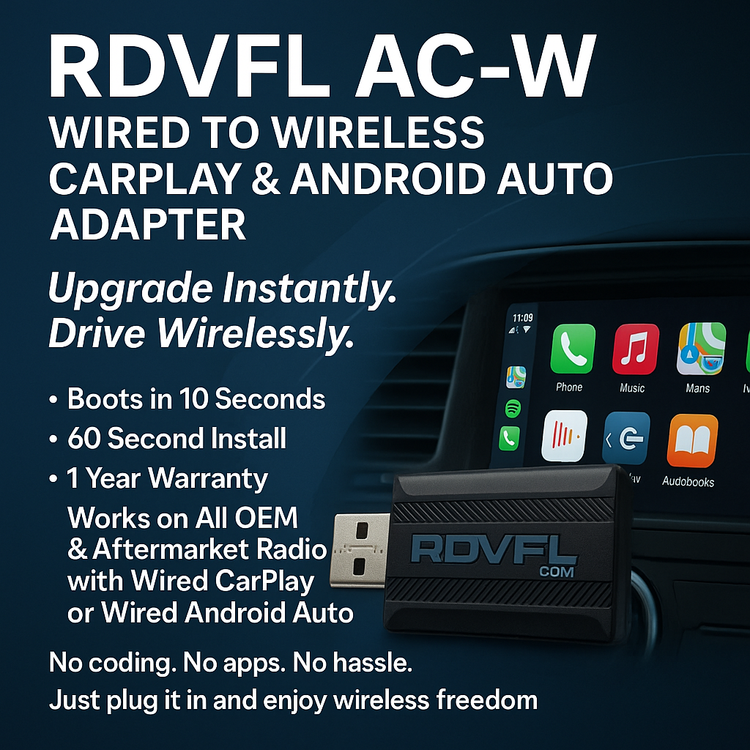
If your car only supports wired CarPlay, a wireless adapter can add wireless access. These adapters plug into the vehicle’s USB CarPlay port and create a wireless bridge for your iPhone.
Before buying, check these points:
- Your car must already support wired Apple CarPlay. A wireless adapter usually cannot add CarPlay to a car with no CarPlay support.
- Confirm that the adapter works with your vehicle model and model year.
- Check whether it supports your iPhone and current iOS version.
- Look for firmware updates through an app or web page.
- Read recent reviews for reports of audio delay, dropped calls, and startup problems.
- Choose a product with a return policy.
- Avoid adapters that promise impossible features or use unclear specifications.
Built-in wireless CarPlay versus an adapter
Built-in wireless CarPlay is often the cleaner choice. It may start faster and work better with the car’s steering controls and factory microphone.
An adapter can still be a smart choice. It is simple to install, easy to move between cars, and often less expensive than replacing a head unit.
The trade-off is another device in the connection chain. If the adapter overheats or loses its Wi-Fi link, wireless CarPlay with no lag can quickly become wireless CarPlay with interruptions.

How to set up wireless CarPlay correctly
A careful first setup can prevent many future problems. Follow these steps in order.
- Start the car and park in a safe place.
- Turn on Bluetooth and Wi-Fi on your iPhone.
- Make sure Siri is enabled.
- Open the car’s Bluetooth or phone settings.
- Select your iPhone from the available device list.
- Accept the CarPlay request on both screens.
- Allow CarPlay while the phone is locked.
- Choose your iPhone as the preferred device.
- Test music, maps, calls, and Siri before driving.
Keep the phone in a stable place near the dashboard. A metal storage box or a bag surrounded by other electronics may reduce signal quality.
If you use an adapter, connect it to the correct USB port. Some cars have one USB port for CarPlay and another for charging only. The charging port will not provide a proper CarPlay connection.
Give the system a few minutes after the first pairing. Some cars store a profile or complete a background setup. After that, restart the car and test the connection again.

How to fix wireless CarPlay lag
When wireless CarPlay with no lag suddenly becomes slow, use a simple reset process. Change one thing at a time so you know what solved the problem.
Restart both devices
Turn the car off completely. Open and close the driver’s door if your vehicle keeps the infotainment system powered after shutdown. Then restart the iPhone and try again.
This basic step clears temporary memory and failed connection sessions. It solves more problems than many people expect.
Forget and pair again
On your iPhone, go to:
Settings > General > CarPlay
Select your car, then choose to forget the vehicle. Also remove the iPhone from the car’s paired-device list. Restart both devices and complete the pairing process again.
This creates a fresh connection profile instead of reusing damaged pairing data.
Check Wi-Fi and Bluetooth
Make sure both Wi-Fi and Bluetooth are active. Do not connect the iPhone to a personal hotspot while testing, because that can complicate the wireless connection.
You can also turn Wi-Fi and Bluetooth off, wait a few seconds, and turn them on again. Use the Settings app rather than only Control Center when you want to fully review connection settings.
Update the system
Install available iOS updates from:
Settings > General > Software Update
For the car, check the owner’s manual, vehicle website, or dealer instructions. Some systems update over the air. Others require a USB drive or professional service.
If you use a wireless adapter, check its companion app for firmware updates. Follow the update instructions closely. Disconnecting power during an adapter update may cause problems.
Reduce interference
Move other wireless devices away from the phone and adapter. Temporarily unplug a wireless dash camera, secondary phone, or USB accessory.
Test wireless CarPlay in an open area. If it works well there but lags in one location, interference may be the cause.
Reset network settings as a last step
If normal fixes fail, you can reset network settings on the iPhone. This removes saved Wi-Fi networks, VPN settings, and other network data.
Use this step carefully. You will need to enter Wi-Fi passwords again. It is best to save it for cases where pairing continues to fail after a full restart and re-pair.

Settings that can improve performance
Your iPhone and car may offer settings that help create wireless CarPlay with no lag. They do not increase the strength of the hardware, but they can reduce confusion and unwanted activity.
Try these practical changes:
- Keep iOS and car firmware current.
- Turn off automatic connection for phones you do not use.
- Remove old CarPlay profiles.
- Keep the iPhone above 20 percent battery when testing.
- Avoid using a thick case that causes heat during long drives.
- Place the iPhone where it has a clear path to the dashboard.
- Use a short, reliable USB cable when testing a wired connection.
- Disable Low Power Mode temporarily while diagnosing performance.
- Do not run large downloads during setup.
- Keep the adapter away from direct sunlight and heat vents.
A wired test is very useful. Connect the iPhone with a quality cable and use CarPlay for a full trip.
If wired CarPlay works perfectly but wireless CarPlay lags, the issue is likely the wireless adapter, Wi-Fi link, or wireless software. If both wired and wireless versions lag, the car’s head unit, iPhone, or app may be responsible.

Does wireless CarPlay use mobile data?
Wireless CarPlay itself uses a local wireless connection between the iPhone and the car. It does not need your home Wi-Fi network.
However, apps such as Apple Maps, Google Maps, Apple Music, Spotify, and messaging services may use mobile data. Poor cellular coverage can make a map or song load slowly, but it usually does not cause delayed taps across the entire CarPlay interface.
This distinction helps with troubleshooting. If the interface is smooth but music buffers, check cellular service or the app. If every touch is delayed, focus on the CarPlay connection or head unit.
Is wireless CarPlay slower than wired CarPlay?
Wired CarPlay usually offers the most consistent connection because the cable carries data directly. Wireless CarPlay adds a radio link, so it may have a slightly longer startup time.
In a well-designed system, the difference during use is small. Wireless CarPlay with no lag should feel responsive after it connects.
Wireless systems can be more sensitive to heat, interference, software bugs, and adapter quality. If you need maximum reliability for long trips, wired CarPlay remains a strong backup.
When should you replace the adapter or head unit?
Consider replacing a wireless adapter when it continues to disconnect after updates, resets, and testing with another compatible iPhone. A poor adapter can waste hours because it may work just well enough to seem usable.
A head unit may need service when both wired and wireless CarPlay fail, the screen freezes in other menus, or the system reboots by itself. These signs suggest a wider infotainment problem rather than a simple wireless issue.
Keep receipts and record the exact symptoms. A short video of the delay can help a dealer or adapter seller understand the fault.
In practical testing, the biggest mistake is replacing hardware too soon. First confirm whether the issue follows the iPhone, the car, the adapter, or one location. That simple test can save money.

A reliable daily routine
Once wireless CarPlay with no lag works well, use a few habits to keep it stable. Technology is often most reliable when the setup stays simple.
Before driving:
- Place the iPhone in the same open location.
- Remove phones that should not connect.
- Check that Bluetooth and Wi-Fi are on.
- Keep the car’s system updated.
- Avoid running heavy downloads while starting the car.
If the connection fails during a trip, do not repeatedly tap every menu. Pull over safely, restart the connection, and try the wired cable if you carry one.
A backup cable is especially useful on road trips. It turns a frustrating wireless problem into a minor inconvenience.

Frequently Asked Questions About Wireless CarPlay With No Lag
Can I get wireless CarPlay with no lag in any car?
No. The car must support wireless CarPlay or wired CarPlay with a compatible wireless adapter. Older systems may also have hardware limits that prevent a fully smooth experience.
Why is my wireless CarPlay audio behind the video?
Audio delay may come from adapter firmware, Bluetooth accessories, or the car’s audio processing. Update the adapter and car system, remove extra paired devices, and test with a wired connection to compare.
Does a wireless CarPlay adapter work with Android phones?
Most wireless CarPlay adapters are made for iPhone and Apple CarPlay. Android phones usually need Android Auto support and a separate compatible adapter.
How long should wireless CarPlay take to connect?
A normal connection often takes several seconds after the car starts. A delay of several minutes, repeated failures, or constant reconnects is not normal and should be investigated.
Does turning off Bluetooth fix wireless CarPlay lag?
Bluetooth helps begin the wireless CarPlay connection, so turning it off usually prevents the system from pairing. Instead, restart Bluetooth and Wi-Fi, then remove and pair the car again if needed.
Can a VPN cause wireless CarPlay problems?
A VPN usually does not control the local CarPlay link, but network tools or security apps may affect related connections. Temporarily disable the VPN during testing to see whether the behavior changes.
Is wired CarPlay always better?
Wired CarPlay is often more stable because it avoids wireless interference. Wireless CarPlay can feel just as responsive when the car, iPhone, and adapter use good hardware and current software.
Conclusion
Wireless CarPlay with no lag depends on a stable Wi-Fi link, updated software, compatible hardware, and a clean pairing profile. Start with simple fixes such as restarting both devices, removing old connections, updating firmware, and testing with a cable.
If the problem continues, identify whether the fault comes from the iPhone, vehicle, adapter, or local interference. Choose reliable hardware rather than focusing only on price, and keep a wired cable as a practical backup. Try these steps on your next drive, then share your setup or experience in the comments.