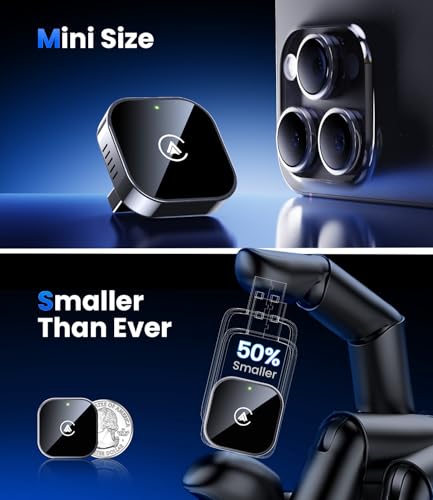
You can make CarPlay wireless with a compatible adapter, a wireless head unit, or an upgraded factory infotainment system.
If your iPhone connects to CarPlay only through a USB cable, you do not need to replace your whole vehicle. This guide explains how to make CarPlay wireless, which adapters work, how to set everything up, and what to do when the connection fails. You will also learn the limits of wireless CarPlay so you can choose a safe, reliable solution.

What Wireless CarPlay Means
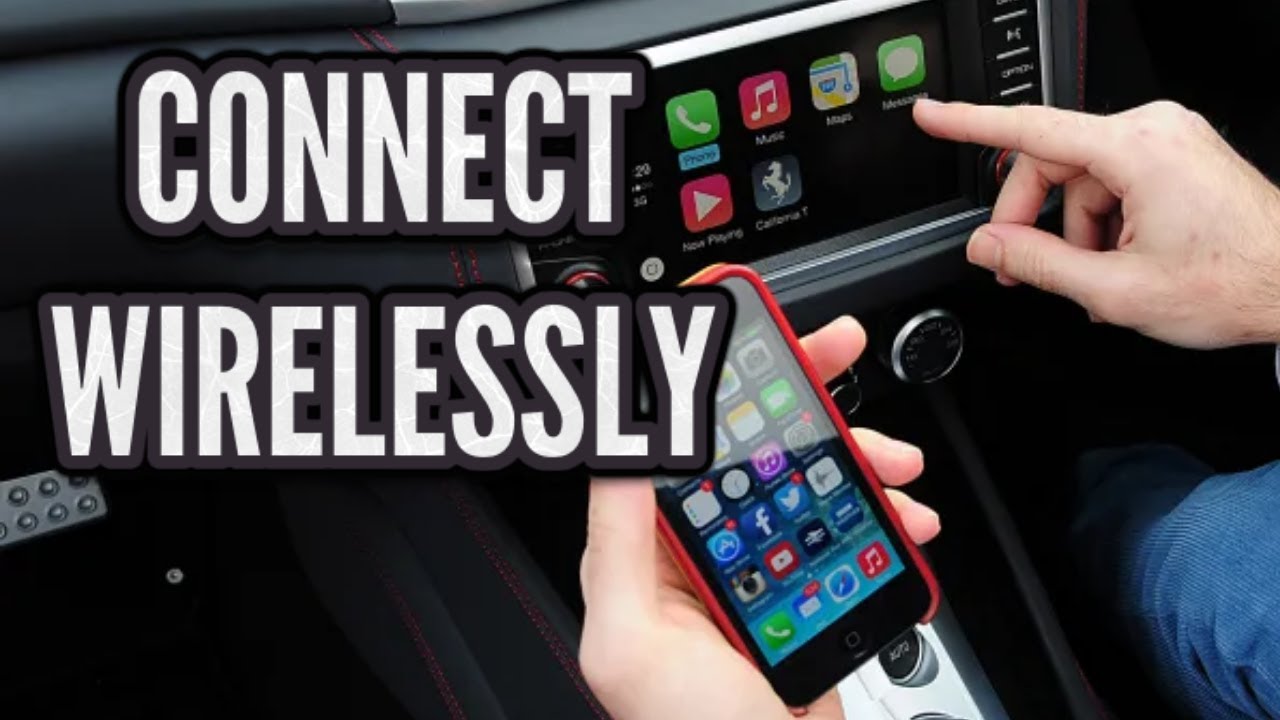
Wireless Apple CarPlay lets your iPhone connect to your car without a USB cable. It uses Bluetooth to begin the connection and Wi-Fi to carry the CarPlay data. This lets you use navigation, music, calls, messages, and Siri from your car’s screen.
Many cars support wired CarPlay but not wireless CarPlay. These vehicles have the right software for CarPlay, but they need a cable to start and maintain the connection. A wireless CarPlay adapter acts as a bridge between the iPhone and the car.
Most wireless CarPlay setups need three things:
• An iPhone that supports Apple CarPlay
• A vehicle or stereo with factory wired CarPlay
• A compatible wireless CarPlay adapter, if the car does not support wireless use
Wireless CarPlay is not the same as Bluetooth audio. Bluetooth can play music and handle calls, but it usually cannot show the full CarPlay dashboard, maps, apps, and messages on the vehicle screen.

Check Whether Your Car Supports CarPlay
Before buying anything, confirm that your car already supports wired Apple CarPlay. This is the most important step in learning how to make CarPlay wireless.
Look for a CarPlay logo on the infotainment screen, USB port, owner’s manual, or vehicle settings menu. You can also connect your iPhone with a good-quality USB cable and check whether the CarPlay interface appears.
Try these steps:
-
Start the vehicle and keep it parked.
-
Plug your iPhone into the USB port marked for smartphone connection or CarPlay.
-
Unlock the iPhone.
-
Accept any CarPlay permission message.
-
Check whether the CarPlay screen appears on the dashboard display.
If wired CarPlay works, a wireless adapter will usually be the simplest option. If your car supports only Bluetooth, an adapter designed for wired CarPlay will not add full CarPlay by itself.
Some vehicles have more than one USB port. One may support charging only, while another supports data and CarPlay. Test each port before deciding that your vehicle is not compatible.
The Three Main Ways to Make CarPlay Wireless
There are three practical ways to make CarPlay wireless. The right choice depends on your car, budget, installation skills, and need for factory features.
Use a Wireless CarPlay Adapter
This is the easiest method for most drivers. The adapter plugs into the same USB port you use for wired CarPlay. Your iPhone then connects to the adapter instead of connecting directly to the car.
This method usually takes only a few minutes to install. It also lets you remove the adapter later without changing the vehicle’s wiring.
A good adapter should offer:
• Support for wireless Apple CarPlay
• Fast startup after the car turns on
• Automatic reconnection
• Firmware updates
• A stable Bluetooth and Wi-Fi connection
• A compact design that does not block nearby controls
Some adapters support both wireless CarPlay and wireless Android Auto. That can help if more than one driver uses the vehicle.
Install an Aftermarket Wireless Stereo
If your car has an old stereo, a new head unit may add wireless CarPlay, a larger display, better audio, and a backup camera connection. Brands such as Alpine, Kenwood, Pioneer, Sony, and JVC offer models with wireless CarPlay.
This option costs more than an adapter. It may also require a dash kit, wiring harness, antenna adapter, steering wheel control interface, or professional installation.
An aftermarket stereo may be a better choice when:
• The factory screen is small or slow
• The car has no wired CarPlay
• You want a better camera or audio system
• The original stereo is broken
• You want long-term support and stronger hardware
Check whether the stereo fits your dashboard before buying it. A technically excellent unit can still be a poor choice if it does not work with your vehicle’s controls.
Upgrade the Factory Infotainment System
Some manufacturers offer software updates or official hardware upgrades that add wireless CarPlay. This route can preserve the factory screen, steering wheel controls, vehicle settings, and camera system.
Ask a dealer or qualified installer whether your specific model supports an official upgrade. Do not assume that a software update will add wireless CarPlay. In many vehicles, the hardware must include a compatible wireless module.
How to Make CarPlay Wireless With an Adapter
For most compatible cars, this is the fastest way to get wireless CarPlay. Follow these steps in order.
Step 1: Choose the Right Adapter
Buy an adapter made for wired CarPlay to wireless CarPlay conversion. Read the product details carefully. Some devices support Android Auto only, while others work with CarPlay but require a particular iOS version.
Avoid very cheap, unbranded products with no update process or customer support. Wireless CarPlay depends on a steady connection, and poor hardware can cause delays, audio cuts, or repeated disconnects.
Step 2: Update Your iPhone
Install the latest available iOS update before pairing. Updates can improve Bluetooth, Wi-Fi, and CarPlay performance. Also make sure Siri is enabled, since Siri is a key part of the CarPlay experience.
Check these settings:
• Bluetooth: On
• Wi-Fi: On
• Siri: On
• CarPlay permissions: Allowed
• Personal Hotspot: Usually off unless the adapter instructions say otherwise
Step 3: Plug In the Adapter
Start the car and plug the adapter into the USB port that supports wired CarPlay. Use the included cable when possible. Some adapters use USB-A, USB-C, or a short detachable cable.
Wait for the adapter’s setup screen or status light. The first connection may take longer than normal.
Step 4: Pair the iPhone
Open the iPhone’s Bluetooth menu and select the adapter’s name. Follow the pairing prompts. When the phone asks whether it should use CarPlay, choose Allow.
In some cases, the car screen displays a pairing code. Confirm that the code on the iPhone matches the code on the vehicle screen.
Step 5: Test the Connection
After pairing, unplug the iPhone. Turn the vehicle off, wait briefly, and restart it. The adapter should reconnect without a cable.
Test several functions:
• Apple Maps or another supported navigation app
• Music or podcasts
• Siri voice commands
• Phone calls
• Steering wheel controls
• The backup camera and factory menus
This test helps you find problems while the car is parked instead of during a trip.

How to Make CarPlay Wireless Without an Adapter
You can make CarPlay wireless without a separate adapter if the vehicle or stereo already includes wireless CarPlay. In that case, pair the iPhone directly with the vehicle.
Turn on the car and open the infotainment settings. Look for options such as “Add Phone,” “Phone Connection,” “Apple CarPlay,” or “Wireless Devices.” Then open Bluetooth settings on the iPhone and select the vehicle.
The exact menu names vary by brand and model. Some systems ask you to connect by USB one time before wireless CarPlay becomes available. Others use Bluetooth pairing from the start.
If the vehicle has no wireless CarPlay hardware, a phone setting cannot create it. Bluetooth alone is not enough. You need a compatible adapter, a factory upgrade, or a new stereo.

Benefits and Limits of Wireless CarPlay
Wireless CarPlay makes short trips much easier. You can enter the vehicle, start the engine, and leave the phone in your pocket or bag. That means fewer loose cables and less clutter near the center console.
Key benefits include:
• Automatic connection after initial setup
• Access to maps, music, calls, and messages
• Cleaner dashboard and center console
• Easier use for multiple drivers
• Siri support without touching the phone
Wireless CarPlay also has limits. It uses more iPhone battery than a wired connection because the phone maintains a Wi-Fi link. Long drives may require a wireless charging pad or a charging cable.
The connection can also take a few seconds to start. Some adapters add a small delay when opening apps or switching audio sources. In my testing experience with wireless vehicle accessories, the most common frustration is not installation. It is finding the best location for the adapter and avoiding weak power connections.
Wireless CarPlay also depends on the car’s original system. If the factory screen is slow, the adapter cannot fully repair that problem. It only changes how the phone connects.
Common Wireless CarPlay Problems and Fixes
The Adapter Does Not Turn On
Check whether the USB port supports data and wired CarPlay. Try another compatible port and inspect the cable for damage.
If the adapter has no light or setup screen, test it with the vehicle running. Some USB ports provide limited power when the ignition is off.
CarPlay Will Not Connect Automatically
Open the iPhone settings and remove old CarPlay pairings. Go to Settings, General, CarPlay, select the vehicle or adapter, and choose to forget the car. Then pair it again.
Also remove the adapter from the iPhone’s Bluetooth list before starting a new setup. Old pairing records can confuse the connection process.
The Connection Keeps Dropping
Keep the iPhone near the front of the cabin during testing. Metal objects, crowded wireless environments, and poor adapter placement can affect the signal.
Try these fixes:
• Restart the iPhone and vehicle
• Use the original adapter cable
• Install the adapter’s firmware update
• Turn off unused Bluetooth connections
• Test with another iPhone if available
• Reset network settings only as a last resort
Resetting network settings removes saved Wi-Fi networks and passwords, so do not use that step casually.
Music Plays but the Screen Does Not Show CarPlay
This often means the iPhone is connected by Bluetooth audio rather than CarPlay. Open the vehicle’s phone or projection menu and select CarPlay manually.
If the problem continues, check that the adapter specifically supports Apple CarPlay. Many small wireless devices look similar but support different systems.
Siri Does Not Work
Make sure Siri is enabled on the iPhone. Check microphone permissions for the apps you use, and test the vehicle’s voice button.
Some factory systems require a longer press on the steering wheel voice-control button. A quick press may activate the car’s built-in voice assistant instead of Siri.

Safety and Privacy Tips
Set up wireless CarPlay while the car is parked. Never troubleshoot pairing menus while driving. CarPlay is designed to reduce distraction, but it does not remove the driver’s responsibility to watch the road.
Use voice commands whenever possible. Siri can read messages, make calls, start navigation, and change music without requiring you to look at the screen.
Wireless CarPlay does not give the vehicle unlimited access to your iPhone. Still, only pair with a car or adapter you trust. Remove the pairing if you sell the car, return a rental, or use a borrowed vehicle.
Keep the iPhone updated and buy hardware from a seller that provides clear support. Product quality varies, and an adapter with no firmware updates may become less reliable after an iOS change.

Mistakes to Avoid When Making CarPlay Wireless
The most common mistake is buying an adapter before confirming that wired CarPlay already works. A wireless adapter normally converts an existing wired connection. It does not turn a basic Bluetooth stereo into a full CarPlay system.
Avoid these errors:
• Plugging the adapter into a charging-only USB port
• Pairing the iPhone with the car but not the adapter
• Using a damaged or low-quality USB cable
• Ignoring firmware updates
• Buying an Android Auto-only product
• Hiding the adapter under metal or deep inside the dashboard
• Testing the system for the first time while driving
Another lesson is to check return policies. Even when an adapter is technically compatible, some car models have unusual USB behavior or infotainment software. A return option gives you protection if the connection is unstable.
Frequently Asked Questions About How to Make CarPlay Wireless
Can I make wired CarPlay wireless?
Yes. A wireless CarPlay adapter can convert a compatible wired CarPlay connection into a wireless one. The car must already support wired Apple CarPlay through a data-capable USB port.
Does wireless CarPlay work with every iPhone?
Wireless CarPlay requires a compatible iPhone and an updated operating system. Most modern iPhones support it, but older models may have limited compatibility, so check Apple’s current requirements before buying hardware.
Will a wireless CarPlay adapter work with Android Auto?
Some adapters support both systems, but not all do. Read the product specifications carefully if the vehicle is used by both iPhone and Android owners.
Does wireless CarPlay use mobile data?
CarPlay itself does not usually require a separate cellular data plan. However, navigation, streaming music, podcasts, and online messages may use the iPhone’s mobile data connection.
Why is wireless CarPlay slower than wired CarPlay?
Wireless CarPlay uses Bluetooth for the initial link and Wi-Fi for the main connection. This can create a short startup delay and may feel slightly less responsive than a direct USB connection.
Can I charge my iPhone while using wireless CarPlay?
Yes. You can charge the iPhone with a USB cable, wireless charging pad, or compatible charging mount. Charging is helpful on long trips because wireless CarPlay can use more battery.
Will wireless CarPlay work if my car has only Bluetooth?
Usually, no. Bluetooth-only systems do not normally have the hardware needed for full CarPlay. You will need an aftermarket stereo, an official vehicle upgrade, or a compatible infotainment replacement.
Conclusion
Learning how to make CarPlay wireless is usually simple when your vehicle already supports wired CarPlay. A reliable adapter is the quickest solution, while an aftermarket stereo or factory upgrade may be better for an older system or a complete technology refresh.
Check compatibility first, use the correct USB port, update your iPhone, and test every function while parked. With the right setup, wireless CarPlay can make daily driving cleaner and more convenient without forcing you to replace the entire car. Choose a supported adapter or stereo, install it carefully, and explore your vehicle manufacturer’s guidance for the best long-term results.