
Format the SD card in your Garmin dash cam using the camera’s format tool (FAT32 or exFAT).
I have years of hands-on experience with Garmin dash cams and SD cards. This guide explains exactly how to format sd card for Garmin Dash Cam, why it matters, which cards work best, and step-by-step methods you can trust. Read on for clear steps, troubleshooting tips, and real-world lessons to keep your dash cam recording reliably.

Why you should format the SD card before use
Formatting a new or used card clears errors and ensures the dash cam writes video smoothly. A properly formatted card reduces file corruption and prevents recording gaps. I’ve seen dash cams fail after using an unformatted card from a phone. Formatting is a quick preventive step that saves headaches.

Supported SD card types and recommended size and format
Garmin dash cams usually support microSD cards up to 256 GB and require certain speed classes for loop recording. Use cards rated UHS-I with a V30 or higher rating for stable video. The common formats Garmin accepts are FAT32 for 32 GB or less and exFAT for larger cards. Always check your model’s manual for exact limits.
- Card size: 16 GB to 256 GB depending on model.
- Speed class: V30 or UHS-I recommended.
- File system: FAT32 for small cards, exFAT for large cards.
- Avoid rebranded or very cheap cards to cut down on failure risk.
How to format sd card for Garmin Dash Cam depends on the card size and your dash cam model. Using the dash cam format tool is the safest method.
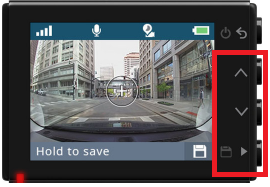
How to format sd card for Garmin Dash Cam — step-by-step
Follow these steps to format the card safely inside the device. Formatting in the camera ensures the correct file system and folder structure.
- Prepare the card
- Power off the dash cam or place it in setup mode.
- Insert the microSD card into the card slot until it clicks.
- Open the Settings menu
- Turn on the dash cam.
- Tap the menu icon and go to System or Settings.
- Find the Format option
- Look for Storage, SD Card, or Format card.
- Select Format and confirm. The camera will erase the card and set up folders.
- Wait for the process to finish
- Do not remove power or the card during formatting.
- The dash cam will show a confirmation when done.
If your model does not show a format option, format the card on a computer using FAT32 for 32 GB or exFAT for larger cards, then insert the card and use the dash cam’s folder structure for final adjustment. This step-by-step covers how to format sd card for Garmin Dash Cam in the most reliable way.

Alternative: Formatting on a computer and preparing for Garmin
Sometimes you want to format on a PC then let Garmin finalize the setup. Use this approach when the dash cam won’t format.
- Windows
- Use File Explorer to right-click the card and choose Format.
- Select FAT32 for 32 GB or exFAT for cards over 32 GB.
- Quick Format is fine, but a full format can catch bad sectors.
- macOS
- Open Disk Utility and choose Erase.
- Pick MS-DOS (FAT) for 32 GB or ExFAT for larger cards.
- After computer format
- Insert into the dash cam and power it on.
- Let the camera create its folders and record a short clip.
This method works when you need to control file systems. It also shows another way to format sd card for Garmin Dash Cam if the camera menu is unavailable.
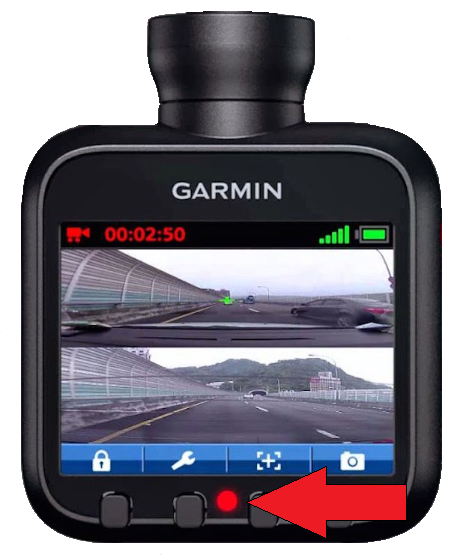
Troubleshooting common formatting errors and fixes
If formatting fails or the dash cam shows errors, try these quick fixes.
- Card not recognized
- Re-seat the card. Try another card to confirm slot health.
- Clean contacts with a soft cloth.
- Format option missing
- Update the dash cam firmware. Older firmware may hide options.
- Format on a computer then reinsert the card.
- Corrupted files after format
- Perform a full (not quick) format on a computer to check bad sectors.
- Use a different brand or a new card if problems persist.
People also ask
Can I format a large SD card to FAT32 for my Garmin?
Yes. You can format large cards to FAT32 using third-party tools on a computer, but exFAT is preferred for cards above 32 GB if the Garmin supports exFAT.
Will formatting delete dash cam settings?
Formatting the card removes only files on the card. It does not change dash cam system settings.
How often should I format the SD card?
Format when you change cards, after many months of use, or if you see errors. A yearly check is a good habit for heavy-use vehicles.

Best practices for long-term reliability
Use these habits to keep recordings safe and the card healthy.
- Use recommended cards from reliable brands.
- Format the card in the dash cam when first installed.
- Replace cards every 1–2 years if you record daily.
- Avoid high temperatures by mounting the camera away from direct heat.
- Enable event-lock features to protect important clips.
These steps help you avoid the most common failures and show how to format sd card for Garmin Dash Cam as part of a maintenance routine.

Personal tips, mistakes to avoid, and real-world experience
I once used a cheap 128 GB card that worked for a month then lost many clips. Lesson learned: buy quality. I also recommend always testing a new card by recording a short trip and checking playback. A few practical tips from my experience:
- Always format in the dash cam first.
- Keep one spare card formatted and ready.
- Label cards by date range to rotate them easily.
These real-world tips make how to format sd card for Garmin Dash Cam easier and more reliable.

Frequently Asked Questions of How to format sd card for Garmin Dash Cam
How do I format the SD card using the Garmin menu?
Go to Settings > System > Storage or SD Card, select Format, and confirm. The dash cam erases the card and sets up folders.
Can I format the SD card on a phone?
You can format some microSD cards in a phone, but use a computer or the dash cam to ensure the correct file system and structure for Garmin.
What file system should I use for a 64 GB card?
Use exFAT for a 64 GB card if your Garmin model supports exFAT. If not, check the manual for alternatives.
Will formatting remove locked event files?
Formatting erases all files, including locked files. Back up important clips before formatting.
Why does my Garmin say the SD card is full after formatting?
If the dash cam can’t write due to errors or slow speed, it may behave as if full. Try a full format on a computer or use a faster, higher-quality card.
Conclusion
Formatting your SD card correctly is a small step that protects your footage and keeps your Garmin dash cam working well. Follow the dash cam format tool first, use the right card type, and rotate or replace cards on a schedule to avoid data loss. Try the steps here, start with a test recording, and leave a comment about your experience or questions—subscribe for more practical tech tips.