Connect the car scanner to the OBD-II port, power it, pair or plug in, then read codes and live data.
I’ve spent years using and teaching how to connect a car scanner across many cars and scanners. This guide explains exactly how to connect a car scanner, step by step, with real-world tips, common pitfalls, and simple troubleshooting. You’ll learn wired and wireless setups, safety checks, and how to get useful data fast.
Understanding car scanners and why they matter
A car scanner reads diagnostic data from your vehicle’s computer. Learning how to connect a car scanner helps you find trouble codes, view live sensor data, and save time and money on repairs. Most modern cars have a standard OBD-II port under the dash. Knowing how to connect a car scanner makes basic diagnostics simple, whether you are a DIYer or a tech.
In my work I’ve used cheap adapters and pro-grade units. The process is the same: the scanner needs power and a data link to the car’s ECU. Follow safe steps and you’ll avoid false codes and wasted tests.
Types of car scanners
There are several kinds of car scanners you may use. Choose one based on your needs and budget.
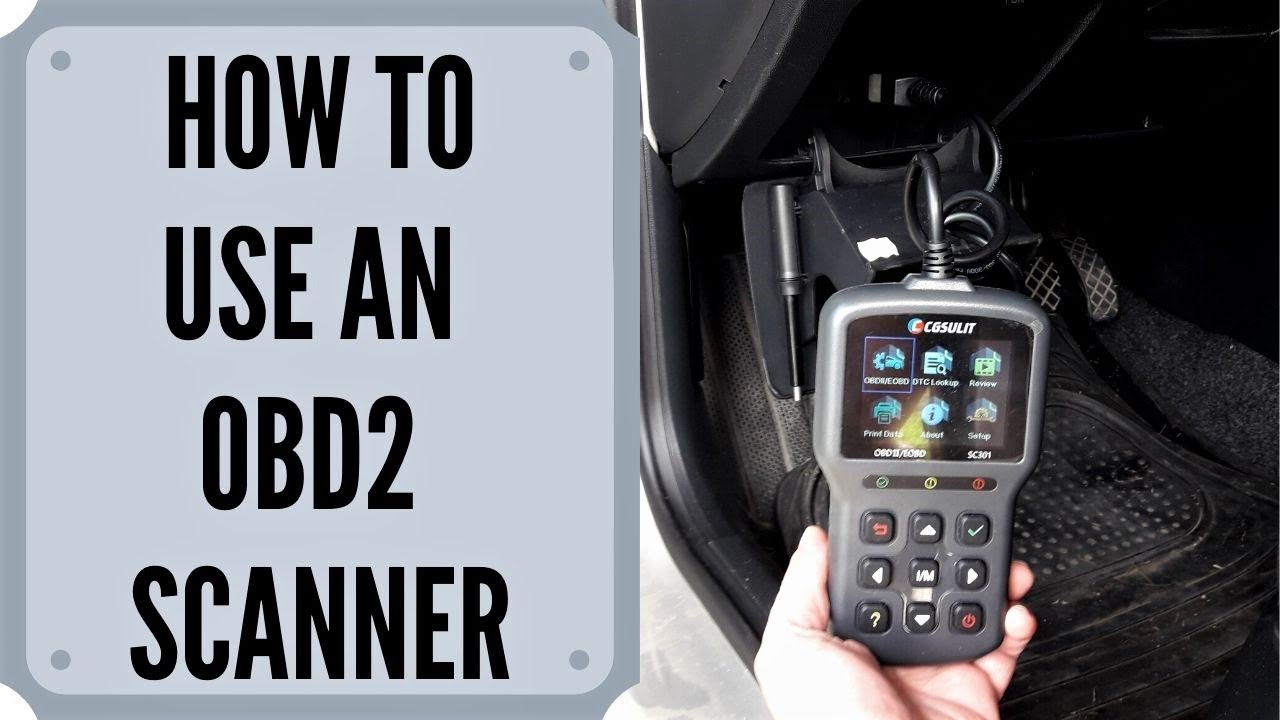
- Handheld OBD-II scanners
Easy to plug in and read codes. Great for quick checks and basic diagnostics. - Bluetooth OBD-II adapters
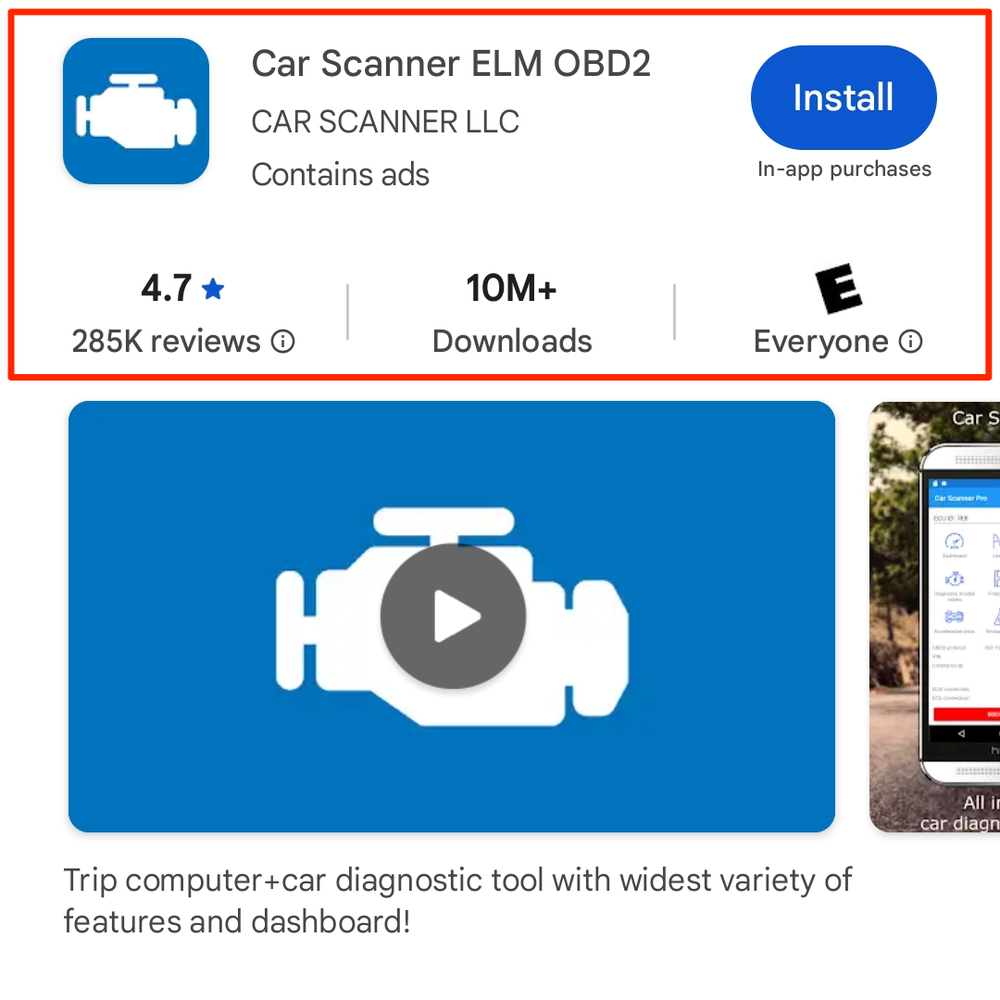
Plug into the OBD-II port and pair with a phone or tablet. Good for affordability and mobility. - Wi-Fi OBD-II adapters
Similar to Bluetooth but use Wi-Fi for some apps. Often faster for certain data streams. - Professional scan tools
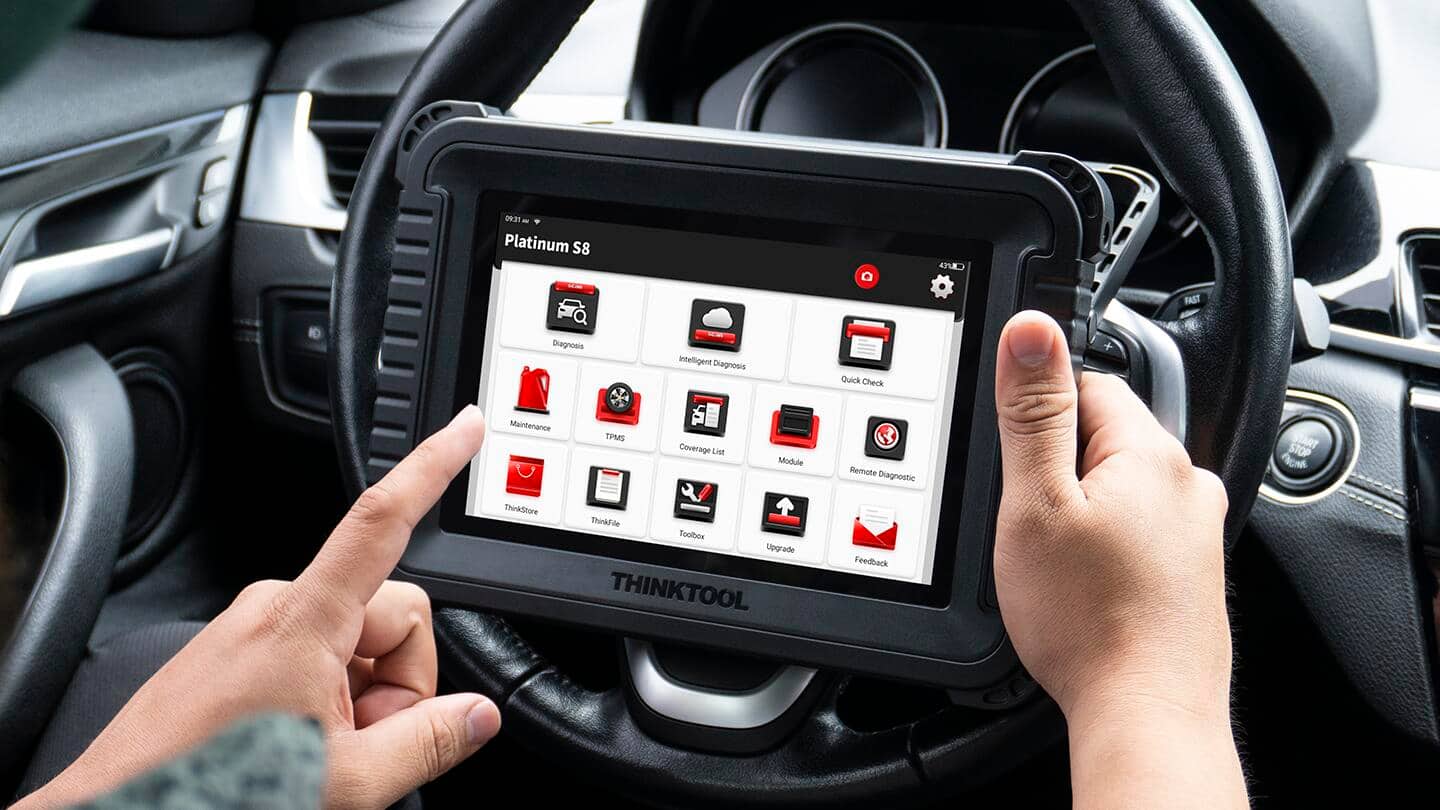
Built for shops. Offer advanced tests, module coding, and bi-directional control. - OEM-level software with adapters
Use manufacturer software for deep diagnostics. Best for advanced repairs.
How to connect a car scanner depends on the type you choose. I recommend starting with a Bluetooth adapter and a reputable app if you are new. It’s cheap and flexible.

Before you connect: safety and preparations
Prepare the car and scanner to avoid errors and risks.
- Park on level ground and set the parking brake.
- Turn off accessories and the engine at first unless instructed otherwise.
- Locate the OBD-II port; it’s usually under the driver-side dash.
- Read your scanner manual and phone app notes.
- Check battery health; low voltage can cause flaky readings.
I once ran a full scan while the battery was weak. The scanner returned odd codes that disappeared after charging. Moral: check battery voltage before complex tests.
Step-by-step: how to connect a car scanner (wired handheld)
This is the simplest wired method for most users.
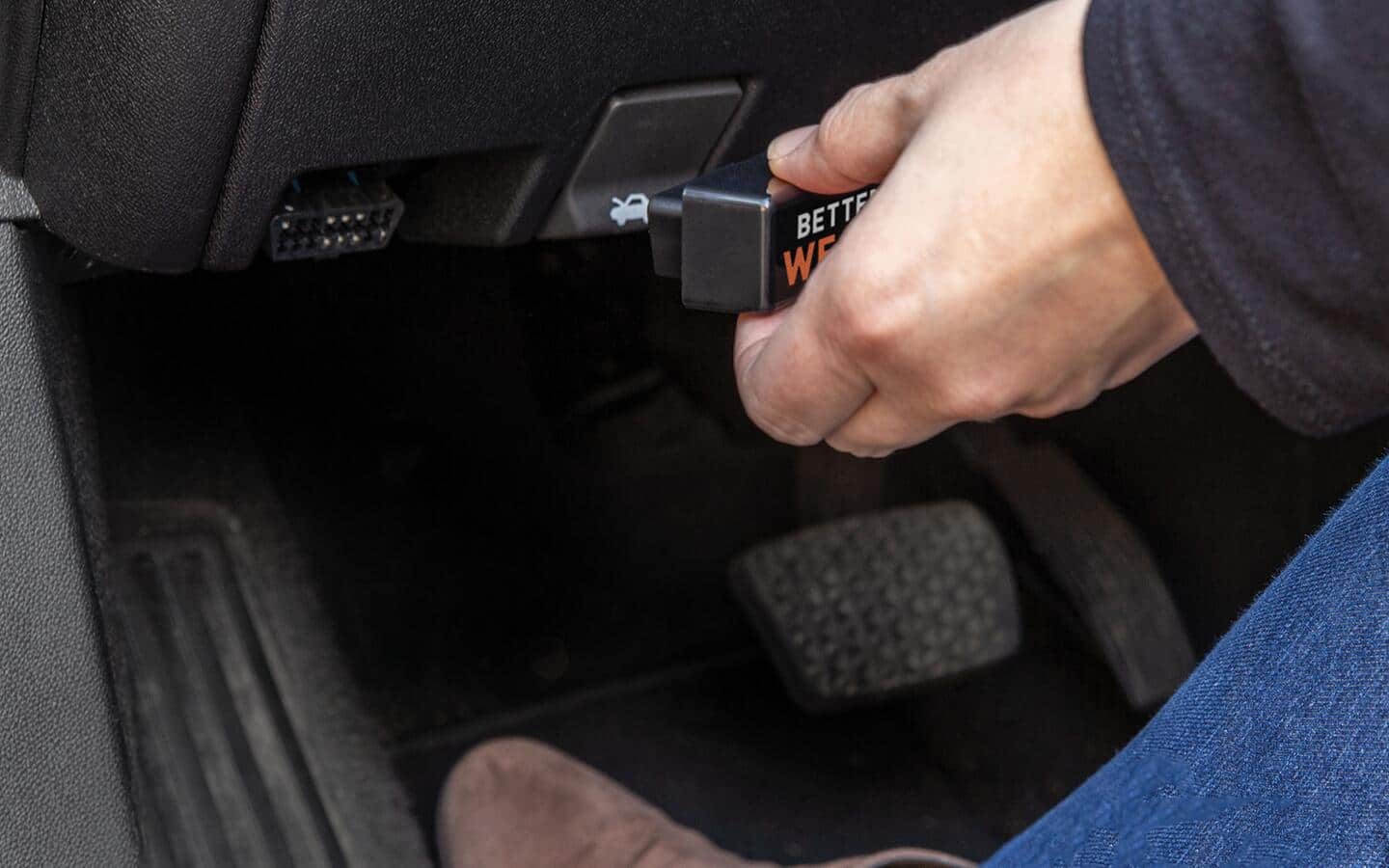
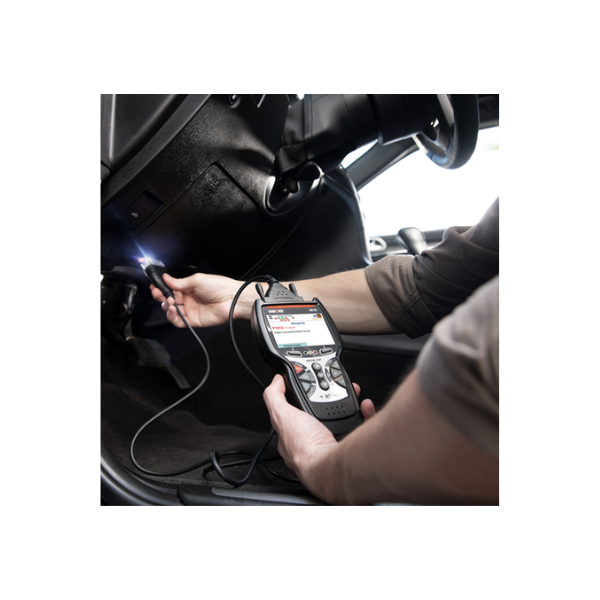
- Find the OBD-II port under the dash, near the steering column.
- Turn your ignition to the ON position (do not start engine) unless the manual says otherwise.
- Plug the scanner’s connector firmly into the OBD-II port.
- Power on the scanner if it has a separate power button.
- Allow the scanner to detect the vehicle; follow on-screen prompts to select system or perform an auto-scan.
- Read trouble codes and freeze-frame data. Save or write down codes for lookup.
A clear tip from experience: wiggle the connector gently after plugging in. A loose connection can show intermittent errors. Also, clear codes only after you understand them.
Step-by-step: how to connect a car scanner (Bluetooth or Wi-Fi adapters)
Wireless adapters are handy but need pairing and a compatible app.
- Plug the Bluetooth/Wi-Fi adapter into the OBD-II port.
- Turn ignition to the ON position. Some adapters power up only with ignition on.
- On your phone or tablet, open Bluetooth or Wi-Fi settings and locate the adapter. Pair or connect using the code provided in the adapter manual if needed.
- Open the scanner app and select the correct connection type (Bluetooth or Wi-Fi).
- Allow the app to detect the vehicle and load vehicle info. Start a scan or view live data.
- Save logs or share reports if needed.
From my tests, not all apps auto-detect every adapter. If pairing fails, close the app, unpair the adapter, and try again. Also check the app settings for the correct adapter protocol (e.g., ELM327).

Troubleshooting common connection issues
If the scanner won’t connect or shows errors, try these steps.
- No power to scanner
Check ignition position and port pins. Inspect for blown fuses if the port is dead. - Adapter not pairing with phone
Turn Bluetooth off and on. Restart your phone. Try another app. - Scanner shows wrong VIN or no VIN
Some cars block VIN access; try a different scan mode or a pro tool. - Intermittent connection
Clean the OBD-II port contacts and ensure the plug is seated properly. - False or pending codes after a clear
Drive cycles are needed for the car to re-run checks. Wait or complete a drive cycle before assuming a repair worked.
I once spent an hour troubleshooting a cable only to find a bent pin in the OBD port. Treat the connector gently and inspect pins before forcing a plug.

Tips, best practices, and mistakes to avoid
Small habits make diagnostics easier and safer.
- Use the right app for your adapter and vehicle.
- Keep a code log with date, mileage, and repairs done.
- Read freeze-frame data — it shows running conditions when a fault occurred.
- Don’t clear codes before diagnosing; clearing hides clues.
- Update scanner firmware and app regularly.
- For advanced tasks, use a quality scan tool or consult a pro.
One personal tip: when shopping, pick a scanner with community support and frequent app updates. Old adapters can work poorly on newer cars. Learning how to connect a car scanner well saves time and money over repeated shop visits.
Frequently Asked Questions of How to connect a car scanner
How do I find the OBD-II port in my car?
The OBD-II port is usually under the driver-side dashboard near the steering column. Check around the fuse box, under knee panels, or consult your owner’s manual.
Do I need the engine running to connect a car scanner?
Most scans start with the ignition in the ON position without starting the engine. For live data and some tests you may need to run the engine; follow your scanner’s instructions.
Can any scanner read all car brands and codes?
Basic OBD-II scanners read generic codes for emissions systems. Manufacturer-specific codes and advanced module tests may need a professional or brand-specific tool.
Why won’t my Bluetooth adapter pair with my phone?
Pairing can fail due to wrong PIN, Bluetooth conflicts, or app settings. Restart your phone, unpair previous devices, and try again with the app closed and reopened.
Will clearing codes fix my car problems?
Clearing codes erases error history but does not fix the underlying issue. Use clearing only after repairs and verifying the fault is resolved.
Is it safe to connect a cheap adapter to my car?
Cheap adapters can work for basic scans but may be unreliable for advanced diagnostics. Use trusted brands and avoid tools that request broad access to vehicle systems unless you trust them.
Conclusion
Knowing how to connect a car scanner puts diagnostic power in your hands. You can read codes, watch live data, and make smarter repair choices. Start simple with a reliable adapter and app, follow safety steps, and keep a steady log of findings and fixes. Try connecting a car scanner today, run a basic scan, and learn one new code — then dig deeper from there. Leave a comment with your setup or questions, and consider subscribing for more step-by-step car tech guides.