Wireless CarPlay connects your iPhone to your car through Bluetooth and Wi-Fi for hands-free driving.
Learning how to set up wireless CarPlay is usually simple once you know what your car needs. This guide explains compatibility, first-time pairing, troubleshooting, privacy, and daily-use tips in clear steps, so you can get on the road with less fuss.
What You Need Before Setting Up Wireless CarPlay
Before you start, check that your iPhone and vehicle support wireless CarPlay. Most newer iPhones work with CarPlay, but wireless support depends on the car, stereo, or wireless adapter.
You will usually need:
• An iPhone 5 or newer with a current version of iOS
• A car or aftermarket receiver that supports wireless CarPlay
• Siri turned on
• Bluetooth and Wi-Fi enabled on your iPhone
• Your vehicle parked in a safe place
• The car’s ignition turned on or accessory mode enabled
CarPlay is not the same as ordinary Bluetooth audio. Bluetooth handles the first connection, while Wi-Fi carries much of the display and app data. Think of Bluetooth as the handshake and Wi-Fi as the road that keeps the system moving.
Apple recommends keeping your iPhone updated because new iOS versions may improve wireless connections, app support, and bug fixes. Your vehicle’s stereo may also need a firmware update from the carmaker or receiver manufacturer.

How to Set Up Wireless CarPlay in a Compatible Car
The first wireless CarPlay setup takes a few minutes. After that, your iPhone should connect automatically when you start the car.
Step 1: Start your car and open the CarPlay menu
Turn on the car and wait for the infotainment screen to load. Look for a menu such as Phone, Smartphone Connection, Projection, or Apple CarPlay.
Some vehicles begin pairing from the Bluetooth settings menu. Others show a dedicated option for adding a phone. If you cannot find it, check the vehicle handbook or search the screen for “Add Device.”
Step 2: Turn on Siri, Bluetooth, and Wi-Fi
On your iPhone, open Settings and check these options:
• Siri: Go to Siri or Apple Intelligence & Siri, then allow Siri when needed
• Bluetooth: Open Settings, select Bluetooth, and turn it on
• Wi-Fi: Open Settings, select Wi-Fi, and turn it on
Wireless CarPlay needs both Bluetooth and Wi-Fi. Turning on Bluetooth alone may let you make calls, but it will not complete a wireless CarPlay connection.
Step 3: Pair your iPhone with the car
Choose your iPhone name on the car’s screen. A pairing code may appear on both devices. Confirm that the codes match, then tap Pair or Allow on your iPhone.
Your iPhone may ask whether you want to use CarPlay while the phone is locked. Tap Allow if you want automatic access each time you drive.
Step 4: Accept the CarPlay prompts
The car screen may ask you to enable CarPlay or use it wirelessly. Follow the prompts and wait a few seconds.
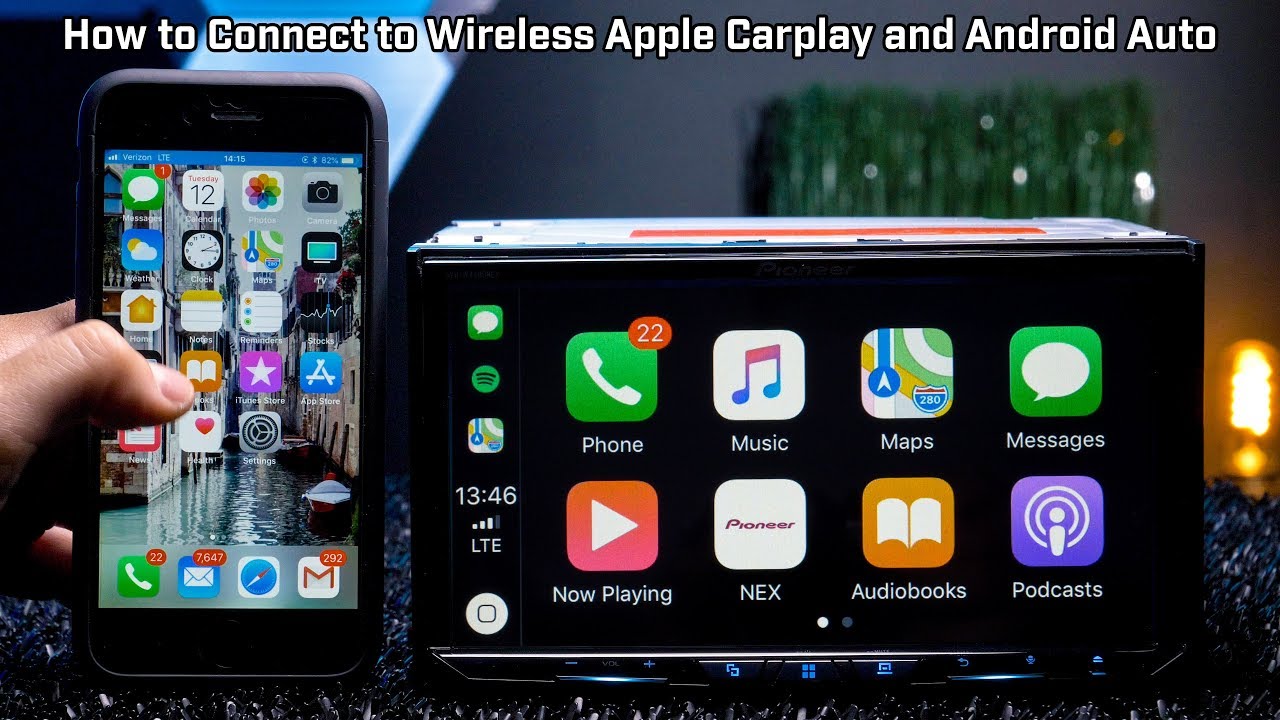
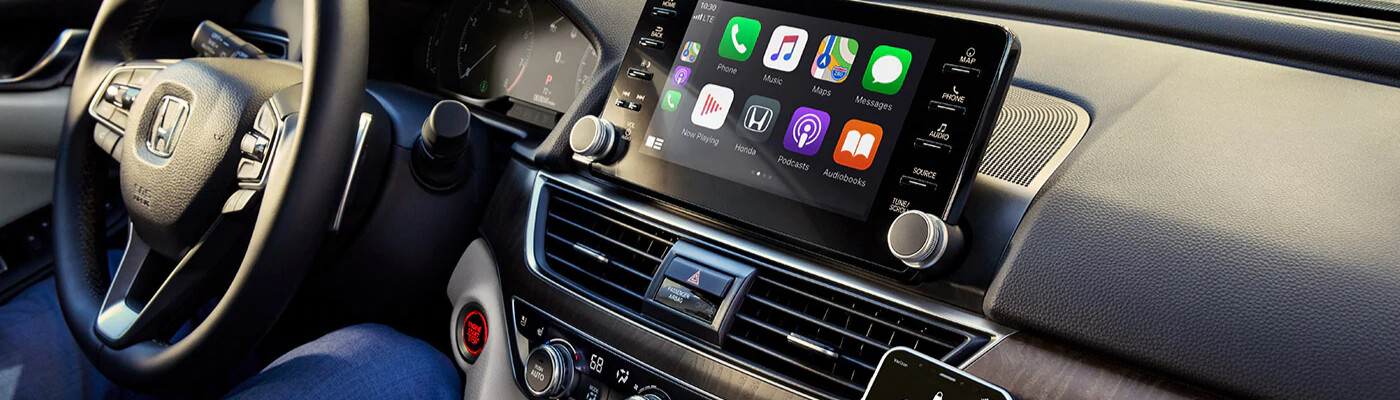
When the connection works, the CarPlay dashboard should appear. You can then use supported apps such as Apple Maps, Apple Music, Podcasts, Messages, and phone calls.
Step 5: Test the connection
Try one short test before driving:
• Ask Siri for directions
• Play a song or podcast
• Make a hands-free call
• Check that the steering-wheel controls work
This simple test can reveal a weak connection before you need navigation on a busy road.
How to Set Up Wireless CarPlay With a USB Connection First
Some vehicles require a wired connection during the first setup. This does not mean the car lacks wireless CarPlay. It may simply use the cable to register your iPhone before switching to wireless mode.
Use a high-quality Lightning or USB-C cable that supports data, not just charging. Connect the iPhone to the USB port marked with a phone or CarPlay icon.
Once CarPlay appears:
-
Unlock your iPhone.
-
Approve the CarPlay request.
-
Look for a prompt asking to use wireless CarPlay in the future.
-
Tap Allow or Use Wireless CarPlay.
-
Disconnect the cable after the wireless connection is saved.
If the car continues to require the cable, review its connection settings. Some models have separate choices for USB CarPlay and wireless CarPlay. Other models support only wired CarPlay, even if the USB port can charge an iPhone.
A common mistake is using the wrong USB port. Many cars have one data port and several charging-only ports. Try the port with a phone, CarPlay, or smartphone symbol.

How to Set Up Wireless CarPlay With an Adapter
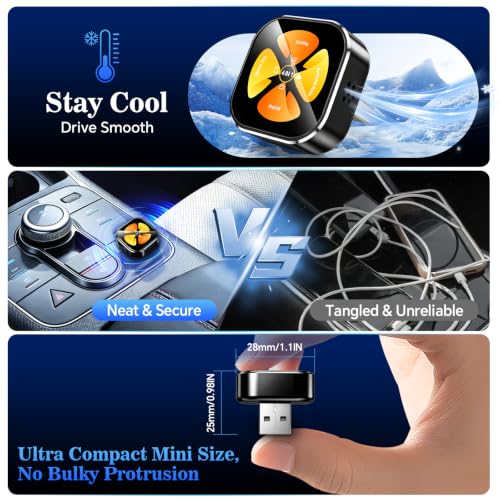
A wireless CarPlay adapter can add wireless access to a vehicle that already supports wired CarPlay. It cannot usually add CarPlay to a car that does not support CarPlay at all.
To use an adapter:
-
Start the car and plug the adapter into the USB port that supports wired CarPlay.
-
Wait for the adapter’s light or startup screen.
-
Open Bluetooth on your iPhone.
-
Select the adapter’s name.
-
Confirm the pairing code.
-
Accept the CarPlay request.
-
Unplug the phone and wait for wireless CarPlay to start.
Choose an adapter made for wireless CarPlay, not an Android-only product. Read the product details carefully because some adapters support only wired Android Auto or only specific vehicle systems.
Wireless adapters add another link between the iPhone and car. This may create a short startup delay or occasional connection drops. In most cases, keeping the adapter firmware updated helps.
Do not hide the adapter under heavy metal parts or near other wireless equipment. A clear location can help the Bluetooth and Wi-Fi signal remain stable.

How to Make Wireless CarPlay Connect Automatically
After the first successful setup, wireless CarPlay should connect when you enter the vehicle. The process may take a few seconds while the iPhone and car find each other.
Keep these settings in place:
• Bluetooth should stay on
• Wi-Fi should stay on
• Siri should remain enabled
• Your iPhone should not be in Airplane Mode
• CarPlay should be allowed while the iPhone is locked
You can review saved vehicles on your iPhone by opening Settings, selecting General, and choosing CarPlay. Tap your vehicle to view available options, such as allowing CarPlay while locked or forgetting the car.
If several phones are saved, the car may connect to the wrong one. Remove old phones or change the priority settings in the vehicle menu. This is especially useful in households where more than one driver uses the same car.
Wireless CarPlay can also stop connecting after a phone update, vehicle update, or network setting change. Rechecking the saved CarPlay profile often fixes the issue faster than changing many settings at once.

Wireless CarPlay Troubleshooting Tips
When wireless CarPlay does not work, start with simple checks. Most problems come from compatibility, disabled settings, an old pairing record, or a weak software connection.
Restart both devices
Turn the car off, open and close the driver’s door, and wait for the infotainment system to shut down. Restart the iPhone, then try the pairing process again.
A full restart clears temporary Bluetooth and Wi-Fi errors. It is often more useful than repeatedly tapping the CarPlay icon.
Forget and reconnect the vehicle
On the iPhone, open Settings, select General, CarPlay, and choose the vehicle. Tap Forget This Car.
Then remove the iPhone from the car’s Bluetooth device list. Restart both devices and pair them again as if they were new.
Check Screen Time restrictions
Content and privacy restrictions can block CarPlay. Open the iPhone settings for Screen Time and make sure CarPlay is allowed.
This check matters when CarPlay worked before but disappeared after parental controls or device restrictions changed.
Update the iPhone and car stereo
Install available iOS updates from the iPhone settings. For the vehicle, check the manufacturer’s support page or ask a dealer about infotainment firmware.
Do not interrupt a vehicle firmware update. A failed update can affect more than CarPlay, including the radio, backup camera, or Bluetooth system.
Reduce wireless interference
Keep the iPhone near the front of the cabin during setup. Remove other Bluetooth devices temporarily, such as a second phone or wireless receiver.
After the connection works, add devices back one at a time. This helps identify the source of interference.
Check for heat and low battery
An iPhone that is very hot may reduce performance. Direct sunlight, thick cases, and wireless charging pads can add heat during long drives.
Move the phone out of direct sun and remove a heavy case if the device becomes unusually warm. A cool phone usually performs more reliably.
Common Wireless CarPlay Problems and Solutions
CarPlay does not appear
Confirm that the vehicle supports wireless CarPlay rather than only wired CarPlay. If it supports only the wired version, you may need a compatible wireless adapter.
Also check that Siri, Bluetooth, and Wi-Fi are active. A phone can connect for calls while still failing to launch CarPlay.
The connection keeps dropping
Keep the iPhone updated and remove old saved vehicles. Then restart the car and phone.
If you use an adapter, update its firmware and try a different data-capable USB port. Avoid low-cost cables and adapters with unclear specifications.
The sound comes from the phone
Open the car’s audio source menu and select CarPlay or the connected iPhone. Also check the volume on the car, phone, and specific media app.
Some vehicles keep the radio selected even after CarPlay connects. Switching the source manually can solve the problem in seconds.
Navigation is inaccurate
CarPlay normally uses the iPhone and vehicle location data to support navigation. Check that Location Services are enabled for the map app you use.
Tall buildings, tunnels, poor cellular coverage, and outdated map data can affect directions. Wireless CarPlay does not guarantee a perfect GPS signal.
Siri does not respond
Check that Siri is enabled and that the microphone is not blocked. Try pressing and holding the voice-command button on the steering wheel.
Speak naturally and wait for the listening tone. Avoid handling the phone while driving, since CarPlay is designed to keep attention on the road.

Wireless CarPlay Safety and Privacy Tips
Wireless CarPlay is designed to reduce phone handling while driving, but it does not remove distractions. Set your destination and playlist before moving. Use Siri for messages, calls, and route changes whenever possible.
Many states have hands-free driving laws. Rules vary, so follow local requirements and your vehicle manual. Never type, scroll through messages, or hold the phone while driving.
CarPlay displays selected iPhone functions on the vehicle screen, but not every app is available. Apple limits supported apps to categories suited to driving, such as navigation, audio, communication, parking, charging, and vehicle functions.
For privacy:
• Use a personal iPhone profile rather than sharing your passcode
• Remove old phones from the car’s device list
• Turn off message previews if passengers may see private content
• Forget the vehicle before selling the car
• Review CarPlay permissions after major iOS updates
If you rent or borrow a car, do not save your phone unless you need to. Remove the connection before returning the vehicle.
Benefits and Limitations of Wireless CarPlay
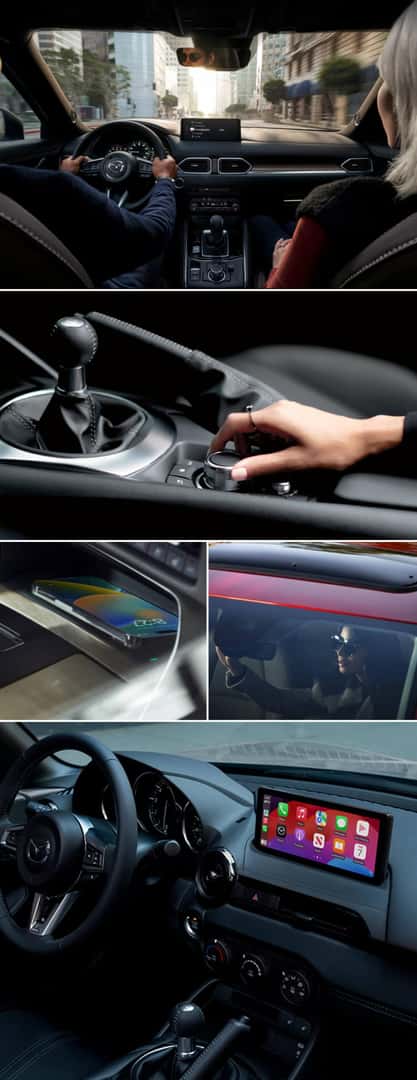
Wireless CarPlay removes the need to plug in your phone each time you drive. It gives you quick access to navigation, music, calls, and messages while keeping the dashboard familiar.
Key benefits include:
• Less cable clutter
• Automatic connection after setup
• Hands-free Siri control
• Access to supported navigation and audio apps
• Steering-wheel and vehicle-screen controls
It also has limits. Wireless CarPlay can use more iPhone battery than a wired connection, especially during navigation and music playback. A wireless charger can help, but it may add heat or charge slowly.
Wireless connections may also take longer to start than a cable. In areas with heavy radio interference, a wired connection may be more stable. For long trips, keep a data cable in the car as a dependable backup.
The best choice depends on your driving habits. If you take short trips and want convenience, wireless CarPlay is helpful. If you drive for hours or need the most stable connection, wired CarPlay may still be better.

Practical Tips for a Better Daily Experience
A few small habits can make wireless CarPlay feel much more reliable.
• Keep the iPhone software current.
• Use a strong phone mount within easy view but outside the airbag path.
• Keep a certified charging cable in the glove box.
• Remove phones you no longer use from the car.
• Organize the CarPlay dashboard so your most-used apps are easy to reach.
• Download offline maps and music before traveling through areas with poor service.
• Use Do Not Disturb or a driving Focus mode to reduce alerts.
In hands-on setup work, the biggest lesson is to change one thing at a time. If you reset network settings, replace a cable, update the car, and delete every device at once, you may fix the issue but learn nothing about its cause.
Another useful lesson is to test the system while parked. A five-minute test can confirm calls, navigation, audio, and steering controls before a real trip. That small habit prevents many stressful moments on the highway.
Frequently Asked Questions About How to Set Up Wireless CarPlay
How do I set up wireless CarPlay for the first time?
Turn on Siri, Bluetooth, and Wi-Fi on your iPhone. Start the car, select your iPhone from the vehicle’s Bluetooth or CarPlay menu, confirm the pairing code, and accept the CarPlay prompts.
Why will my iPhone connect to Bluetooth but not CarPlay?
Bluetooth alone can support calls and audio, but wireless CarPlay also needs compatible Wi-Fi communication. Check vehicle compatibility, enable Wi-Fi and Siri, then forget and reconnect the saved vehicle.
Can I use wireless CarPlay in a car that only has wired CarPlay?
Usually, yes, with a compatible wireless CarPlay adapter. Plug the adapter into the vehicle’s CarPlay USB port, pair it with the iPhone, and follow the adapter’s setup instructions.
Does wireless CarPlay work without cellular service?
Basic CarPlay functions can work without cellular service, but live traffic, online music, messages, and some map features may not. Downloaded music and offline maps can still work when supported.
Why does wireless CarPlay drain my iPhone battery?
Wireless CarPlay uses Bluetooth and Wi-Fi, while navigation and streaming also use the screen and processor. Use a vehicle charging pad or cable, and keep the phone cool during long drives.
How do I reset wireless CarPlay?
Open iPhone Settings, select General, CarPlay, and your vehicle, then choose Forget This Car. Remove the phone from the vehicle’s Bluetooth list, restart both devices, and pair them again.
Conclusion
Wireless CarPlay setup is usually a quick process: confirm compatibility, turn on Siri, Bluetooth, and Wi-Fi, pair the iPhone, and test the main controls while parked. If the connection fails, restarting both devices, deleting old pairings, checking updates, and using the correct USB port will solve many problems.
Keep a wired cable as a backup, update your car and iPhone, and set up navigation before driving. Try these steps in your vehicle today, then explore your carmaker’s support resources or share your setup experience in the comments.